
Managing your API keys
Find your API key under API & Webhooks in the console, keep it server-side, use a separate sandbox application for testing, and fix 401 and 403 errors.
API & Webhooks, scoped to the application you have selected. One key per application, and the key is the environment - there's no separate test key on a live application. It's a server-side secret: never in frontend code or an app bundle.
Your API key lives under API & Webhooks in the console sidebar, scoped to the application you're working in. Treat it like a password - it grants full API access on that application's behalf.
#Finding your key
- Log in to the Business Console
Go to business.didit.me and sign in.
- Select your application
Pick the application you want from the dropdown at the top of the console. Each application has its own key.
- Open API & Webhooks
Your API key is here, alongside your webhook destinations and their signing secrets.
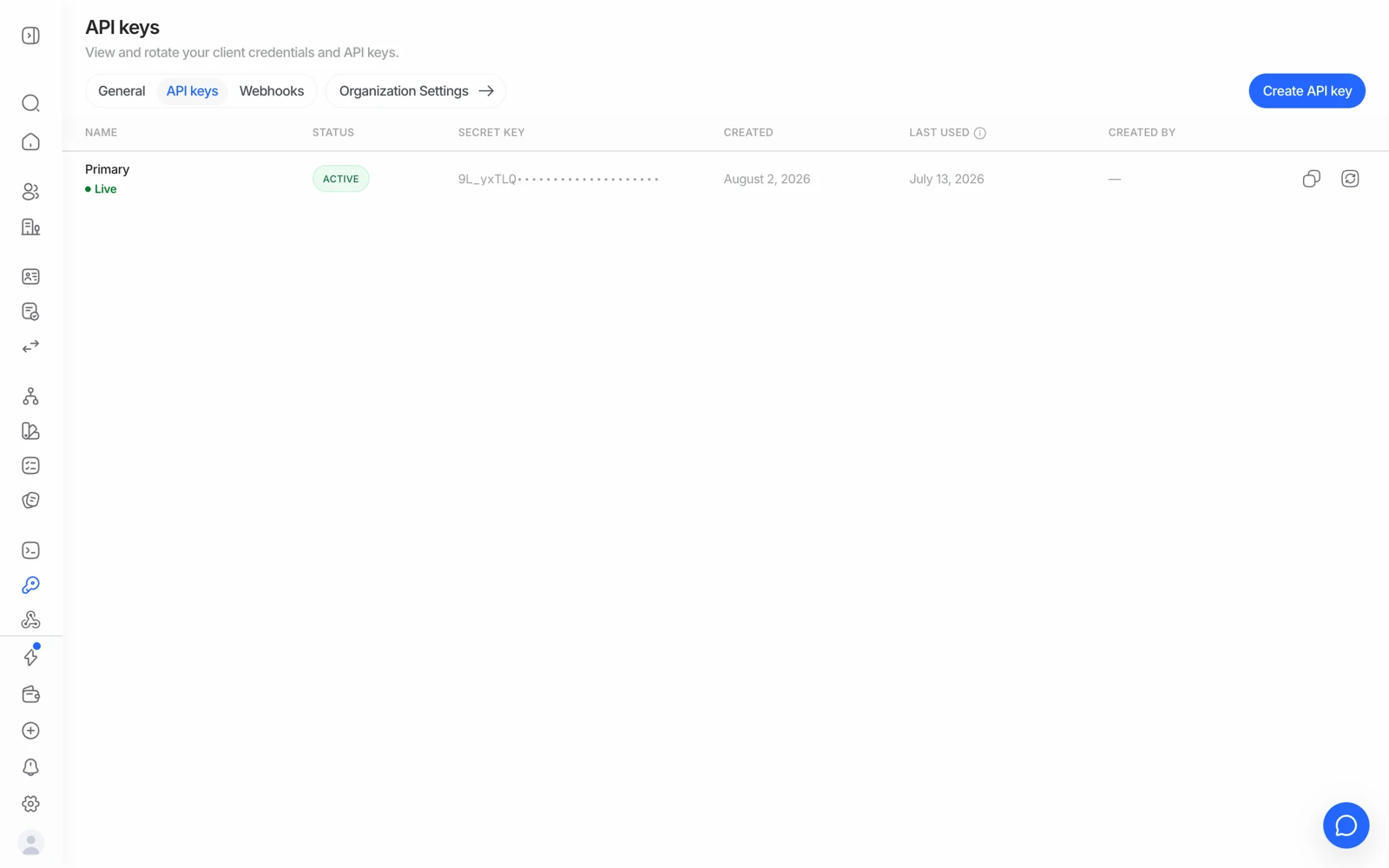
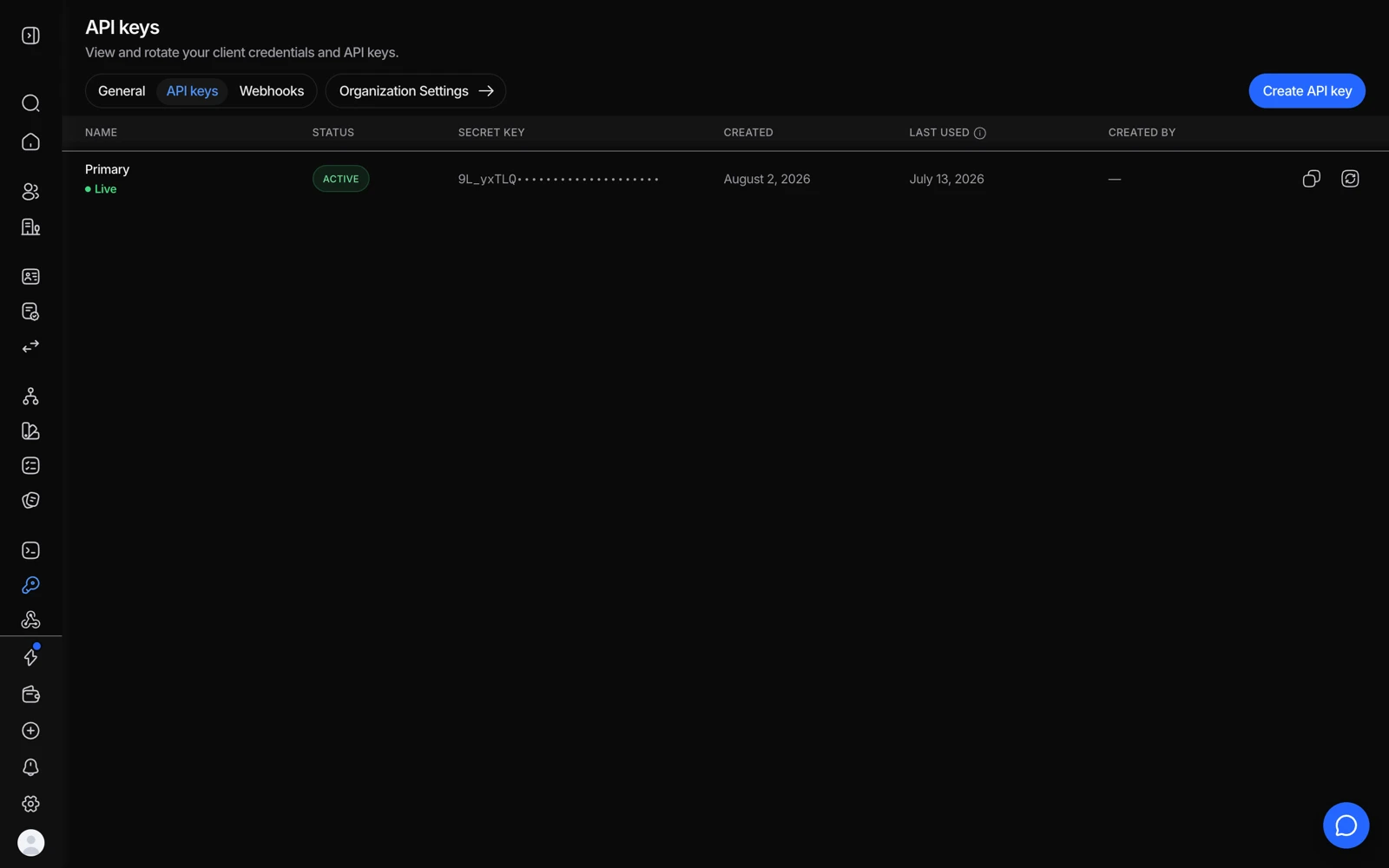
- Create API key issues a new key; keys are per application.
- The secret is shown here once - copy it into your own secret store.
- Rotate secret replaces the secret without changing the key's name.
- Last used is how you tell a live key from a forgotten one before revoking it.
#The API key and the signing secret are different things
Worth stating plainly, because mixing them up produces confusing errors:
| What it's for | Where | |
|---|---|---|
| API key | Authenticating your calls to Didit, in the x-api-key header | Per application |
| Webhook signing secret | Verifying that an incoming webhook really came from Didit | Per destination |
Sending the signing secret as your API key produces a 401. Verifying a webhook with your API key produces a signature mismatch. Both are common.
Your API key is a secret. Never put it in frontend code, a public repository, or a mobile app bundle - keep it server-side only. A key in a shipped app bundle is a key an attacker has. See API authentication.
#Getting a key for testing
You don't test against production. Create a separate application in sandbox mode - sandbox sessions mock every external check, are never billed, and don't touch real user data. Use its key while you build, and keep a separate live application for real verifications.
There is no "test key" on a live application. The key is the environment, so it's worth naming your keys unambiguously in whatever holds your secrets. See testing in sandbox.
#Rotating your key
If a key may have been exposed, regenerate it from the same API & Webhooks page. Regenerating invalidates the old key immediately, so update everywhere it's in use first - otherwise your production traffic starts failing at the moment you click the button.
Rotating on a schedule is good practice. Plan it as a deploy, not a click.
#Fixing 401 and 403
| Error | Cause | Fix |
|---|---|---|
401 | The key is missing, malformed, or has been regenerated | Copy the current key from API & Webhooks for that application. Check for stray whitespace or quotes, and that you didn't paste a signing secret |
403 | The key is valid but this call isn't allowed | Usually the wrong application, a sandbox-only field on a live key (or the reverse), a permission your key lacks, or a feature not enabled on your account |
A 403 on a specific workflow almost always means the key belongs to a different application than the one that owns that workflow. Switch application in the console and copy its key instead. Full breakdown: API errors and what they mean.
#Restricting what a key can do
If your requirement is to limit which data categories a key can reach - for instance to keep a service from retrieving document images - that's a permissions question rather than a key setting, and what's available depends on your account. Ask support rather than assuming a key is unrestricted or assuming it's restricted; both assumptions are risky in opposite directions.
#Who on your team can see keys
Key visibility follows role. The Developer role covers API keys; Reader does not. If a teammate can't find the page, check their role before reporting it. See inviting team members and setting roles.
#Every call is logged
API-key requests appear in Audit Logs attributed to the application rather than to a person - which is exactly why a shared key across several services makes an incident harder to investigate. One key per consumer is easier to reason about. See using audit logs.