
Fixing liveness and face match problems
Why liveness scores come back low, why face match sometimes fails or passes when it shouldn't, and what you can tune in your workflow.
Separate two things first: did the camera work, and did the check fail? A camera that never opened is an environment problem (in-app browser, denied permission, camera in use). A check that failed is a threshold or capture-quality problem.
Liveness confirms a real person is in front of the camera; face match confirms that person is the one on the document. When either comes back with a low score or a warning, it's almost always one of a small set of causes.
#The camera never opened
Before assuming the biometric check failed, rule this out - it produces the same "the selfie step didn't work" report from users:
- In-app browsers. A verification link opened inside another app's built-in browser often can't get camera access at all. Ask the person to open the link in their phone's normal browser.
- Permission previously denied. Once someone denies camera access for a site, the browser remembers and the flow can't ask again. They have to re-enable it in site settings.
- Camera already in use. Another tab, app, or video call holding the camera blocks it. On some devices, a microphone permission request can also tie up the camera.
- No camera at all. Desktop users without a webcam. Whether the selfie step is offered on desktop is a workflow setting.
#Liveness scored low or found no face
- No face detected - poor lighting, the face out of frame, or a technical issue during capture. Ask the person to retake in better light with their face centered and nothing covering it.
- Low liveness score - can be a genuine low-quality capture (bad lighting, low camera resolution) or a suspected spoof (photo, screen replay, mask). If you're seeing this on real users, request a resubmission rather than declining outright.
- Presentation attack detected (
LIVENESS_FACE_ATTACK) - the system found strong evidence of a spoof attempt. This one is intentional and auto-declines the session.
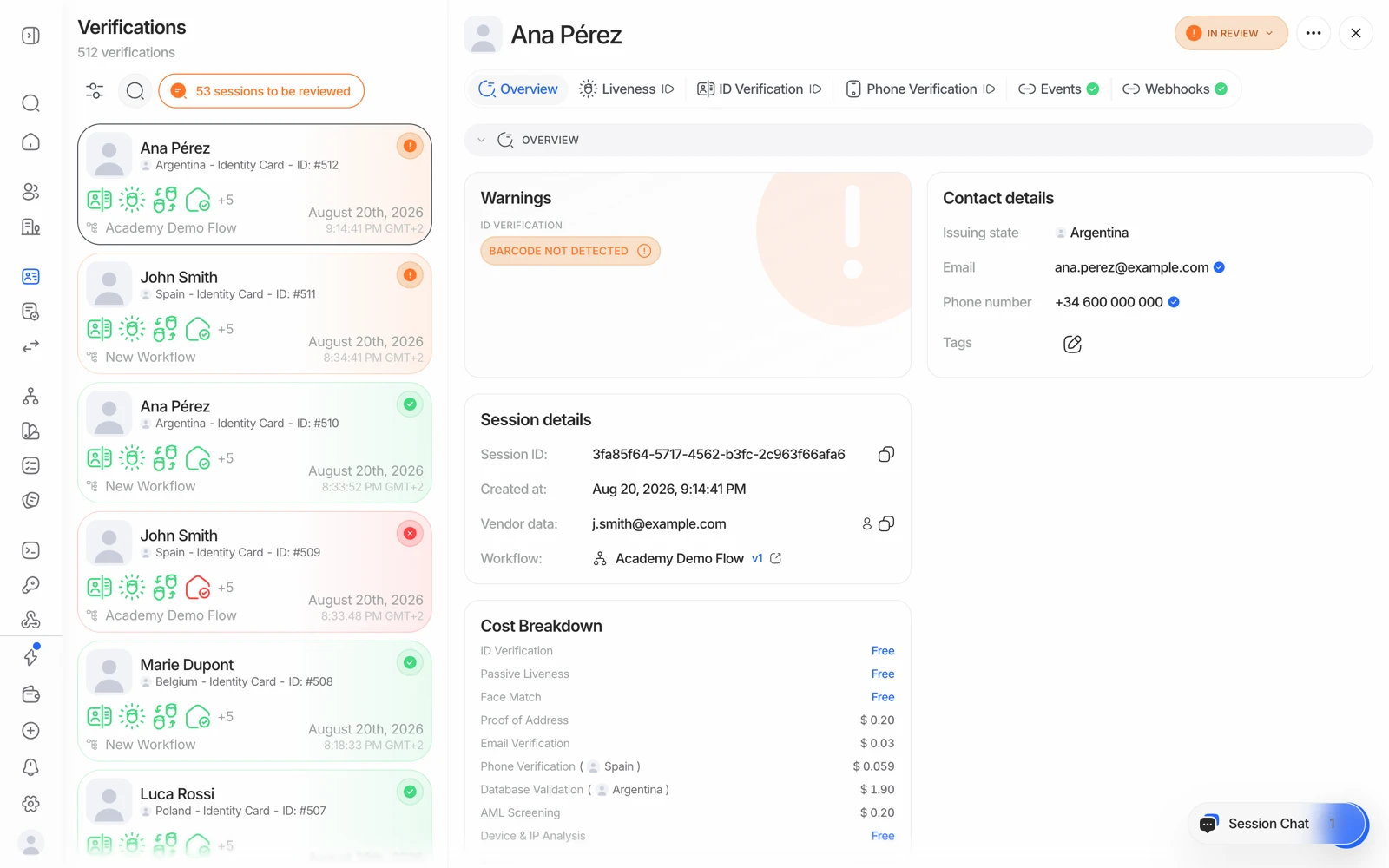
- Start with the captured selfie - most failures are visible in it.
- Events tells you whether the user retried, and how many times.
- If the capture was the problem, reopen the session from here so they can try again.
If low liveness scores cluster on particular devices, check which method your workflow uses: active methods (3D Flash, 3D Action) are noticeably harder on older phones and in dim rooms than passive liveness. See how liveness detection works.
#Face match doesn't look right
Face match compares the selfie against the photo on the document and produces a similarity score, checked against your workflow's thresholds:
- Score below the review threshold - the session goes to In Review for a human to confirm.
- Score below the decline threshold - the session is declined automatically.
- No face found in the selfie or the document photo - the person is normally prompted to retake the selfie (they get a few attempts) before this is treated as a final result.
The score is also affected by things that have nothing to do with identity: an old document photo, a heavily worn card, glasses, a hat, a beard grown since the photo was taken, or a very low-resolution portrait on the document. Those all legitimately depress the score for the right person.
If a genuine user is repeatedly failing face match, or you're seeing approvals you don't think should have passed, the fix is to adjust the review and decline thresholds. See face match scores and thresholds.
#A legitimate returning customer flagged as a duplicate
The liveness step also runs a 1:N face search against everyone you've already verified. Your own repeat customers will match themselves - which is expected, not a fraud signal. Pass vendor_data consistently so both sessions resolve to the same person. See duplicate accounts and face search.
#Reducing document capture fraud
If you're seeing users submit a photo of a document instead of scanning the physical item live, or a third person capturing the ID for someone else, your workflow's ID Verification and liveness settings let you tighten this up:
- Restrict capture to the live camera only, removing the upload path.
- Use the cross-camera face match check, which compares the face seen by the camera during document capture against the selfie, and route mismatches to review or decline instead of passing them silently.
Removing the upload path raises assurance and lowers completion. Users on locked-down devices, with a broken camera, or on a desktop with a poor webcam will fail rather than fall back. Decide which matters more for the flow in question rather than applying it everywhere.
#When it's the same person but a very old document
For a document whose portrait is a decade old, no threshold setting is going to be reliably right. The better answer is a stronger check: NFC reads the portrait straight off the chip, which is the same image the issuer holds, and removes the print-quality variable entirely. See NFC chip verification.
#Related
- Why a verification was declined
- Fixing document upload and reading problems
- Letting someone try a verification again