
Downloading a verification report
Export a single session as a PDF, a whole user's history as one file, or many sessions as CSV - for audits, regulators and your own records.
Open a session and click Download PDF for one report, or use Actions → Download PDF on a user's page for their whole history in one file. For bulk data, use the CSV export with the columns and filters you choose.
#One session as a PDF
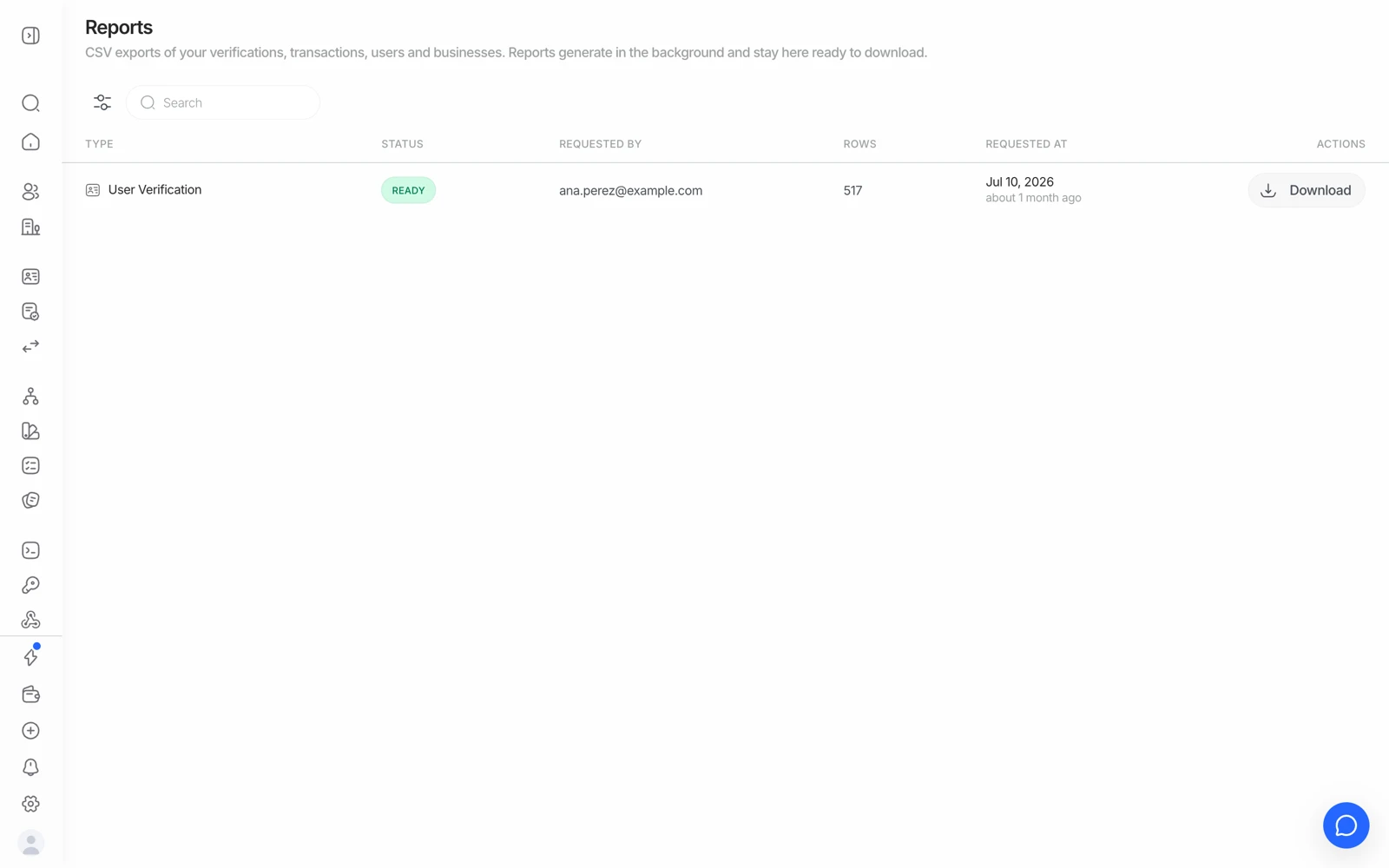
- One row per export, by type: verifications, transactions, users or businesses.
- Exports generate in the background; the row turns to READY when the file is waiting.
- Download fetches the finished CSV.
Open any session in Verifications and click Download PDF. The report contains every verification step, the extracted data, the biometric scores, the AML results, and the final decision - laid out for compliance audits and regulatory filings.
Developers can generate the same report through the Generate PDF API.
A PDF can only be produced for a session that has reached a reportable state. If the download fails on a session that is still In Progress or Not Started, that's why - there is no decision to report yet.
#A whole person's history in one file
To get every session for one user in a single document, open that user's detail page and choose Actions → Download PDF. The file bundles:
- A cover page with the profile summary, feature status, and an index of sessions.
- The full standard report for each of that user's completed sessions, in chronological order.
Only sessions in a reportable status - Approved, Declined, In Review, Kyc Expired - are included, and it's capped at the 20 most recent. The cover page states explicitly when older sessions were left out, so the omission is never silent.
Sessions are grouped by vendor_data, which is another reason to set it consistently: without it, one person's attempts can't be bundled into one history.
#Many sessions as CSV
For bulk analysis, periodic compliance reporting, or importing into your own systems, use the CSV export from the Verifications list. You choose which columns to include and which sessions to filter to, so you're not exporting fields you don't need.
#What the report is good for
The PDF is designed to be the artefact you hand to an auditor or a regulator: it shows the document images, the selfie, the liveness result, the machine-readable-zone result, the decision, and the timestamps in one place. Teams operating under a supervisory regime generally attach it to their own case file.
The report's activity history also records who changed the session's status - so if you need to know which teammate manually approved or declined a session, download its PDF and check that section.
If your obligation is to retain the evidence yourself rather than rely on us holding it, export the PDF at the point of decision and store it in your own system - that's the pattern to build, and it works alongside a short retention window on the Didit side.
#Report language
The PDF renders in English. If your users complete the flow in another language, the report they went through and the report you download won't match language - the report is an internal compliance artefact, not something to hand to the end user.
#Business verification reports
A KYB session produces its own report covering the registry data, the ownership structure, and the status of each key person's verification. Because a KYB parent session depends on child sessions, generate it once the parent has reached a terminal status - otherwise the people section will show verifications still in flight.
#Getting the raw data instead
If you want the result in your own system rather than as a document, don't export - take it from the webhook. The payload carries the same decision object the PDF is rendered from, and it arrives within seconds of the person finishing. See getting results with webhooks.
#Audit trail of who exported what
Report generation and export are API calls, so they appear in Audit Logs along with who made them - useful when you need to show that access to verification evidence is controlled. Logs are kept for 365 days. See using audit logs.