Events is one feed of everything across your products, from sessions and transactions to automated actions and your own events. Filter and export it.
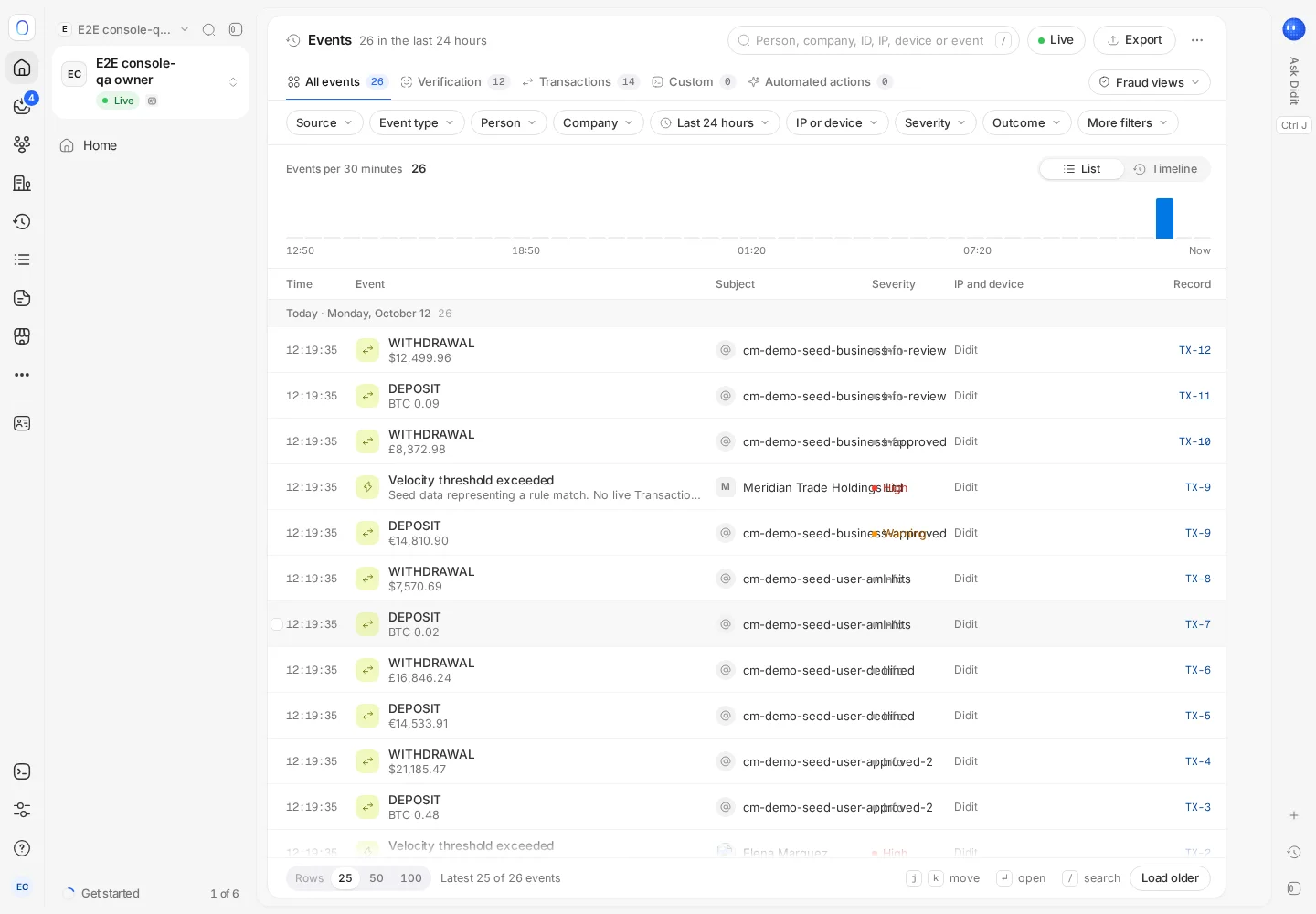
Events in the sidebar is one live feed across your products: verification sessions, transactions, automated actions, and custom events you send with the Events API, such as logins, withdrawals or chargebacks. Filter by person, company, IP address, device or outcome, switch to a timeline, or open a ready-made fraud view such as One device, several people.
The Events feed is rolling out and may not be switched on for your organization yet. If Events is missing from the sidebar, it isn't available to you yet.
Every event lands in the feed as it happens. Verification sessions, transactions and automated actions appear on their own; send your own events with the Events API to read one person's whole story in one place.
#Reading the feed
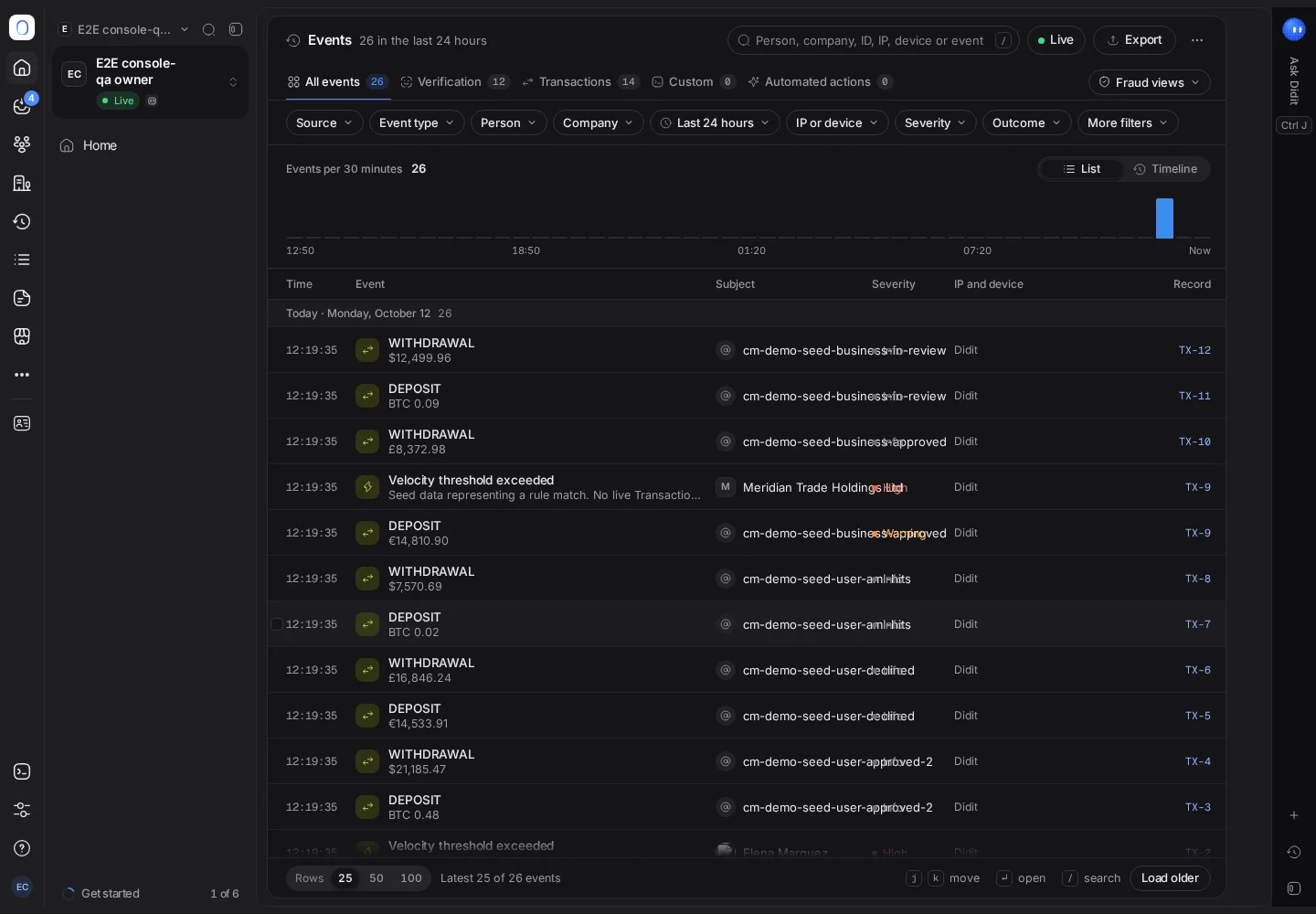
Each event shows its source (Verification, Transactions, Custom or Automated actions), who it's about, a severity and an outcome: Succeeded, Needs review, Blocked or declined, Failed or Recorded.
The feed updates live. Press Live to pause it while you read (it then reads Paused), and Resume live, or Show new in the banner, to catch up.
#Filtering
- Search for a person, a company, an ID, an IP address, a device or an event.
- Pick a time range: the last hour, 24 hours, 7 days or 30 days. The feed opens on the last 24 hours.
- Filter by source, event type, person, company, IP address, device, country, network, severity or outcome.
- Switch the layout between List and Timeline, and group the timeline by person or by company.
Save view keeps a filter set you use often, and Copy a link to this view shares it with a teammate.
#Fraud views
Ready-made views show patterns that are hard to spot one event at a time, for example:
- One device, several people: one phone or computer used by three or more people in seven days.
- Many sessions from one IP.
- New device, then a payout, when you use transaction monitoring.
Each view explains what it looks for at the top of the page.
#An event in detail
Click an event to see its details (and, for a custom event, its payload), linked records, notes and related events. Risk signals in the detail are visible to your team only, never to the person.
From there, Add to list blocks or allows what you found (an IP address, a device), and, where case management is available, Create case opens an investigation with the selected events attached. See working with cases.
#Exporting
Where it's available, Export creates a CSV or JSON report of the events matching your current filters, for a period of up to a year. Follow its progress, and download it, in Reports. See reports and exports.
#Permissions
You see the events for the records you're allowed to list: verifications, transactions or cases. Exporting needs write access to the same kind of record, and the export only includes what you're allowed to export.
Still stuck? Talk to a human.
Include your organization ID and the session ID you are asking about.