The Inbox collects everything that needs you, sorted by deadline and risk: verifications, AML matches, cases, networks, mentions, and service updates.
Inbox is the second item in the sidebar. Decisions holds what's waiting for you to decide (verifications, AML hits, transactions, cases, networks and Investigator questions), sorted by deadline, then risk. Updates holds mentions, service status, webhook and billing alerts, support replies and invitations. Act on an item right there, or open it.
The Inbox is rolling out and may not be switched on for your organization yet. Until it is, the Inbox item in the sidebar opens your notifications and invitations instead.
The Inbox is where you start the day. Instead of checking the verifications list, the cases list and your email separately, everything that needs you lands in one list.
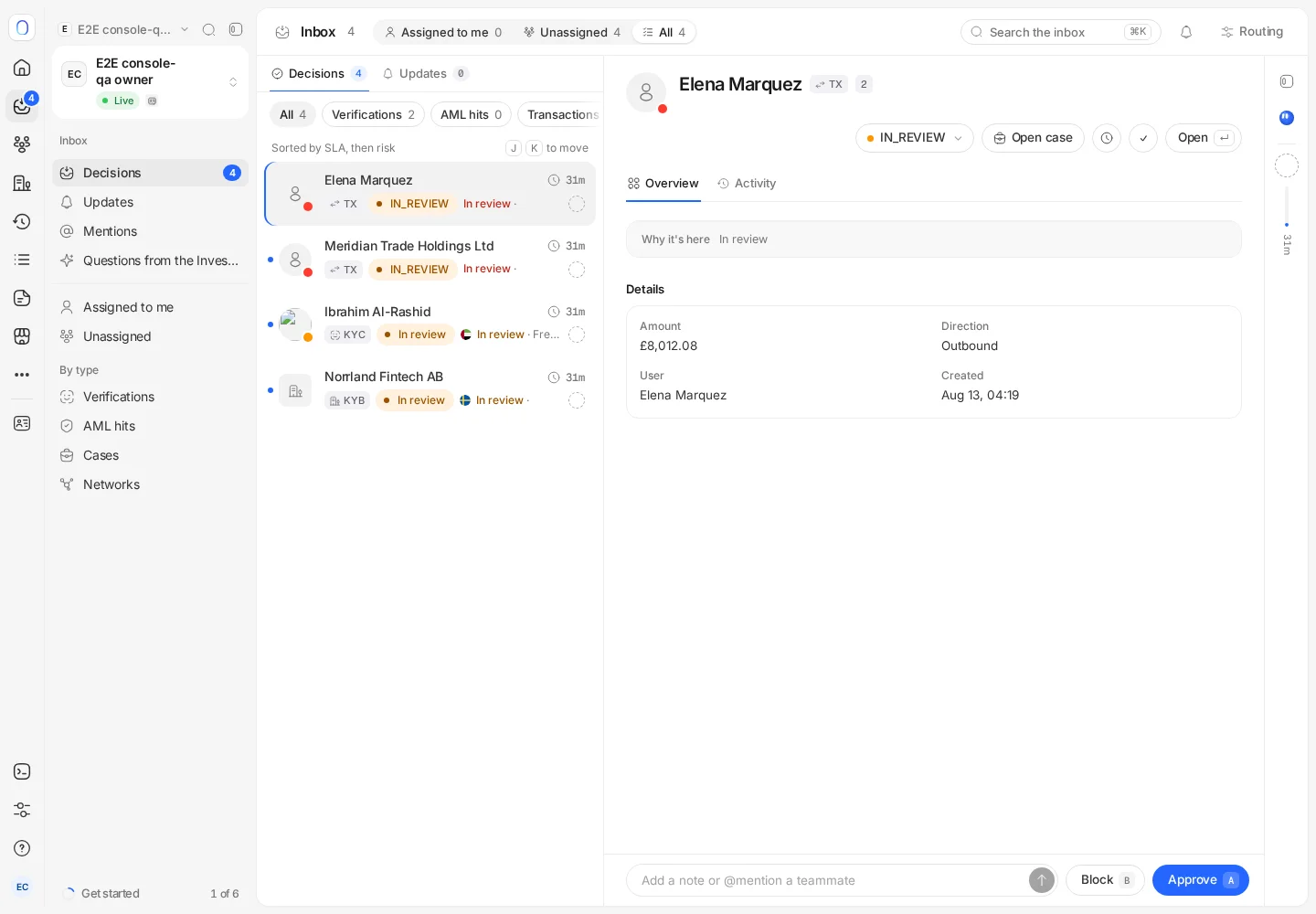
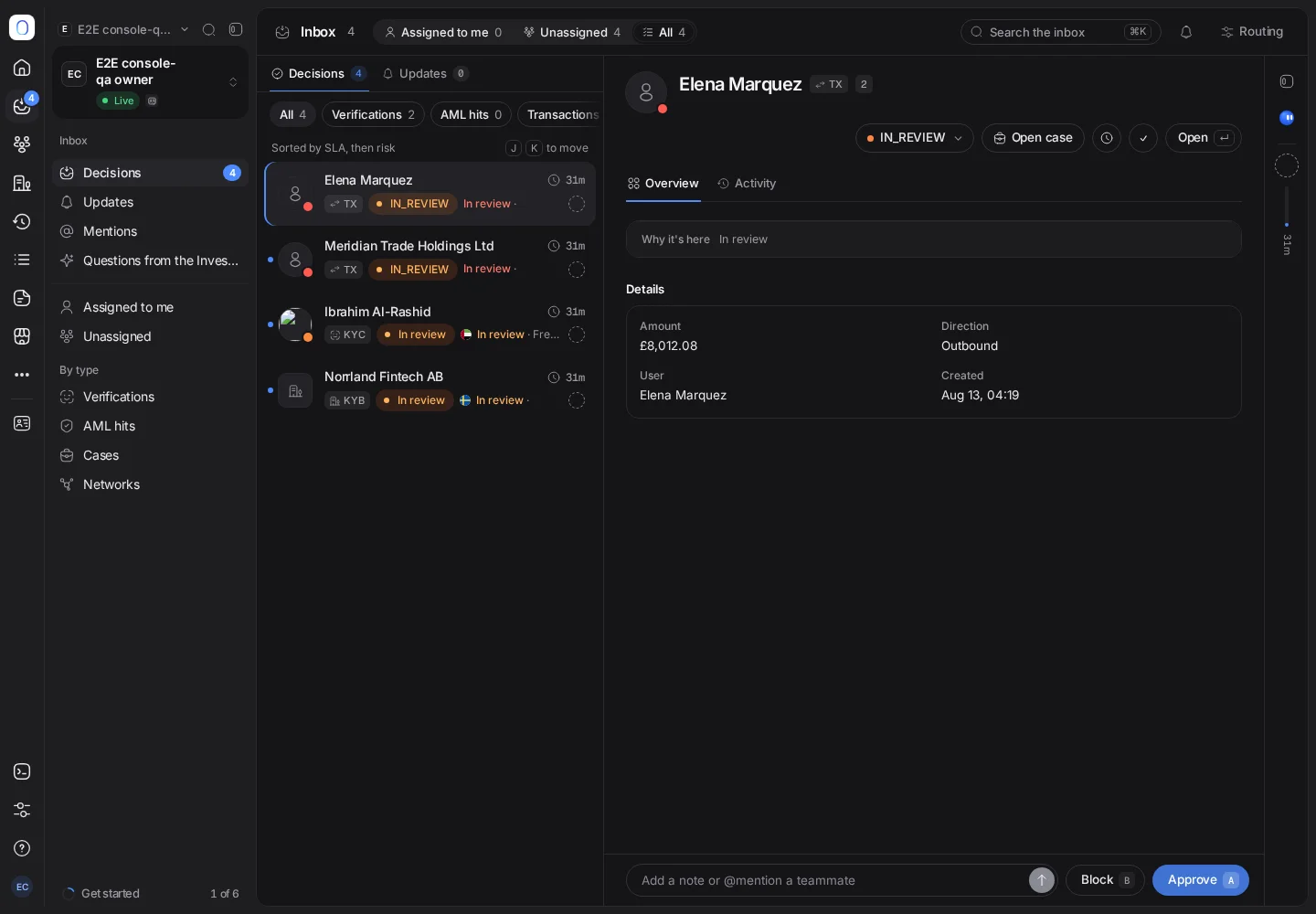
#Decisions and updates
- Decisions lists what needs a decision: verifications in review, AML hits, held transactions, cases and networks, and questions from the Investigator. It's sorted by deadline, then by risk, so the most urgent item is always at the top. Filter it by kind with the chips above the list.
- Updates lists what you should know about: mentions, service status, failing webhooks and billing alerts, replies to your support tickets and organization invitations. It's newest first, and Mark all read marks every update as read.
Switch between Assigned to me, Unassigned and All at the top to see your own work, what nobody has picked up yet, or the whole team's.
#Acting on an item
Select an item to see its details and act without leaving the Inbox:
- Approve or Decline a verification, with the reason saved to its activity. A business verification waiting on its people offers Send reminder instead.
- Approve or Block a transaction.
- Confirm match or Dismiss an AML hit.
- Assign an item to a teammate (they're notified right away), add a tag, or add a note and @mention someone. Where case management is available, Open case turns the item into a case.
- Answer a question from the Investigator, where it's available: see Investigator items below.
- Ask Didit about the item.
- For updates: retry failed webhook deliveries, top up your balance, open the status page, or reply to a support ticket.
When you're done, Mark done (or press E) moves the item out of your way; on a case, E resolves it, and on a support ticket it's Mark solved. Undo brings it back. Snooze hides it until later today, tomorrow morning or next Monday.
#Investigator items
Where the Investigator is available, the Inbox also holds its work:
- Questions. A question from the Investigator is a Question in Decisions, marked Your answer needed. It shows what the Investigator asks, where the question came from and what it recommends. Pick your answer, such as Always ask a person, press Preview the impact to see the past reviews like it and the open items it would decide now, then press Add to policy. Saving updates your policy and can decide matching open items. Not now leaves the question open.
- Reports. An item with an Investigator report shows what Didit Investigator suggests, with its confidence, its sources and whether it's ready to accept. Press the suggestion to take it, Ask why to ask Didit about it, or Open the full report.
- Reopen tasks. When a decision your team took fails the Investigator's QA review, a reopen task lands in your Inbox so someone can take another look.
#Keyboard shortcuts
| Key | What it does |
|---|---|
| J / K | Next or previous item |
| A | Approve |
| D | Decline, or dismiss an AML match |
| B | Block a transaction |
| C | Confirm an AML match |
| R | Send a reminder |
| E | Mark done |
? opens the console's general keyboard shortcuts.
#What you're notified about
The bell at the top of the Inbox opens Inbox notifications, which only change what you receive, not your teammates: a daily digest, mentions, service status and failing webhooks. For email, chat and SMS alerts, see notifications.
#Permissions
Everyone in your organization has an Inbox. What you can do with an item follows your role: approving a verification needs write access to verifications, blocking a transaction needs write access to transactions, and so on. See inviting team members and setting roles.
Still stuck? Talk to a human.
Include your organization ID and the session ID you are asking about.