Every console setting lives in your own account (profile, security, notifications) or in your organization (members, roles, billing, sign-in and more).
Click Settings at the bottom of the sidebar. Your account holds what's personal to you: profile, security, notifications, preferences and support tickets. Below it, your organization holds what's shared: general details, members, roles, billing and plan, security and sign-in, the audit log and more. Type in Search settings to jump to any of them.
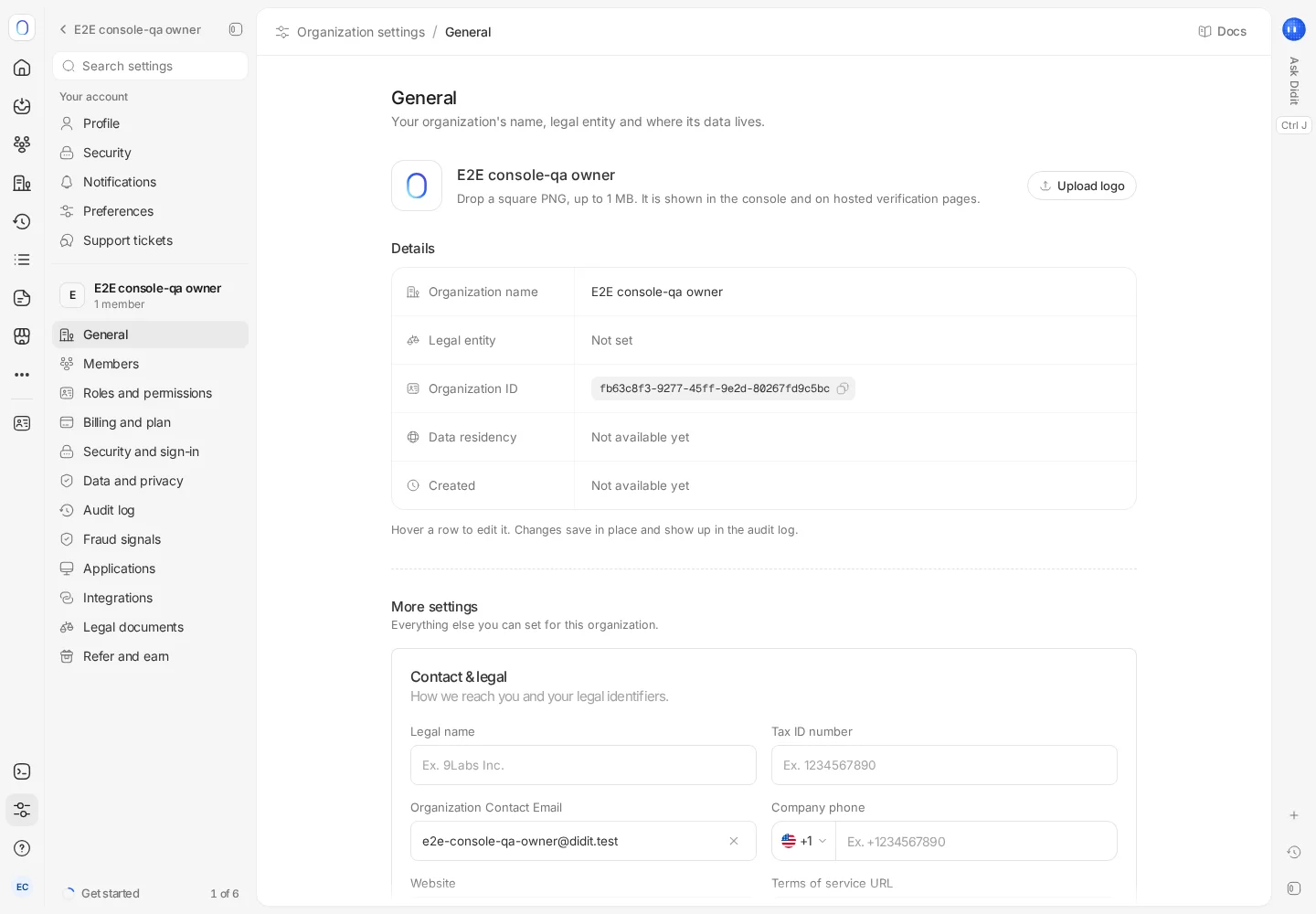
#Your account
| Page | What's there |
|---|---|
| Profile | Your photo, name, email and role. Your email can only be changed by support, and support can also delete your account for you |
| Security | Two-factor authentication (passkeys and an authenticator app), your active sessions with Log out all other sessions, and the apps connected to your account. Sign-in methods and recovery codes are rolling out here |
| Notifications | What you hear about and where. See choosing your notifications |
| Preferences | Appearance (Light, Dark or System) and language |
| Support tickets | Every ticket your organization has opened, and New ticket to open another |
#Your organization
| Page | What's there |
|---|---|
| General | Your logo, organization name, legal entity, organization ID, data residency and creation date. Under More settings: tax ID, phone and website, Require two-factor authentication for everyone, Privacy and data use (the model-training choice) and your applications. The legal entity is changed through support |
| Members and Roles and permissions | Who's in the organization and what each role can do. See inviting team members and setting roles |
| Billing and plan | Balance, usage and receipts. See the Billing and plan page |
| Security and sign-in | Company single sign-on (SAML), with domain verification and the option to enforce SSO. Session length and an IP allowlist are rolling out here |
| Audit log | Every API request in the organization, by members and API keys. See using audit logs |
| Fraud signals | Where networks are available: whether your organization shares fraud signals with the Didit network. See fraud networks |
| Applications | Every application in the organization |
| Integrations | A summary of what's connected. Integrations themselves are managed in the Marketplace |
| Legal documents | Your Terms of Service, Privacy Policy, Data Processing Agreement, sub-processor list and, on Enterprise, your Master Service Agreement |
| Refer and earn | Your referral link and the credit you've earned from it |
Some pages are rolling out and may not appear for your organization yet, such as Data and privacy for retention and privacy settings in one place.
Pages you can open but not change show their settings read-only. Changing organization settings needs permission to update the organization, which in practice means owners and admins.
#Application settings
What belongs to one application, such as its API keys, webhooks, redirect URLs and data retention, lives under Developers, or under Application settings in the application menu at the top of the sidebar. See organizations, applications and environments.
#Refer and earn
Get your referral link under Refer and earn, then share it. You earn a commission on the cash deposits of the organizations you refer, which you can turn into balance or request as a payout. See organizations, applications and environments for the terms.
#SCIM provisioning
When SCIM is available, Enterprise administrators manage provisioning under Settings → Security and sign-in. Choose a default role, applications and attribute mappings. Generate the identity provider’s token, copy it when shown, and keep it private. This section also supports token rotation, revocation and provisioning activity. Availability and write access are required.
Still stuck? Talk to a human.
Include your organization ID and the session ID you are asking about.