Import users from another identity platform with their passwords, verified emails and social links, so nobody signs up again. Dry run first, then import.
Open Authentication → Import users in a Live application, press New import, upload one CSV or JSON file, run a Dry run, then press Start import. People keep their password, verified email, social links, authenticator apps and your user IDs, and nothing changes for them until your app signs them in with Didit.
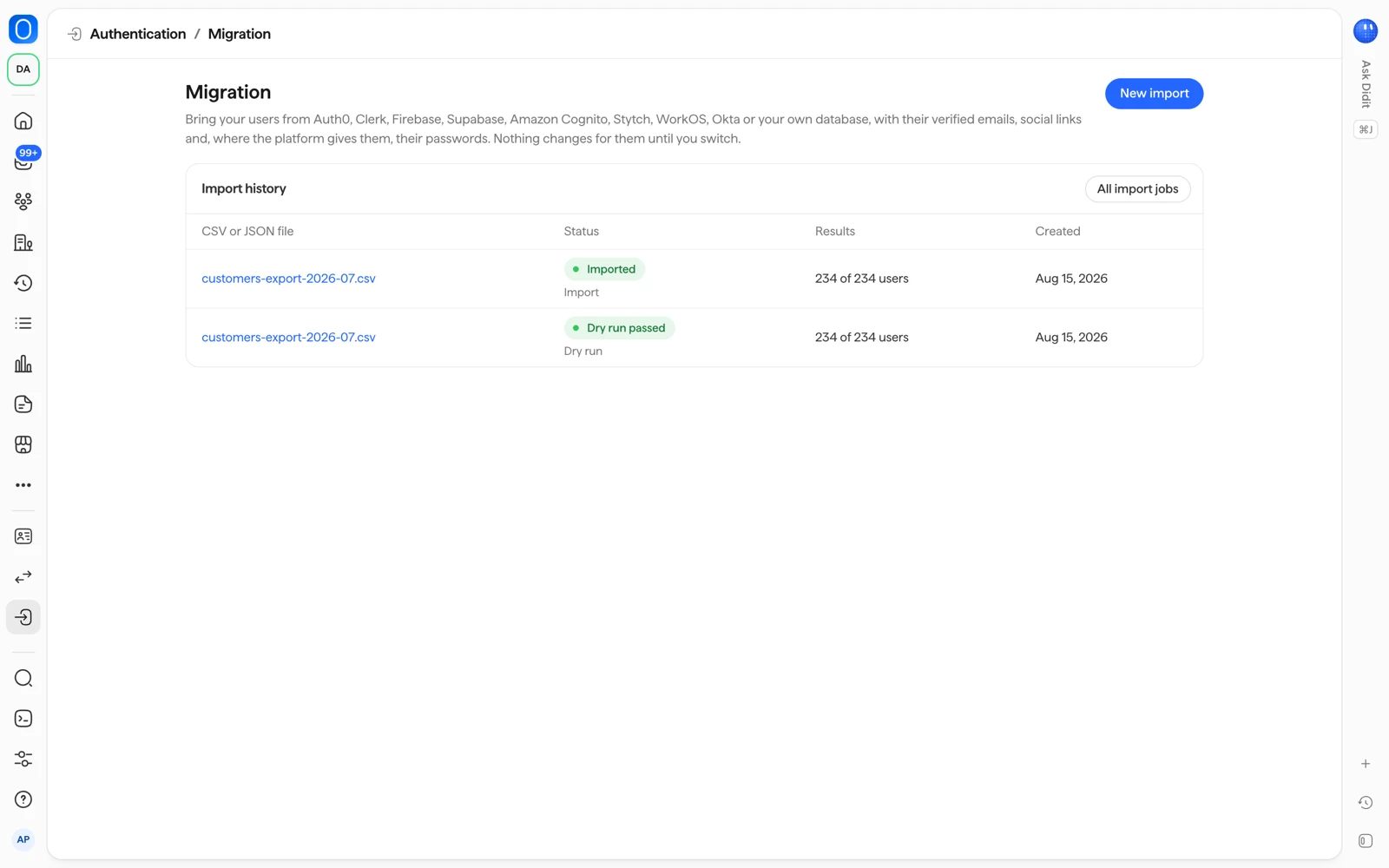
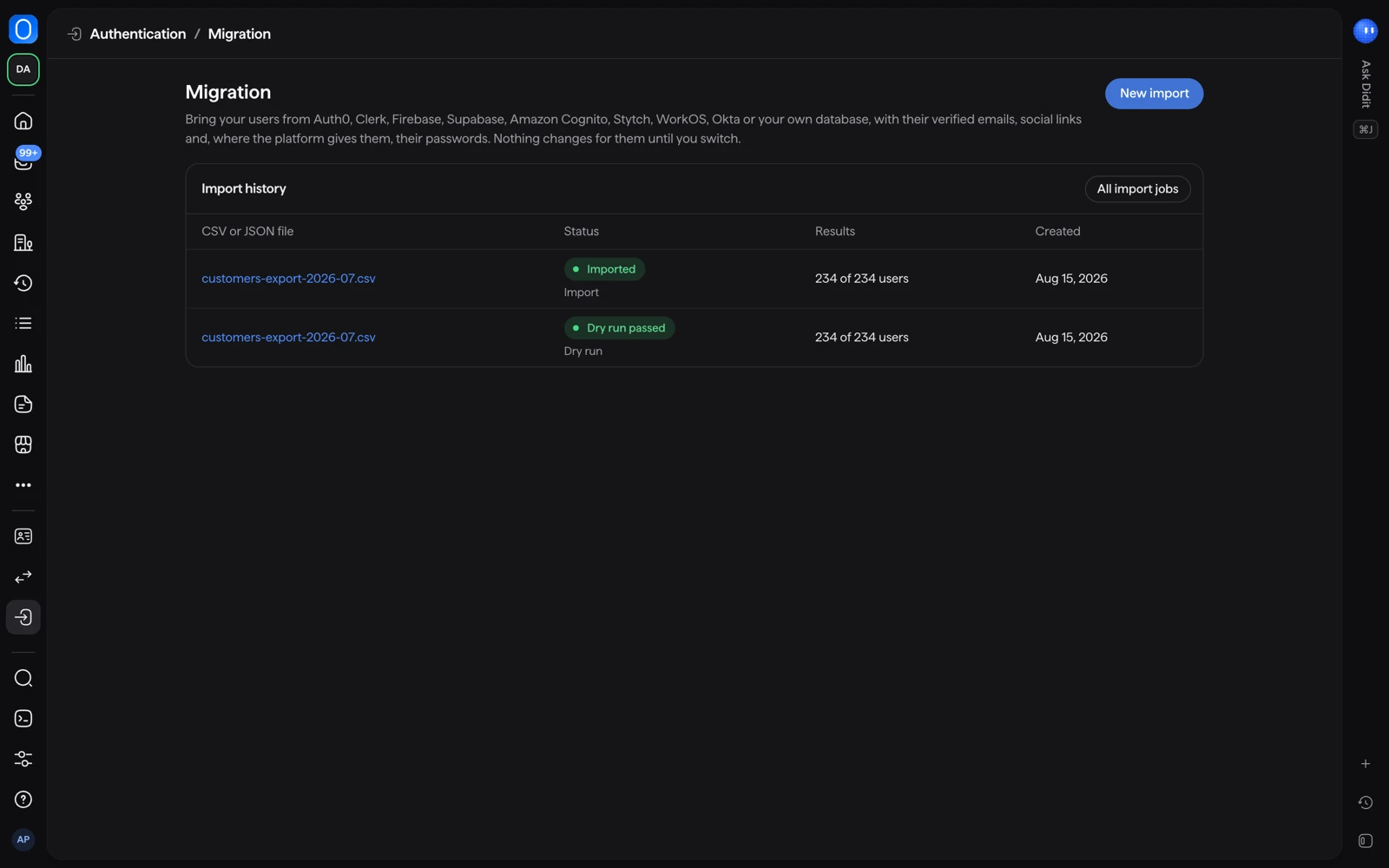
You can bring people from another identity platform such as Auth0, Clerk or Firebase, from your own database, or from any CSV or JSON export. The Import users page appears in Live applications only, and opens with the title Migration.
#What an import can keep
| Kept | Notes |
|---|---|
| Password hashes | Switch Import password hashes on. Otherwise choose Need a new password. |
| Verified emails | Keep verified emails: people do not confirm their email again. |
| Social sign-in links | Keep social sign-in links: supported provider accounts stay linked. |
| Authenticator apps | Keep authenticator apps. |
| Your user IDs | Keep your user IDs: the IDs that link your database to these users. |
| Organization roles | People keep their role in their organization. |
Passkeys cannot be imported. A passkey belongs to the domain it was created on, which is your old domain, so people add a new passkey after they sign in.
If a person's password format cannot be kept, that person sets a new password. The page that lists the supported formats is in the migration docs.
#File limits
One import is one CSV or JSON file, up to 25 MB and 100,000 people. People are imported in batches of 1,000, and an interrupted import resumes where it stopped.
The uploaded file is stored encrypted. It is deleted when the import ends, when its dry run fails, or 24 hours after a dry run that was never imported.
#Import your users
- Open Import users
In your Live application, open Authentication and choose Import users. You need a role that can change Authentication settings.
- Press New import
Say where your users are today: another identity platform, your own database or a CSV or JSON export. Upload the file.
- Choose what to keep
Set the switches described above for passwords, social links, verified emails, authenticator apps and your user IDs.
- Run a Dry run
Every upload starts with a dry run. It checks every person and writes nothing, then shows how many people keep their password, how many need a reset and how many are skipped. If it fails, it lists the errors: fix the file and upload it again.
- Press Start import
Confirm to create the people. Import history lists every import. Running an import again skips people who are already in.
Existing accounts that people already created themselves in your app with Didit are never changed by an import.
#Nothing changes until you switch
The import only creates people in Didit. Your users notice nothing until your app starts signing them in with Didit. Until then, your current platform keeps working.
#Switching over
- Import your users.
- Test with a few accounts, including one with a password and one with a social sign-in.
- Point your app's sign-in at Didit. See add sign-in to your app.
- Keep your user IDs, so your database does not change.
If you would rather have an AI coding agent write the export file, the page also offers Migrate with your AI coding agent.
#Related
- Add sign-in to your app
- See sign-ins and manage users
- Migrate users in the docs
- Authentication overview in the docs
Still stuck? Talk to a human.
Include your organization ID and the session ID you are asking about.