Choose how your users sign in with Didit Authentication: passkey, email code, magic link, password, Google, Microsoft, Apple, GitHub, phone or SSO.
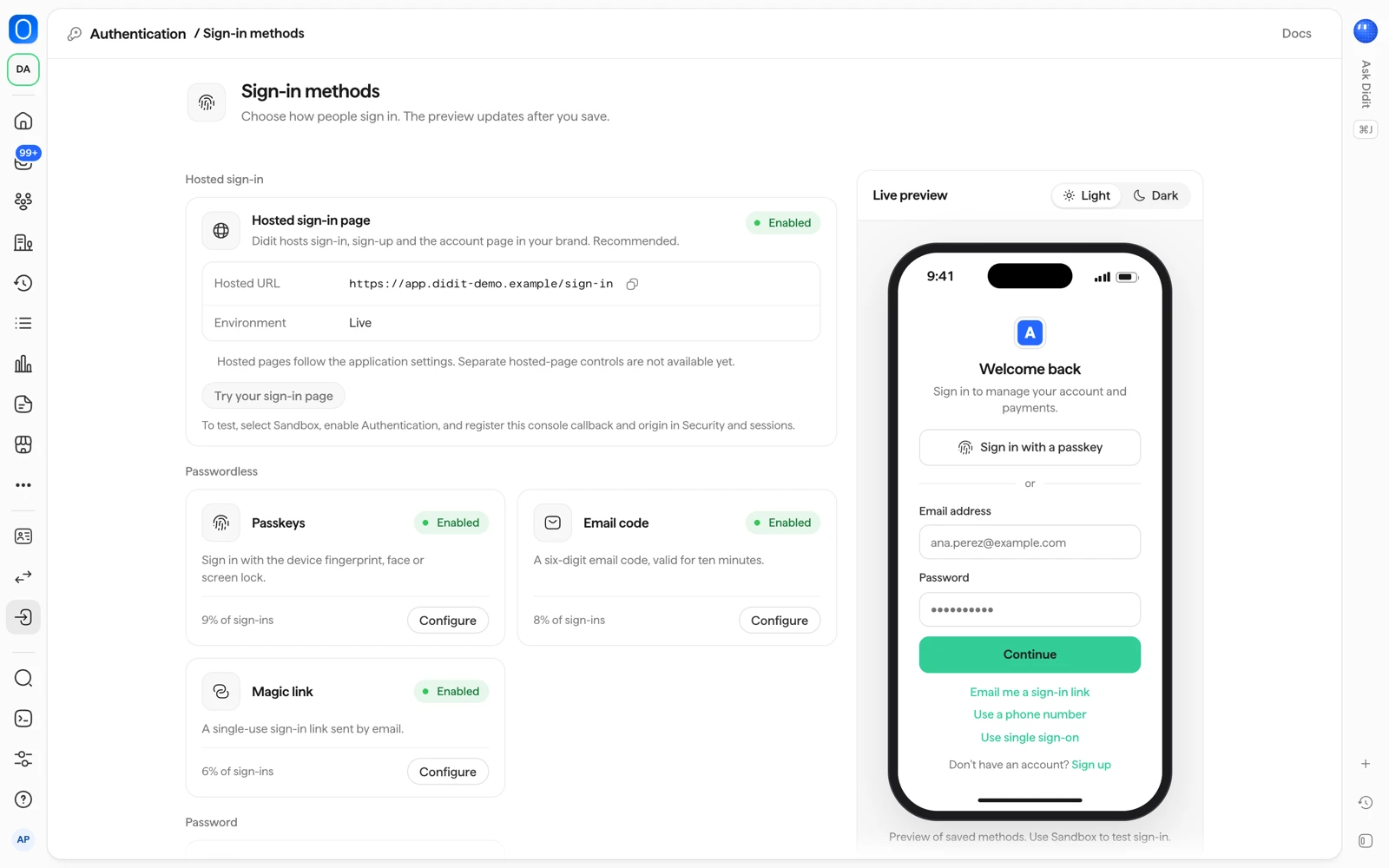
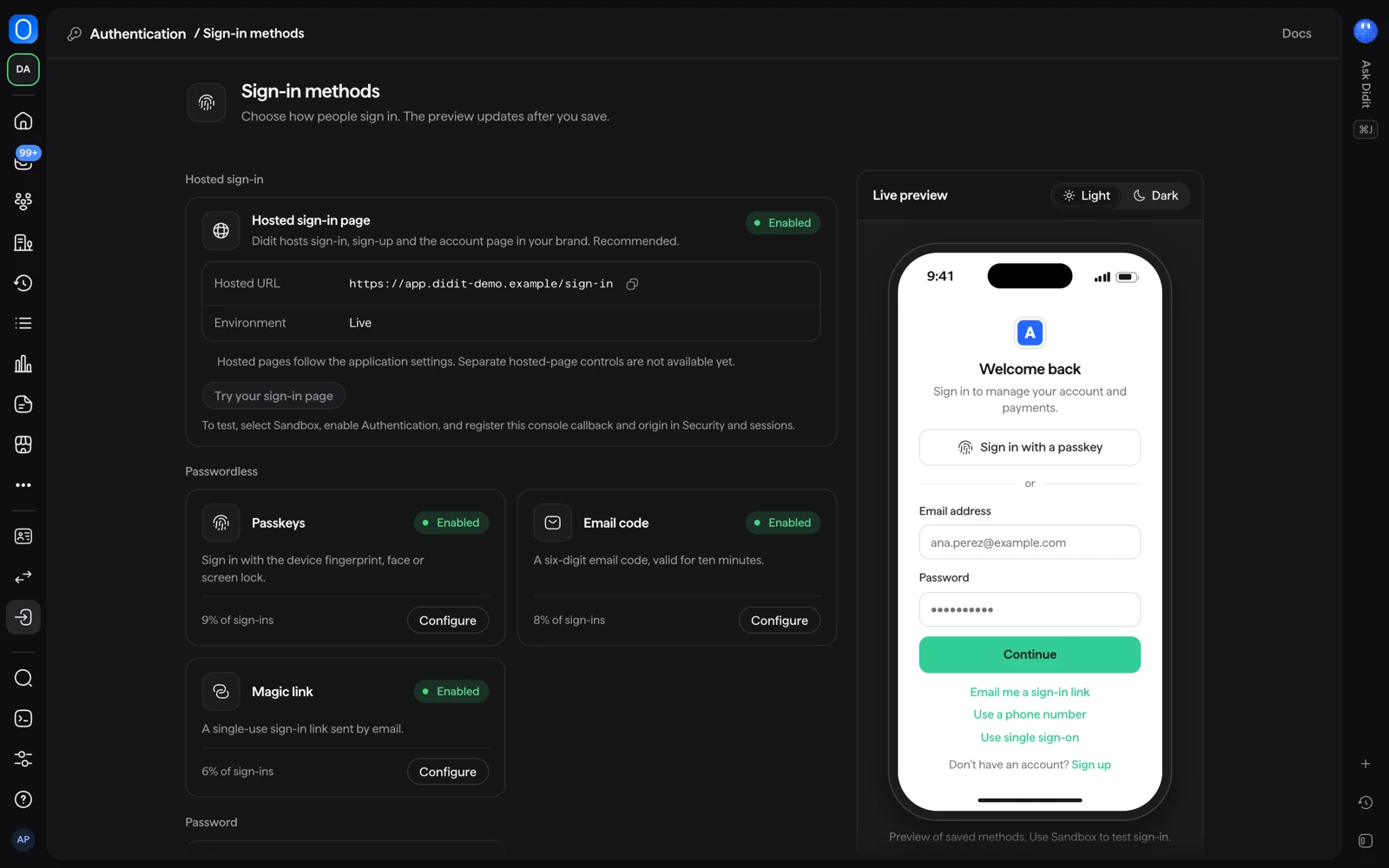
Open Authentication in the console sidebar, then Sign-in methods, and switch on the methods you want people to see in the sign-in box. You can offer passkeys, email codes, magic links, email and password, Google, Microsoft, Apple, GitHub, phone codes and single sign-on. The live preview on the right shows the page as people will see it, and Try your sign-in page opens the real hosted page.
#Switch methods on
- Open Sign-in methods
In the console, open your application, then Authentication and Sign-in methods. The methods are grouped by kind: passwordless, password, social, phone and enterprise.
- Configure a method
Each method is a card with its status and a Configure button. Select Configure, turn the switch Show ... in the sign-in box on or off, fill in anything the method needs, and save. The card then reads In your sign-in box or Not in your sign-in box, or shows the method's share of your sign-ins once people use it.
- Check the preview, then try it
The preview updates after you save. Select Try your sign-in page to open the hosted page in a new tab. If nothing opens, allow pop-ups for the console. The preview shows saved methods only, so test sign-in in a Sandbox application.
Changing methods needs a role that can edit applications (by default Developer, Admin and Owner). Reader and Compliance Officer can see the page.
#The methods
| Method | What the person does | What you set up |
|---|---|---|
| Passkey | Signs in with the fingerprint, face or screen lock of their device. | Nothing. After sign-up the hosted page offers to add a passkey. |
| Email code | Types a six-digit code sent by email, valid for ten minutes. | Nothing. |
| Magic link | Selects a single-use link sent by email, valid for 15 minutes. It must be opened in the same browser that asked for it. | Nothing. |
| Email and password | Types their email address and password. | Password rules are in the security article. |
| Google, Microsoft, Apple, GitHub | Selects Continue with the provider. | Configure: your own Client ID and Client secret from the provider, and the Provider callback URL the console shows you. Live applications need your own credentials. Sandbox can use Didit test credentials. |
| Phone code | Types a code sent to their phone. | A phone verification workflow, because phone delivery follows it. Until it is set up the console says phone sign-in has not been set up for the application. |
| Single sign-on | Signs in with their company's identity provider. | Set up per customer organization, see organizations. Needs the Scale plan. |
#The second step
You can ask people for a second step after the first. It is an authenticator app (with recovery codes) or a passkey. SMS and email codes cannot be a second step. Two-step login needs the Growth plan. Who must use it, and the rest of the policy, are in bot protection, two-step login and sessions.
#What people see on the hosted page
The hosted page shows:
- The title Sign in to followed by your application name, and the subtitle Welcome back! Sign in to continue.
- One button per social method, for example Continue with Google, and Sign in with a passkey.
- The divider or, then the Email address field and Continue.
- Links to the other ways in, such as Email me a code, Email me a sign-in link, Use a phone number and Use single sign-on.
- Don't have an account? with Sign up, and the "Secured by Didit" badge unless your plan removes it.
If no method is on, the preview says Pick at least one sign-in method. When someone opens a magic link in a different tab, the first tab shows Check your inbox and the new tab offers Continue in this tab instead.
Titles, buttons and emails come in English, Spanish, French, German and Japanese. The page uses the language of the person's browser. To change the colors, logo, texts and address, see branding and emails.
#How long things last
- Email and phone codes: ten minutes, with five tries.
- Magic links: 15 minutes, used once.
- Password reset links: 30 minutes.
- Invitation links: seven days.
- After five wrong passwords the account is locked for 15 minutes with the default protection. Your bot protection settings can change this.
#Wrong password, unknown email and locked accounts look the same
A wrong password, an email address that has no account, an unverified email and a locked or blocked account all show the same generic message. This is deliberate: your sign-in page cannot tell which case it was, and neither can an attacker, so nobody can use it to find out which email addresses have an account. Your team sees more in Sign-ins, where a failed attempt shows its reason in plain words, for example The account is locked after too many tries or The account is blocked. Sign-in logs with 30 days of history need the Scale plan.
#Related
- Branding the sign-in pages and emails
- Bot protection, two-step login and sessions
- Sign-in methods in the Didit docs
Still stuck? Talk to a human.
Include your organization ID and the session ID you are asking about.