
Supported documents and countries
Didit accepts passports, national IDs, driver's licenses, residence permits and more from over 230 countries and territories - here's how to check your specific document and enable it.
Over 230 countries and territories, reading 130+ languages. Which documents your users can actually use is set per workflow - if a document is being rejected, check the accepted types and subtypes on your workflow's ID Verification step before assuming it isn't supported.
Didit accepts identity documents from over 230 countries and territories, reading over 130 languages. Exactly which documents and countries are active for your checks depends on how your workflow is configured.
#Document types Didit accepts
Across supported countries, Didit reads:
- Passports - including e-passports and diplomatic passports
- National ID cards
- Driver's licenses
- Residence permits
- Health insurance cards - in a smaller set of countries
Not every type is available for every country, and you choose which ones to accept when you build your workflow.
#Check your specific country and document
Country and document coverage changes as new formats are added, so the docs site keeps the full, current list rather than this article. See the full supported documents and countries table for exact coverage, including the country codes used across the API.
#Subtypes are the usual reason a document is rejected
This is the single most common coverage question, and it is nearly always a configuration issue rather than a gap in coverage.
Many countries issue several official variants of the same document - a residence card in more than one series, an ID card in an old and a new format. Didit models these as subtypes, and a workflow that allows a document type without allowing the specific subtype in front of the user will reject it.
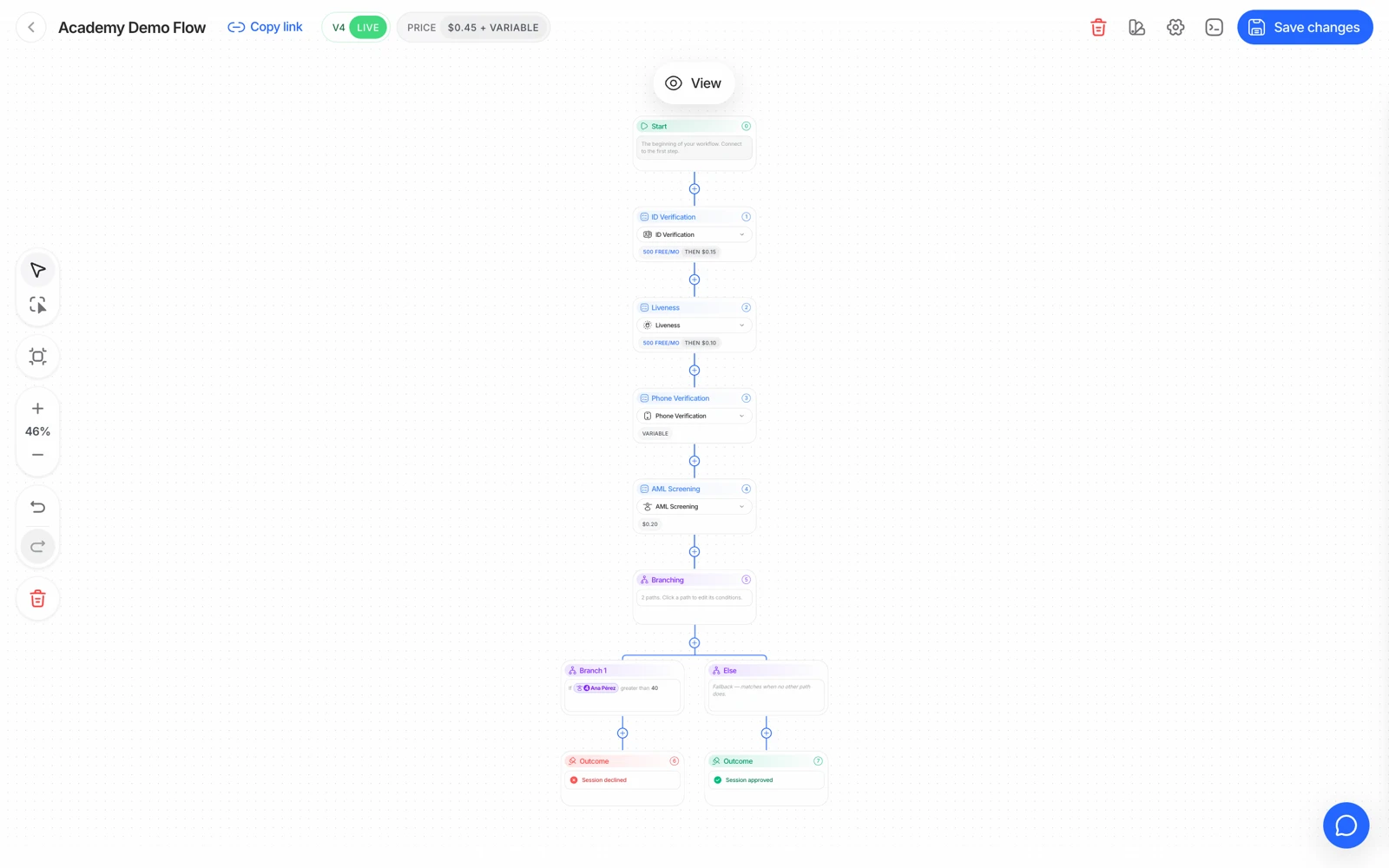
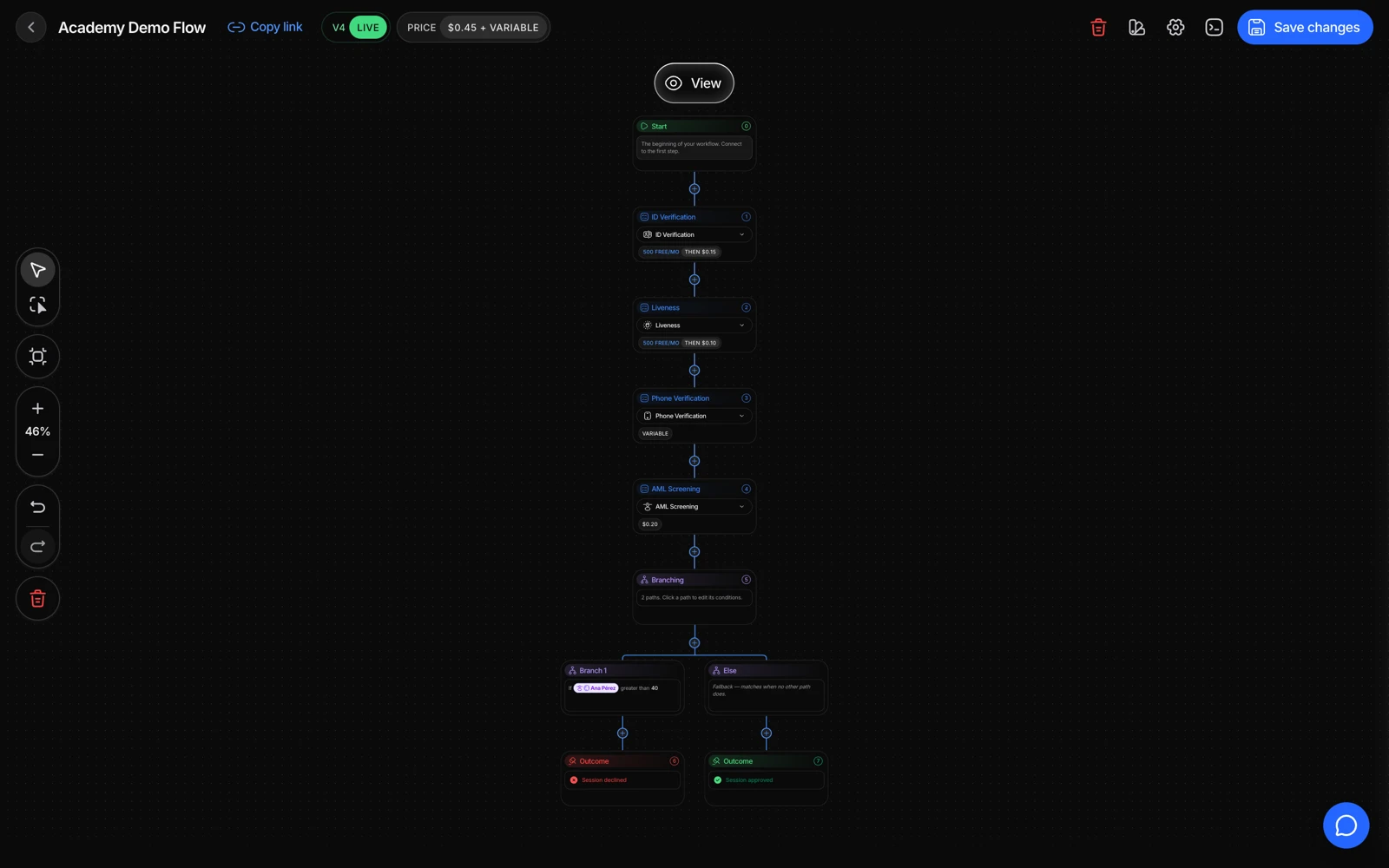
- Open the workflow
In the Business Console, go to Workflows and open the ID Verification feature for the workflow in question.
- Check regional support & subtypes
Find the country and confirm the specific document subtype is included in the accepted list.
- Enable the subtype and save
Add the missing subtype and save the workflow. New sessions will recognize it correctly.
Allowing a document type but leaving every subtype unselected does not mean "accept them all" - it means nothing matches, and every attempt with that document is rejected. If a whole document type stopped working after a workflow edit, check this first.
- Open a feature to see and narrow the documents it accepts.
- Save after changing which documents a flow accepts.
#Documents that need a back image
ID cards and driver's licenses are dual-sided documents - Didit needs a photo of both the front and back to extract and validate all the required fields. Passports only need the photo page.
Where a country issues a card whose back carries no extractable data, requiring the back adds a step your users can fail for no benefit. Check what the specific format actually holds before making it mandatory.
#Addresses are not always on the document
An increasing number of countries issue ID cards and passports that carry no residential address at all. If your compliance obligation includes verifying where someone lives, you cannot get that from the identity document in those markets - you need proof of address as a separate step. See verifying an address.
#Reading the chip instead of the print
For passports and chipped IDs, NFC reads the cryptographically signed chip rather than the printed surface. It's the strongest document check available and it detects tampering that's invisible in a photo. Coverage is narrower than OCR coverage, since it depends on the document carrying a chip. See NFC chip verification.
#Cross-checking against a government registry is a separate setting
Reading and validating the document itself (what this article covers) is different from checking the extracted data against an official government registry. That's a separate feature - Database Validation - with its own country-by-country coverage and its own per-country price. See database validation: activating services and what you pay for for how it activates and bills, and supported countries and services for the catalogue.
Database validation coverage is provisioned per organization for some countries. If a service you selected returns nothing at all rather than a no-match, ask support to confirm it's actually enabled for your account before you debug your integration. Two provisioning rules come up constantly: database validation only activates after your organization's first top-up (see top-ups), and some government sources in Australia, New Zealand and Canada additionally require a provider onboarding with a one-time minimum service agreement (currently $5,000 USD) that lands in your account as credits that never expire.
#Accept only some countries or documents
By default a workflow accepts every supported document from every country. To narrow it, open the workflow in the Business Console, go to the ID Verification step and its Countries tab, then:
- Press Clear all countries so nothing is accepted.
- Tick the countries you want to keep. Each one comes back with its full document catalog.
- Open a country to untick individual document types, if you need to.
- Press Save.
You can also ask the AI Assistant in the console to do it ("accept only Mexico"), and it applies the same change for you to save. Deselecting everything one country at a time is never necessary.
#Don't see your document listed?
Contact us with the country and document type - new formats are added regularly based on customer needs. A photo of a specimen or a link to the issuing authority's page makes it much faster.