Create API keys under Developers, API keys in the console. Give each service its own scoped key, keep keys server-side, rotate them safely, fix 401s and 403s.
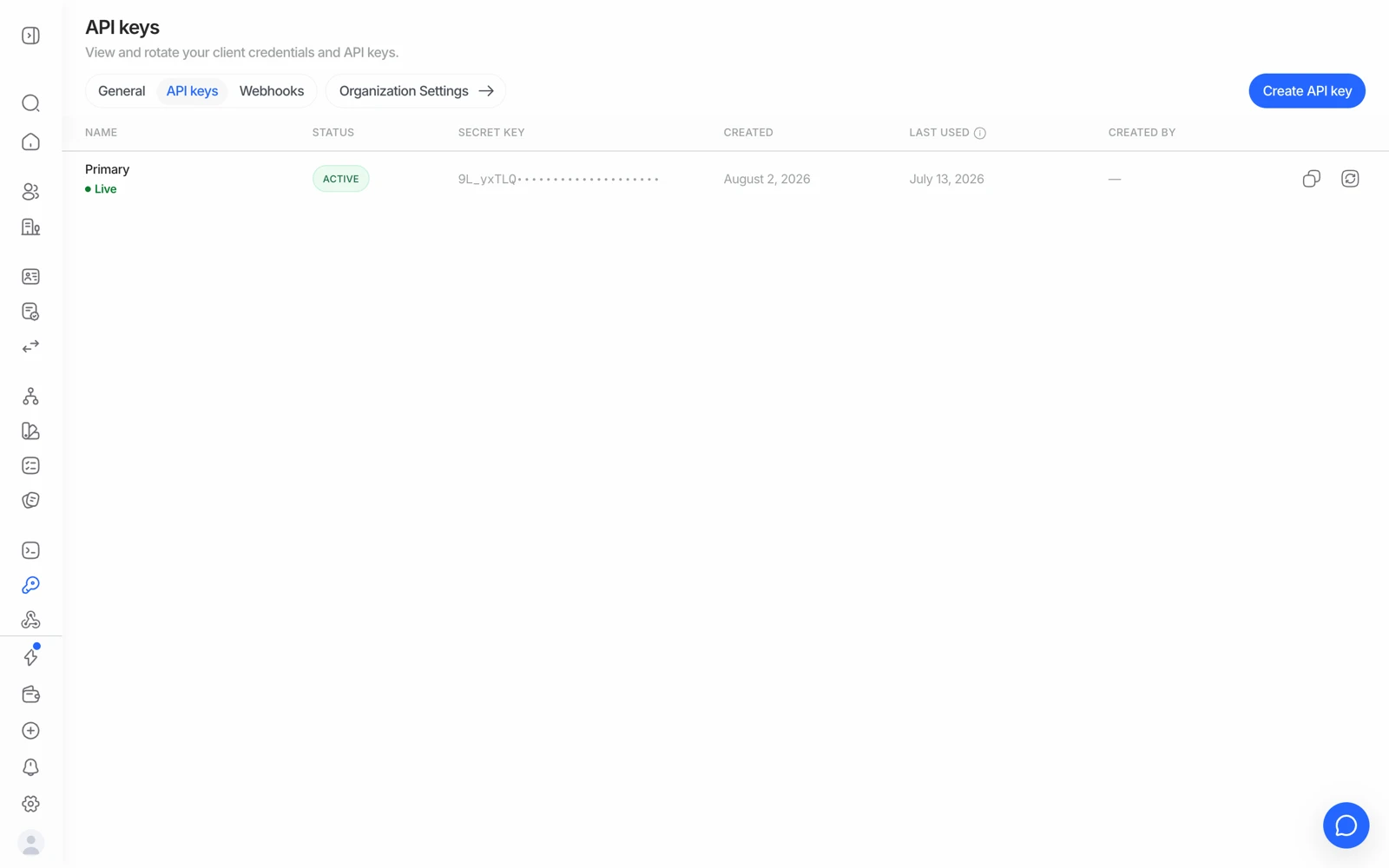
Developers → API keys, scoped to the application you have selected. Every application has a Primary key, and you can create more, one per service, each with its own access and expiry. A key is a server-side secret: never in frontend code or an app bundle.
Your API keys live under Developers → API keys in the console, scoped to the application you're working in. Treat every key like a password: it grants API access on that application's behalf.
#Finding your key
- Log in to the Business Console
Go to business.didit.me and sign in.
- Select your application
Pick the application from the application card at the top of the sidebar. Each application has its own keys.
- Open Developers, then API keys
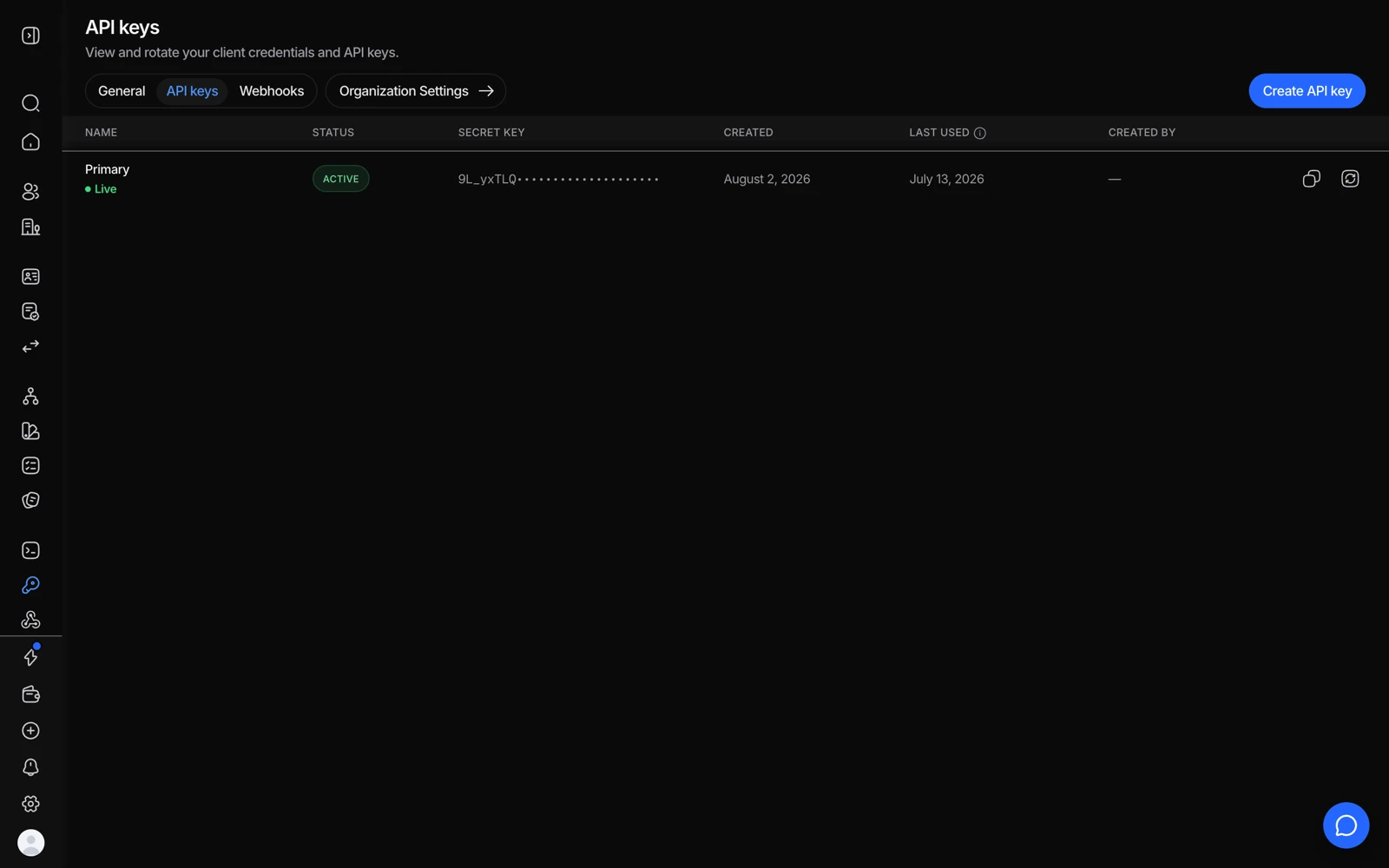
The Keys tab lists every key, starting with the Primary key, with its access, when it was last used and when it expires.
#Creating a key
Give each service that calls Didit its own key, so you can see what each one does and revoke it alone.
- Press Create key
On Developers → API keys.
- Name it and pick the environment
Name the key after the service that will use it, choose Live (real verifications, billed) or Sandbox (test data, never billed; the key is created in your organization's Sandbox application), and choose when it expires: never, after 30 days, 90 days or a year, or on a date you pick.
- Choose its access
Full access reads and writes everything, for your own backend. Read only sees sessions, decisions and media but can't change anything, for a partner that only needs results. Custom lets you pick, resource by resource. Untick Include media when the service only needs the decision, not ID images, selfies, videos or PDF reports.
- Review and copy the secret
The full secret is shown once, when the key is created. Copy it straight into your secret manager.
The Primary key is the application's original secret. It always has full access and can be rotated but not revoked.
#The API key and the signing secret are different things
Worth stating plainly, because mixing them up produces confusing errors:
| What it's for | Where | |
|---|---|---|
| API key | Authenticating your calls to Didit, in the x-api-key header | Per application, as many as you need |
| Webhook signing secret | Verifying that an incoming webhook really came from Didit | Per webhook endpoint |
Sending the signing secret as your API key produces a 401. Verifying a webhook with your API key produces a signature mismatch. Both are common.
Your API key is a secret. Never put it in frontend code, a public repository, or a mobile app bundle - keep it server-side only. A key in a shipped app bundle is a key an attacker has. See API authentication.
#Getting a key for testing
You don't test against production. Switch the console to Sandbox and create a key there, or pick Sandbox as the environment when you create one. Sandbox sessions mock every external check, are never billed, and don't touch real user data.
A key belongs to one application, and with it to that application's environment: a sandbox key never creates a live verification, and a live key never creates a sandbox one. It's worth naming your keys unambiguously in whatever holds your secrets. See testing in sandbox.
#Rotating your key
If a key may have been exposed, open it and choose Rotate key. You get a new secret, and the old one keeps working for 24 hours, so you can deploy the new secret without downtime. After that, every request with the old secret returns a 401.
If a key must stop working right now, Revoke key instead. Revoking stops it at once and can't be undone. The Primary key can only be rotated.
Rotating on a schedule is good practice. Plan it as a deploy, not a click.
#Fixing 401 and 403
| Error | Cause | Fix |
|---|---|---|
401 | The key is missing, malformed, expired, revoked, or rotated more than 24 hours ago | Check the key under Developers → API keys for that application. Look for stray whitespace or quotes, and check you didn't paste a signing secret |
403 | The key is valid but this call isn't allowed | Usually the wrong application, a sandbox-only field on a live key (or the reverse), access the key wasn't given (a read-only key trying to write, for example), or a feature not enabled on your account |
A 403 on a specific workflow almost always means the key belongs to a different application than the one that owns that workflow. Switch application in the console and use one of its keys instead. Full breakdown: API errors and what they mean.
#Restricting what a key can do
Pick the access when you create the key, and change it later with Edit access (the secret stays the same; the Primary key's access can't be edited). Read only keeps a partner from changing anything, Custom sets None, Read or Write per resource (sessions, decisions, media, people, companies and more), and leaving Include media off keeps a service from downloading ID images, selfies, videos and PDF reports. Under Limits, a key can also be held to some workflows, to approved sessions only, or to a list of IP addresses: a request from outside the list answers 403, and a session outside the key's workflows or statuses answers 404. Open a key to see exactly what it can do; a key can never do more than its access allows.
#Who on your team can see keys
Key visibility follows role: seeing the page needs permission to read API keys, which the Developer role includes. Secrets stay masked in the console. If a teammate can't find the page, check their role before reporting it. See inviting team members and setting roles.
#Every call is logged
API-key requests appear in the Audit log attributed to the key rather than to a person. That's exactly why a shared key across several services makes an incident harder to investigate: one key per consumer is easier to reason about. See using audit logs.
Still stuck? Talk to a human.
Include your organization ID and the session ID you are asking about.