Put your logo and colors on Didit's hosted sign-in pages and emails, set page texts, send from your own domain and use a custom domain for the sign-in page.
Open Authentication, then Branding and emails. The tab Hosted pages controls how the sign-in pages look and where they live, and the tab Emails controls the sign-in emails. Your logo, colors and font come from Customization, the same brand as your verification flow, so you set them once. You can add your own page texts and a custom domain, and removing the "Secured by Didit" badge needs the Growth plan.
#Your brand comes from Customization
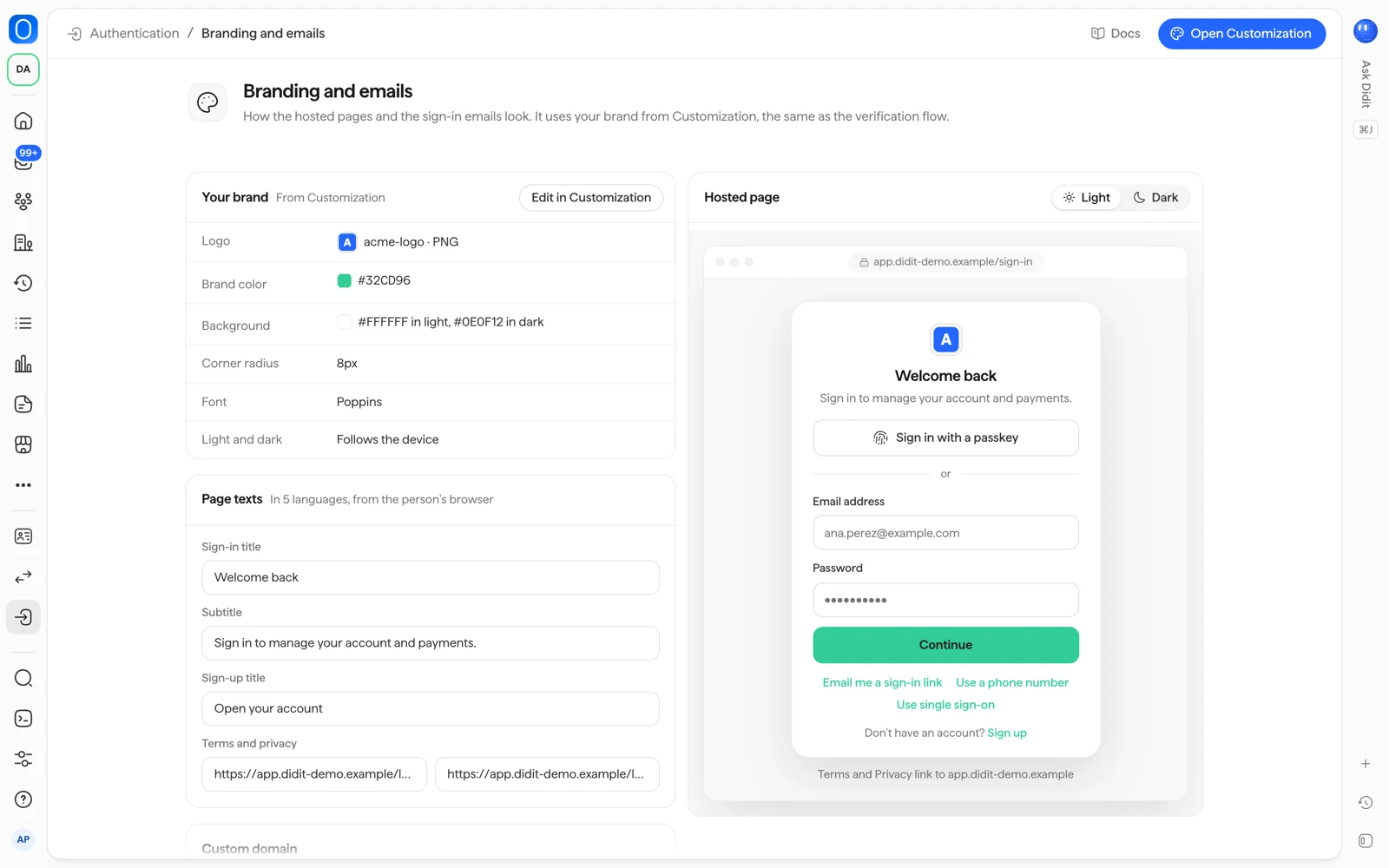
The Your brand card on Hosted pages says From Customization and shows what is applied:
- Logo
- Brand color
- Background
- Corner radius
- Font
- Light and dark: Follows the device, Always light or Always dark
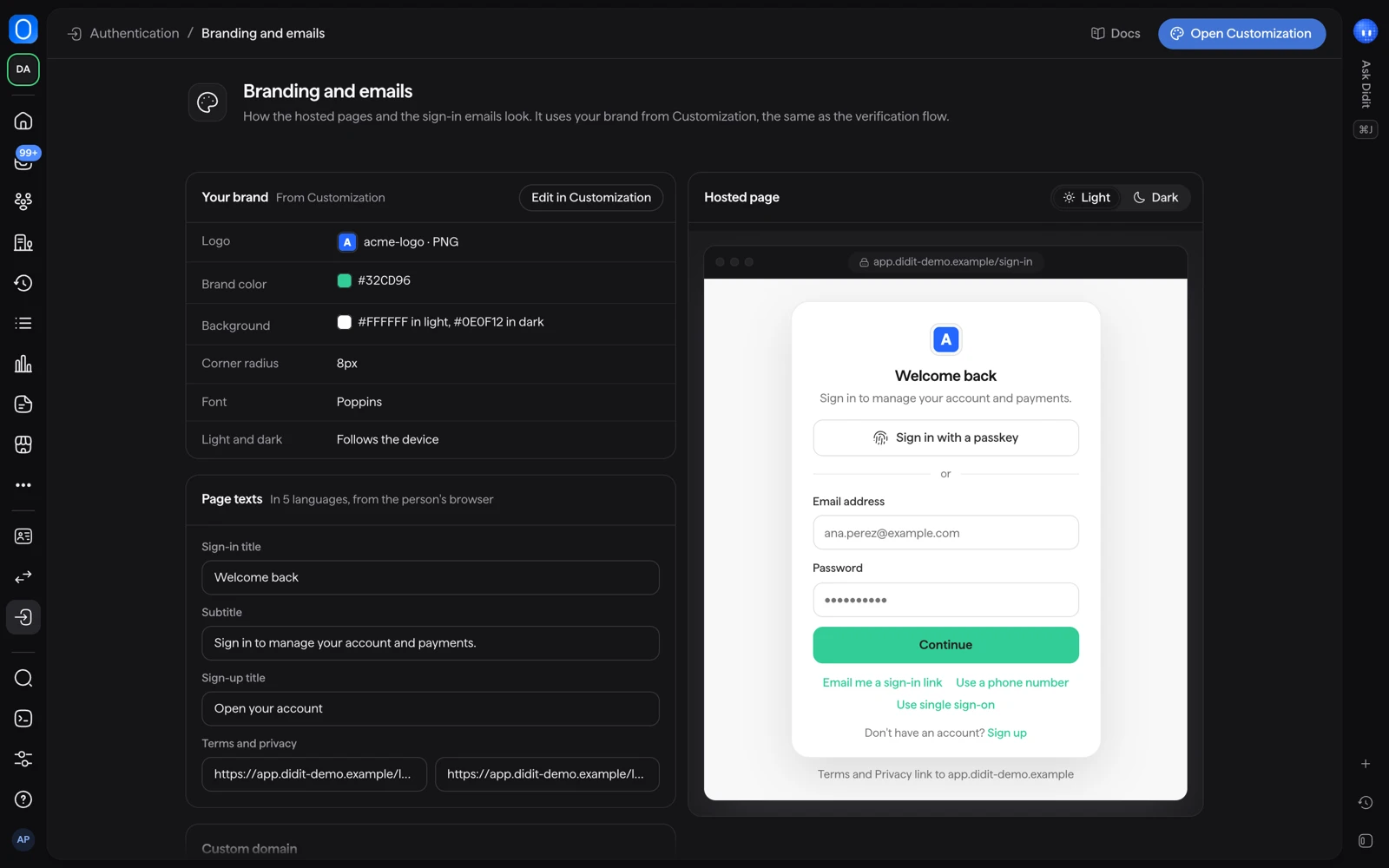
Select Edit in Customization to change any of them. The change applies to the verification flow and to the sign-in pages. The Hosted page preview on the same tab has a Light and a Dark view, so check both.
#Page texts and legal links
Under Page texts you can set the Sign-in title, the Subtitle and the Sign-up title. Texts are shown in the language of the person's browser, in English, Spanish, French, German and Japanese. Add a Terms of service URL and a Privacy policy URL and the sign-up form asks the person to accept them before they create an account.
#The hosted address and a custom domain
Your hosted sign-in page lives at an address Didit gives you, and the console shows the exact one:
| Application | Address pattern |
|---|---|
| Live | https://<slug>.auth.didit.me |
| Sandbox | https://<slug>.sandbox.auth.didit.me |
To use your own domain, go to Custom domain on the Hosted pages tab.
- Add the domain
Type it under Your domain, for example
auth.example.com, and select Add domain. The console shows the DNS record, a CNAME, to create at your DNS provider. - Check the DNS record
Create the record, then select Check DNS now. The status reads Waiting for DNS until the record is found, and a new record can take up to an hour to show. The certificate is issued once the record is found.
- Use the domain
Select Use this domain to move your sign-in pages to it. The status then reads Active. Remove takes the domain away.
Activating a custom domain changes where passkeys work. A passkey belongs to the domain people sign in on, so people with existing passkeys must enroll them again: add your domain before people start adding passkeys. It also changes the publishable key: copy the new one from Developers into your app. Sessions and tokens under the old domain end within 5 minutes.
Custom domains are for Live applications. A Sandbox application keeps signing people in on its sandbox address.
This is a different setting from the custom domain of the verification flow. For that one, see white label and custom domain.
#The "Secured by Didit" badge
On the Free plan the hosted sign-in page shows a "Secured by Didit" badge under the form. The Growth plan and above remove it, so people see only your brand. Plans and prices are in what Authentication costs.
#Sign-in emails
The Emails tab lists the Sign-in emails Didit sends for you, each with an On or Off setting:
- Email code
- Magic link
- Password reset
- New device sign-in
- Invitation
- Organization invitation
- Agent approved
- Agent access ended
Select an email to see it in the Email preview, and select Send a test to receive one in your own inbox before you rely on it.
By default the console says emails are sent from Didit, and that you can verify your own domain in Customization to send from it. Once your domain is verified, it says the emails are sent from your verified domain instead.
Custom wording for emails and for SMS codes needs the Growth plan. Until then emails use Didit's own wording, in the same five languages as the pages.
#Related
- Which sign-in methods can I offer?
- What Authentication costs and which parts need Growth
- Authentication overview in the Didit docs
Still stuck? Talk to a human.
Include your organization ID and the session ID you are asking about.