When verifications share a device, IP address, face, document or phone number, Didit groups them into a network. Review, confirm or dismiss it, or open a case.
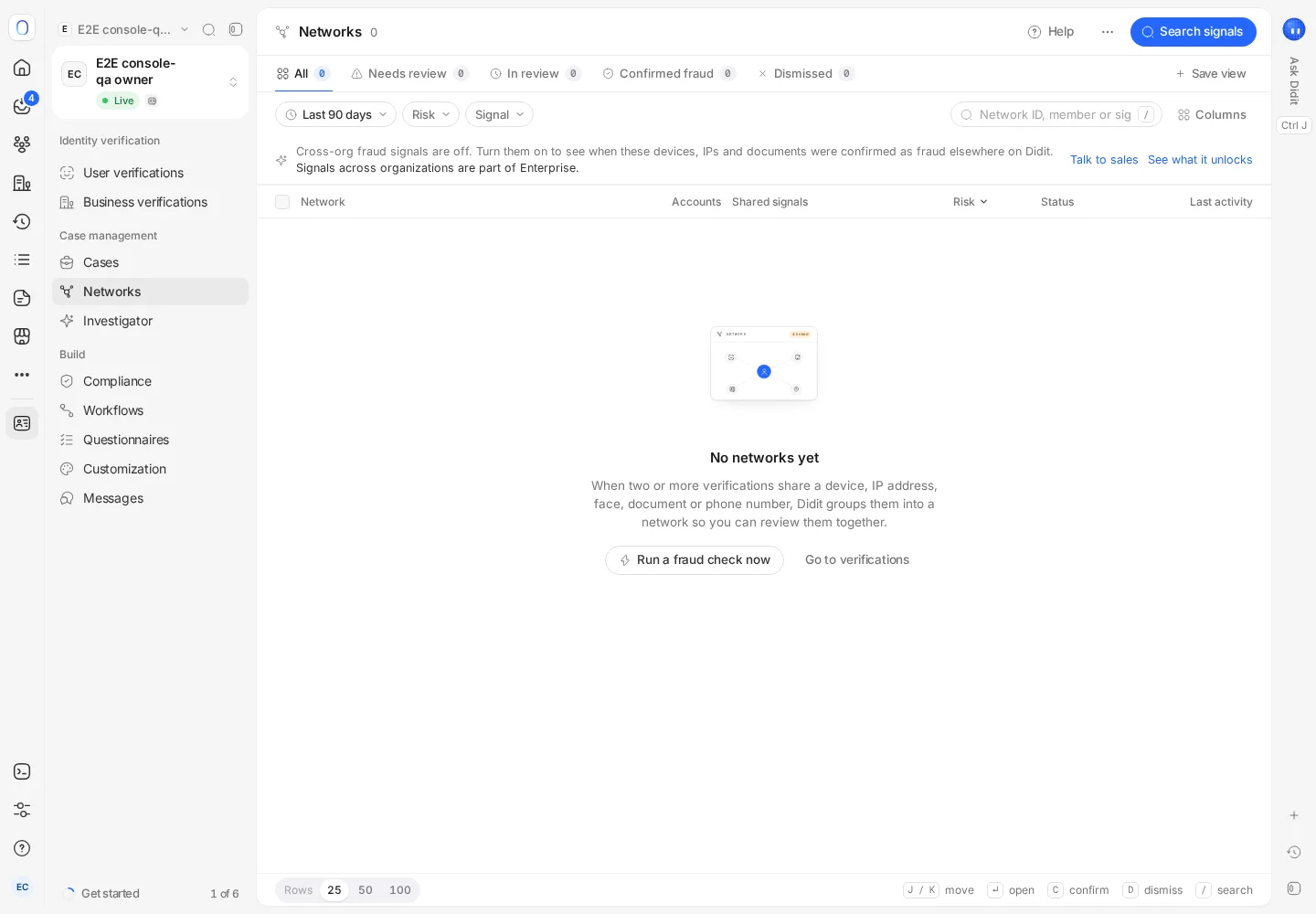
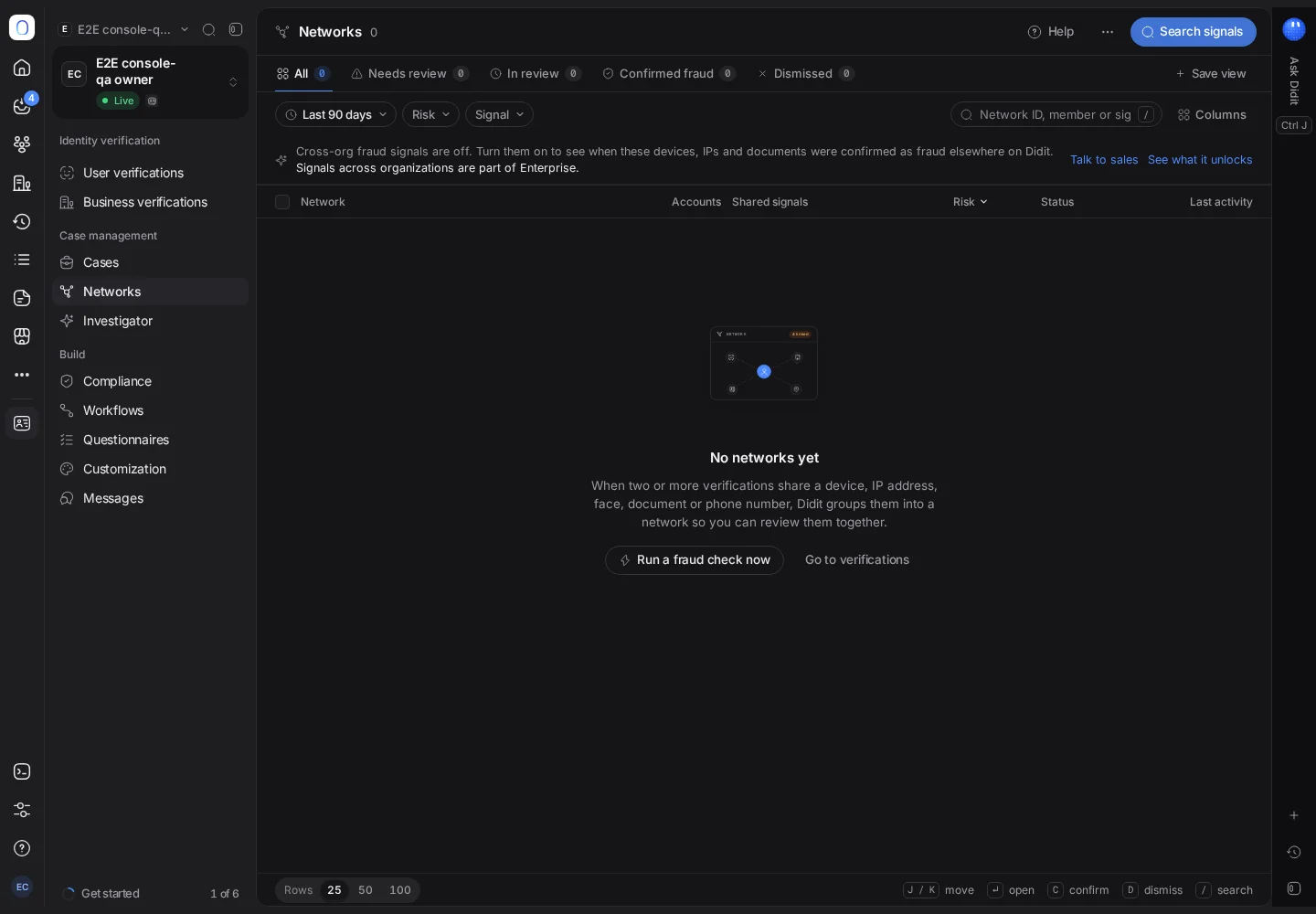
Open Identity verification → Networks. Each network is a group of verifications connected by something they share: a device, an IP address, a face, a document number, a phone number, an email or an address. Review it, then Confirm fraud or Dismiss it. A shared signal is a lead to investigate, not proof of fraud on its own.
Networks are rolling out and may not be switched on for your organization yet. If Networks is missing from the sidebar, it isn't available to you yet.
Fraud rarely comes alone. The same phone opens five accounts, one face appears under three names, a burst of sessions comes from one IP address. Networks finds these connections for you and puts them on one page, so you review the group instead of five separate sessions.
#How a network forms
When two or more verifications share a signal, Didit groups them. The signals it links on are IP address, device, face, document number, phone, email and address.
Not every link is equally strong, so each one is graded:
| Grade | What it means |
|---|---|
| Exact match | The same value, such as the same document number. Strong evidence |
| Similar | A potential match, not a confirmed one |
| Low evidence | Context only, not evidence of coordination |
A shared office network or a family sharing a phone creates real links between honest people. That's why a network is a starting point for a review and never declines anyone by itself.
#Finding networks to review
The list opens on every network from the Last 90 days, riskiest first. Switch between Needs review, In review, Confirmed fraud and Dismissed, filter by risk or by the kind of signal, and look up a device, an IP address or a document with Search signals. Each row shows how many accounts are linked, what they share, the risk and the last activity.
To check someone new against your networks without running a whole workflow, run a single Fraud check from New verification. See starting a verification from the console.
#Reviewing a network
Open a network to see:
- Overview: why the network needs review.
- Graph: the accounts and the signals between them. Click any account to open its profile.
- Accounts: every member, with their verification status.
- Shared selfies: when members are linked by face, the faces side by side.
- Geography and Timeline: where and when the activity happened.
- Across Didit: whether the same signals were reported as fraud elsewhere in the Didit network, where your organization takes part.
- Activity: notes and every decision made on the network.
#Deciding
- Press Start review so your teammates know you're on it.
- When you've decided, press Confirm fraud if the accounts coordinated to commit fraud, or Dismiss it if it isn't a genuine risk (a shared office, for example).
Both need a reason, which is saved to the audit trail. Members keep their own verification decisions: deciding a network doesn't approve or decline anyone. To act on one member, open it under Accounts: its dialog offers Decline verification and Add to blocklist. To decide on all of them together, open a case.
#Acting on a network
- Where case management is available, Create case opens one case linked to every member, so you decide on all of them together. If a case already exists, the button opens it. See working with cases.
- Add to blocklist blocks a member or a shared signal, so future sessions that match it are flagged. See duplicate account detection.
- Download PDF and Export CSV keep a copy for your records.
- Ask Didit summarizes the network for you.
#Sharing fraud signals across Didit
An organization owner or admin can turn on fraud-signal sharing under Settings → Fraud signals. Only signals you've labelled as fraud leave your organization, as irreversible hashes, and faces never do. In return, Across Didit shows when a signal in your network was reported elsewhere. Signals across organizations are part of Enterprise. See organization settings.
#Who can work on networks
Viewing networks needs permission to list networks; changing a network's status or blocking needs write access to networks. Creating a case from a network also needs write access to cases. See inviting team members and setting roles.
Still stuck? Talk to a human.
Include your organization ID and the session ID you are asking about.