Turn on bot protection, require MFA, and set session length and password rules in Authentication, and see which settings need the Growth plan.
Open Authentication → Bot protection and switch on Only allow humans to protect sign-up, sign-in and password reset. Open Authentication → Security and sessions to choose who must use MFA, how long a session lasts, your password rules and your redirect URLs. MFA, custom session length and user bans need the Growth plan or higher.
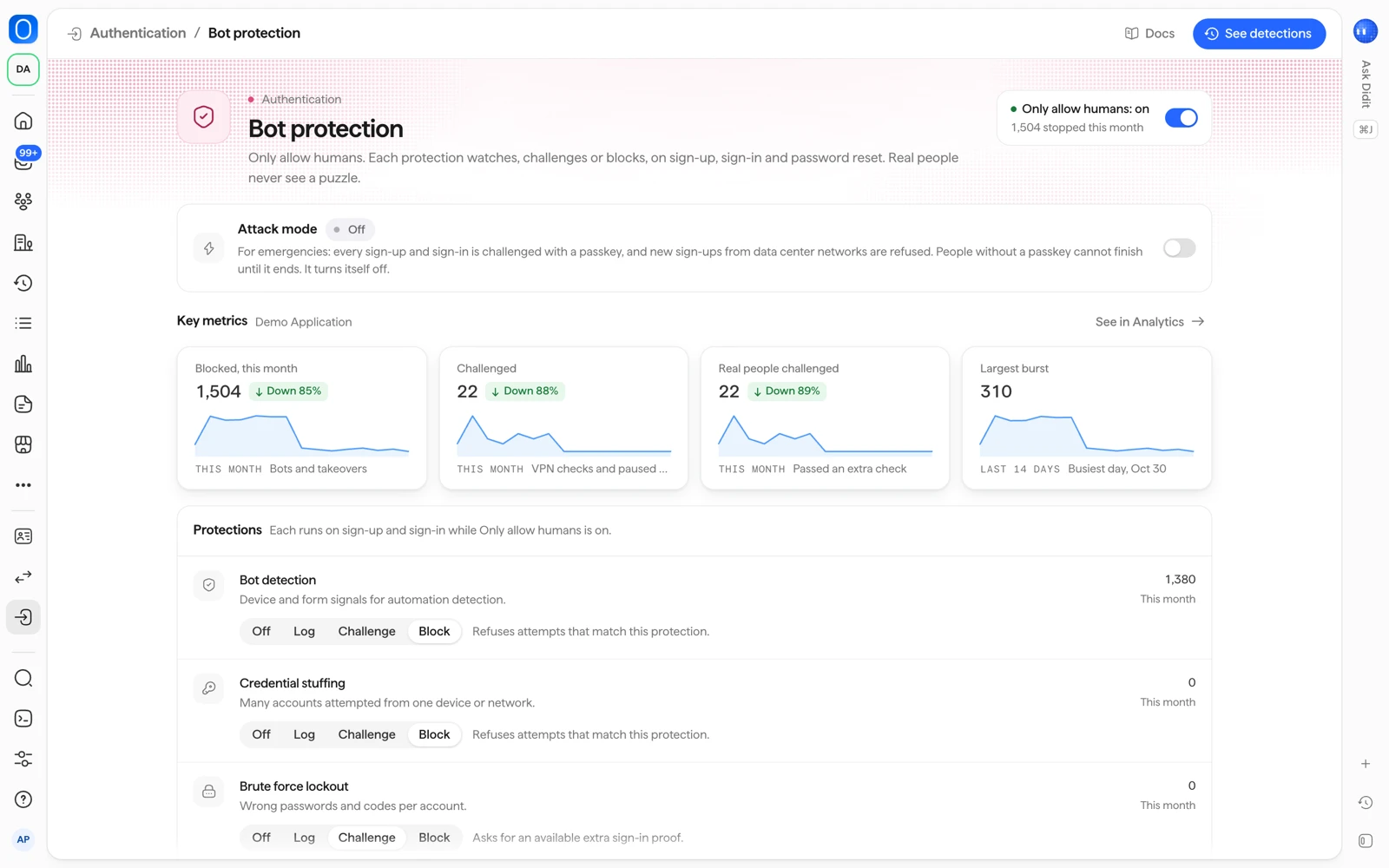
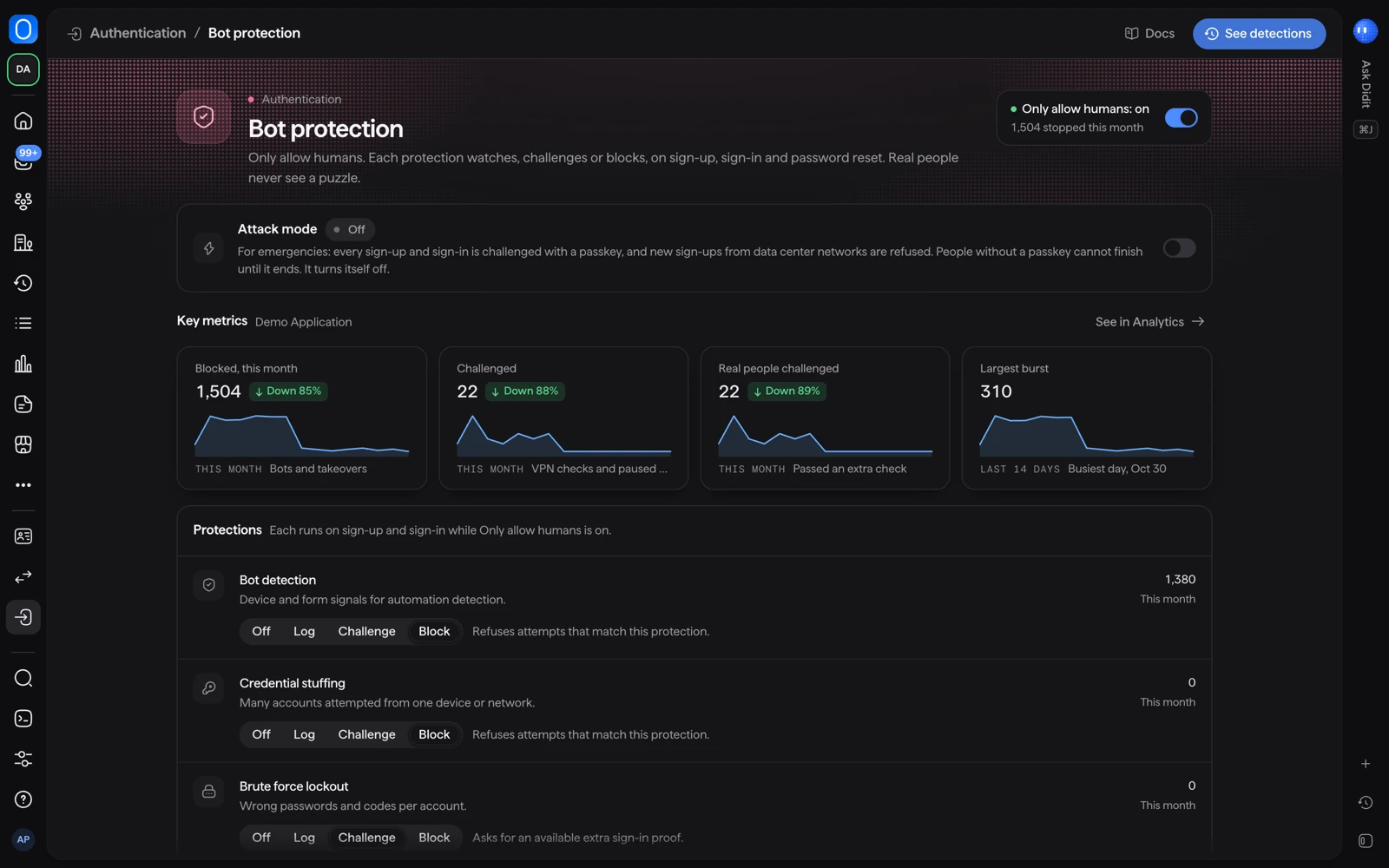
#Bot protection
Bot protection is off by default. When you turn on Only allow humans, six protections watch every sign-up, sign-in and password reset:
| Protection | What it catches |
|---|---|
| Bot detection | Scripts, headless browsers and browser drivers, using device and form signals |
| Credential stuffing | One device or network trying many accounts, or a known breached password |
| Brute force lockout | Repeated failed attempts on one account |
| Disposable emails | Sign-ups, and email code or magic link sign-ins, from disposable email domains |
| VPN and data center IPs | Attempts from VPN, Tor or data-center networks, using Didit's IP analysis |
| Impossible travel | A sign-in far from the last one, too fast to be the same person |
Give each protection one of four modes:
| Mode | What it does |
|---|---|
| Off | The protection is not checked. |
| Log | The attempt goes through and Didit records the match. |
| Challenge | The person must pass an extra proof first. This is an email code or a passkey. |
| Block | The attempt is refused. |
Real people never see a puzzle. A blocked attempt never tells the caller whether an account exists. Each decision shows in Authentication → Sign-ins.
#Other protections
- Breached password check: new and reset passwords are checked against known breached passwords, and a breached one is refused. The password itself is never sent anywhere.
- Attack mode: for emergencies. Press Turn on Attack mode and choose how long it lasts: 1, 6 or 24 hours. While it runs, every sign-up and sign-in is challenged with a passkey, new sign-ups from data center networks are refused, and people without a passkey cannot finish until it ends. It turns itself off, your saved settings take effect again, and your team is notified when it ends.
- Rate limits: always apply, whatever your settings.
- Lockout: until you save bot protection settings, 5 failed passwords lock the account for 15 minutes. With brute force lockout on Block, the person must reset their password. You can also unlock the person yourself (see users, sessions and organizations).
#Test in Sandbox
Automated browser tests count as bots. Run them in a Sandbox application with Bot detection on Off or Log.
#Allowlist and blocklist
On the Growth plan and above, and in every Sandbox application, your application's Blocklist and Allowlist in Lists apply at every sign-up, sign-in and password reset, whether or not bot protection is on. They are the same lists your verifications use, so a value you block there is blocked at sign-in too.
On the Free plan, a Live application's lists apply to identity verification only.
| List | What it does at sign-in |
|---|---|
| Blocklist | A person whose email address, phone number, IP address (or a range that covers it), device or user (their vendor_data) is on it cannot sign up or sign in. The attempt is refused and shows as Blocked in Authentication → Sign-ins. |
| Allowlist | An IP address (or range) on it skips Bot detection, Credential stuffing and VPN and data center IPs. An email address on it skips Disposable emails. A device on it changes nothing at sign-in. Brute force lockout, Impossible travel, attack mode, rate limits and the Blocklist always apply. |
- A person who is already signed in and is then added to the Blocklist is signed out within five minutes.
- A value on both lists is blocked.
- A change to a list applies within 30 seconds.
- Custom lists, such as High Risk Countries, do not apply at sign-in.
- If the lists cannot be checked, sign-in continues. A sign-in never fails because of this check.
#Security and sessions
Authentication → Security and sessions holds these settings:
| Setting | Options | Default |
|---|---|---|
| Who must use MFA | Everyone, Organization admins, Optional | Organization admins |
| MFA methods | Passkey, Authenticator app and Backup codes are all accepted. Choosing which ones is not available yet. | Any of these |
| Session lifetime | 1 day, 7 days, 30 days, 90 days | 30 days |
| Ends when idle for | 30 minutes, 2 hours, 1 day, 7 days | 1 day |
| Minimum password length | 8, 10, 12 or 14 | 10 |
| Who can sign up | Anyone, Invited people, Allowed domains (up to 100 domains) | Anyone |
Other settings on the page:
- Several devices at once: on by default. Turn it off to sign a person out of their other sessions at each new sign-in.
- Sign out other devices when the password changes: on by default. It ends every session after a password reset.
- Email subaddresses: whether an address with a plus sign, such as
name+tag@example.com, is accepted. Off by default. - Allowed email domains: used when sign-up is limited to allowed domains.
- Allowlist and blocklist: opens Lists, where you manage the application's lists. Where your plan includes it, both lists apply at sign-in, as the section above describes.
- Redirect URLs and Allowed origins: where people return after signing in, and which sites may call Didit. Register your exact addresses. Live applications accept
https://only.
A session also ends when your team revokes or blocks the person, or when a refresh token is reused.
#What needs Growth
| Part | Plan |
|---|---|
| Two-step login (MFA), custom session length, user bans, allow and block lists at sign-in | Growth and up |
| 30 days of sign-in logs | Scale and up |
On a plan without these, Security and sessions shows "Security settings require an upgrade" with View plans. Sessions then have a fixed length. See pricing and active users.
Changing settings needs a role that can edit applications: Developer, Admin or Owner by default.
#Related
- See sign-ins and sign out or block a user
- What Authentication costs
- Bot protection in the docs
- Authentication overview in the docs
Still stuck? Talk to a human.
Include your organization ID and the session ID you are asking about.