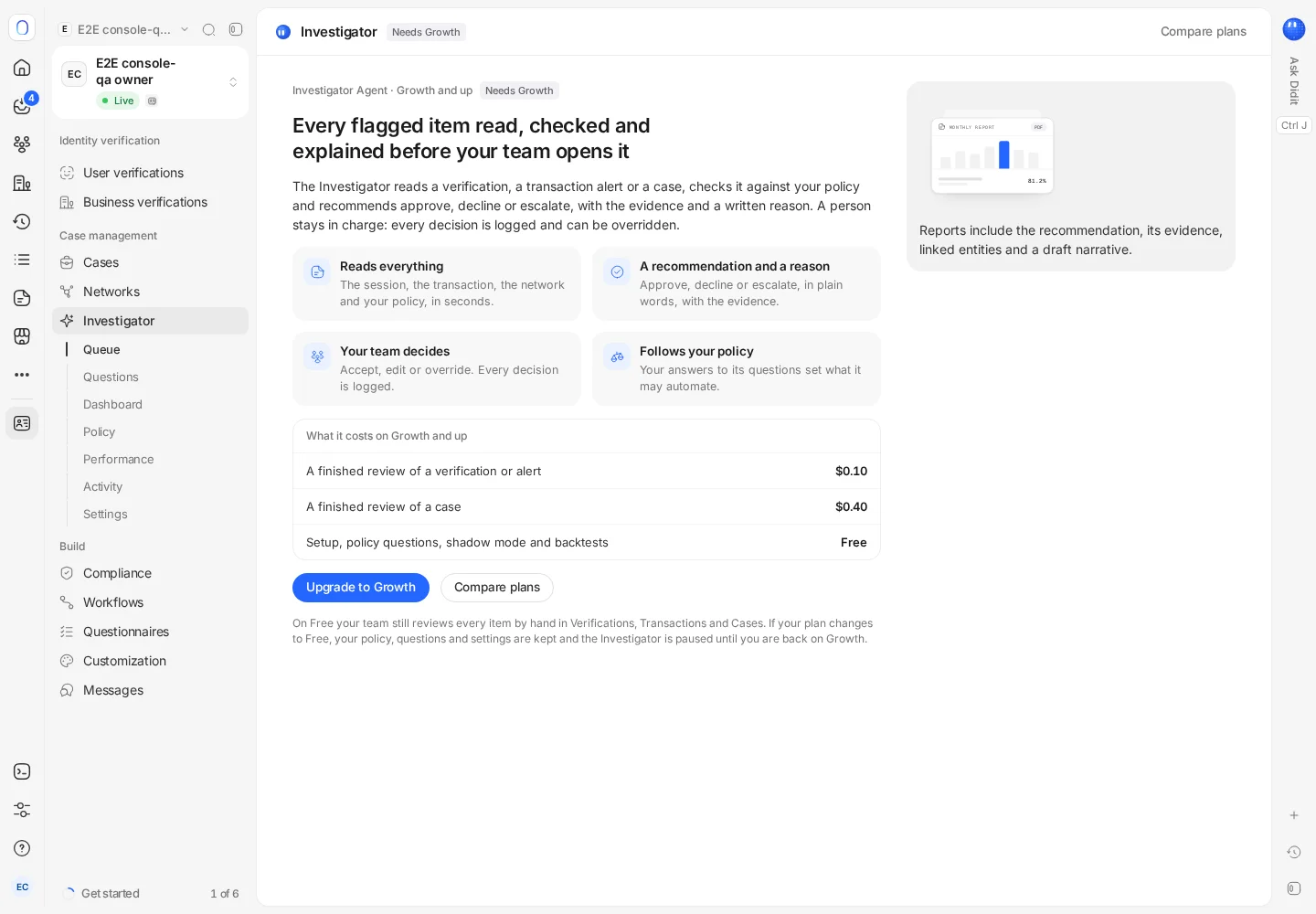
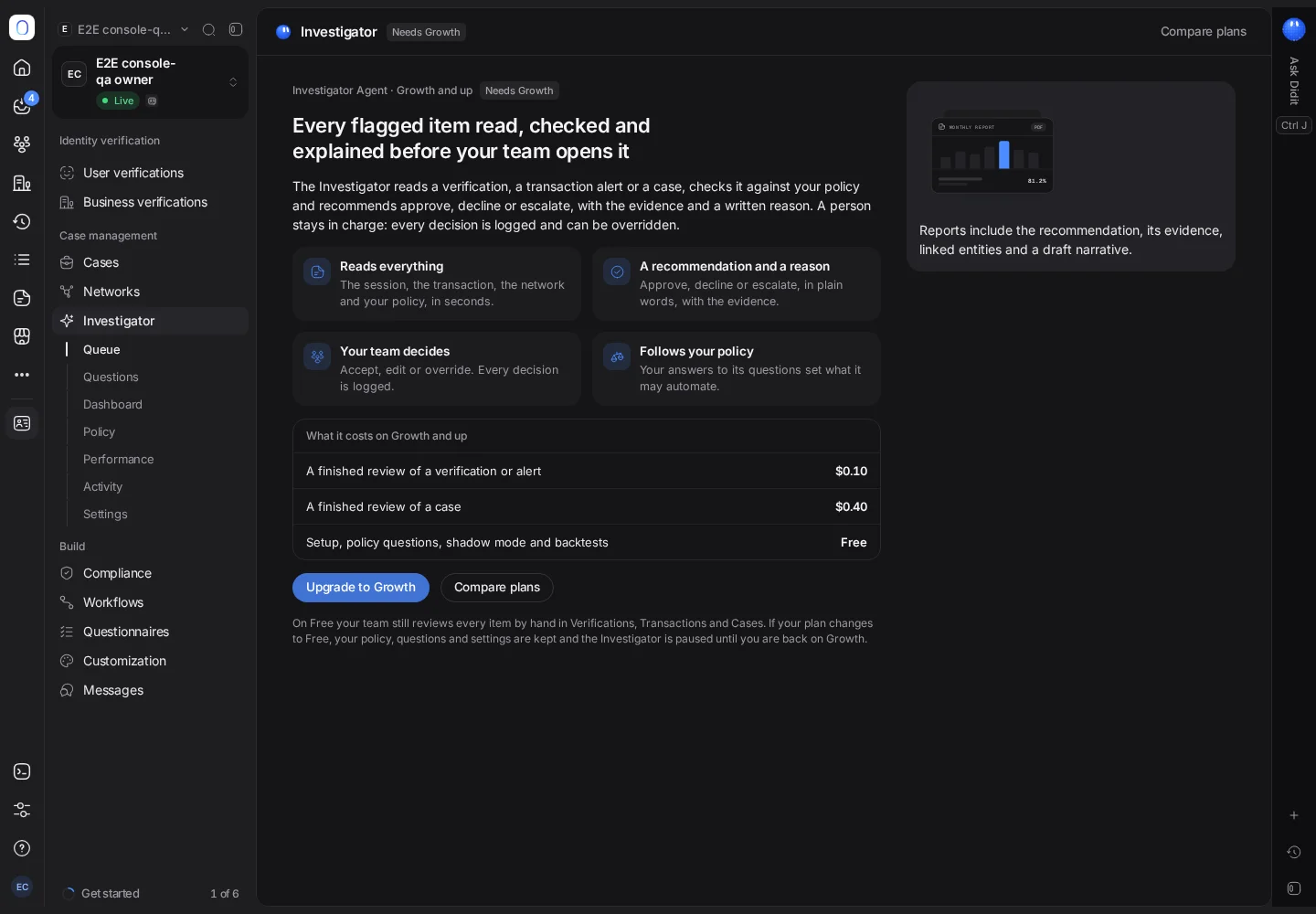
The Investigator is an AI agent that checks a verification, transaction alert or case against your policy and recommends approve, decline or escalate.
The Investigator reads each item that lands in review (a verification, an AML match, a transaction alert or a case), checks it against your policy, and writes a report recommending approve, decline or escalate. You accept, edit or override it. It can be allowed to decide some items on its own, but only after you've tested it on your history and run it in shadow mode first.
The Investigator is rolling out and may not be switched on for your organization yet. If Investigator is missing from the sidebar, it isn't available to you yet. Many of the features on this page are switched on one by one, so you may see some of them before others.
The Investigator lives under Identity verification → Investigator, and under Transaction monitoring & Travel Rule for transaction alerts. It does the reading for you: it gathers the evidence, compares it with your rules, and explains its recommendation in plain language. A person stays in charge, and every decision is logged and can be overridden.
#What it watches
It reports on every queue: Verifications, Business verifications, AML monitoring, Transaction alerts and Cases. What you choose is where it may decide on its own.
#The queue and its reports
The Queue tab lists the items with a report waiting, split between Ready to accept (high confidence, a low-risk action and no open questions) and Needs your judgement. Each row shows a priority and, when the queue has a service level, when the item is due. Sort by Priority, SLA due first or Oldest first, and filter by SLA state, by Contested decisions or by Information requests.
Items the Investigator is still reading show in a Preparing group: Preparing report… with how long it has been working, or Waiting for the Investigator while it hasn't started yet. An item that waits too long goes to your queue without a report after 15 minutes. A case's or a transaction's Investigation section shows the same with a short strip. Everything updates on its own when the report is ready, so you don't need to reload the page.
Each report gives you:
- the recommended action, with a confidence level;
- the evidence and matches it relied on, and the linked people, companies and records;
- what changed since the last review;
- any open questions it couldn't answer;
- suggested next steps and a draft narrative you can reuse in a case or a report;
- What I checked, so you can see exactly where each fact came from;
- provenance: the Didit Investigator version and engine that wrote it, and the version of your policy it followed, so an auditor can tell exactly what produced the report.
Its recommendation is one of approve, decline, escalate or Request information from the person.
Reports are written in the language you choose in Settings. A report in another language than English carries a badge with its language, and quotes, codes and record numbers stay as they were written.
Then you decide: accept the recommendation, edit and accept it, or override it with a category and a short reason. Items that are ready can be accepted in a batch. Accepting saves your decision with the report attached; the agent itself changes nothing on the record until you do.
#Filters, search and keyboard shortcuts
The filters above the queue:
| Filter | What it shows |
|---|---|
| Scope | All, Identity verification or Transaction monitoring |
| Source | All, Sessions, Transactions or Cases |
| Recommendation and Confidence | Only the reports that recommend one action, or that state one confidence |
| SLA | Breached, Due soon, On track or No SLA |
| Contested | Contested only: the decisions the person contested. Shown when explanations to the person are on |
| Information requests | The requests that are Pending, Answered, Overdue or Closed, in place of the queue. Shown when information requests are on |
| Source: Didit or External (API) | External (API) lists the items sent from outside Didit, in place of the queue: see Investigator alerts, webhooks, Copilot and API |
| Sort | Default order, Priority, SLA due first or Oldest first |
Search the queue finds an item by its name or ID, and Clear filters shows the whole queue again. The queue shows 50 items a page.
With a report open, these keys work:
| Key | What it does |
|---|---|
| J | Next report |
| K | Previous report |
| Esc | Close the report |
| ⌘J or Ctrl+J | Ask Didit about this report |
#Override a recommendation
Override opens Override the recommendation. Pick Your decision, an action other than the agent's, and Why the agent got it wrong:
- Missing context the agent could not see
- Needs more information first
- Policy or risk appetite differs
- Evidence read wrongly
- Other
Then write the Reason, from 10 to 500 characters, and press Save override. Your decision is saved with your name, the agent's proposal and your reason, and is written to Activity under Overrides. An override is never billed. When your team keeps overriding the same kind of recommendation, the Investigator asks you a question about your policy.
#Accept a batch
Tick the items that are ready to accept, or Select all ready items, and press Accept N selected. The dialog lists them again so you can untick anything you want to decide yourself. Each item is saved as your own decision, with the agent's report attached, and can't be undone. A batch holds up to 50 items. An item that changed in the meantime is skipped, with its reason: Item no longer available, Permission required, No longer ready to accept, Already decided or Decision could not be applied.
#What else a report can show
Depending on the item and on what is switched on for your application, a report can also include:
| Section | What it is |
|---|---|
| Visual signals | For a verification in the grey zone (a blurry document, a borderline face match, a possible screen capture), the agent looks at the document photos, the selfie and liveness frames, and lists what it saw. The images stay blurred until you reveal them, and revealing one is recorded in Activity |
| Precedents | Up to three past decisions your team took on items with the same situations in the same queue, with who decided, the outcome and their reason |
| Web research | For business verifications and AML matches, what it found on public websites, each fact with its source |
| Network | The records linked to this one by a device, IP address, face, document number, phone, email or address, up to three hops away, with a ring score from 0 to 100. A score of 60 or more is flagged as a possible ring |
| Information request | The thread with the person when it asked them for more, and their answers |
| Explanation | What the person is told about the decision, and whether they contested it |
Visual signals are only signals. The Investigator never decides whether a document is forged, a face is fake or two faces are the same person: Didit's document, liveness and face match engines decide that. A decline written after a visual review is always kept at low confidence and goes to a person.
#Network depth
Network depth, in Settings → How the Investigator reads and writes, sets how many hops the network walk goes from the item: 2 hops or 3 hops. Deeper finds more rings, and more noise. In a report, the Network depth selector of the network section shows the network at another depth: As the review walked it is the report's own walk, and any other depth is Walked live now; the report keeps its own walk, so the report itself never changes. Both appear only where your application allows more than one hop.
#Download, copy or share a report
The Share and download button at the top of a report opens a menu:
| Option | What it does |
|---|---|
| Copy link | Copies the console address of this report, for a teammate who can open it |
| Copy as text | Copies the report to paste into a ticket, an email or your own case tool: the recommendation, the evidence with its sources, open questions, next steps, the narrative, the decision status and a link back to the report. It's formatted as Markdown |
| Download PDF | Downloads the report's review record |
In a case, the same Share and download menu is in the top bar of the Investigation section. In a transaction, use the PDF action in its Investigation section. Print case also includes the case's latest Investigator report. Didit Copilot can download a review record for you too.
The review record is a PDF/A file, a format made for long-term archiving, with the report itself attached as report.json. Its labels follow the report's language. It holds:
- the item, the recommended action, and the evidence with its sources;
- the open questions, the next steps and the draft narrative;
- every step the Investigator checked, with its time in your time zone;
- the human decision, or Not decided yet, and your team's notes;
- How this was produced: the Didit Investigator engine version and your policy version;
- Integrity: when and by whom the record was generated, the report version and the SHA-256 fingerprint of the report.
A record downloaded before anyone decides is marked Pending decision under its title and at the top of every page: it's the Investigator's proposal, not your team's decision. Download it again once the item is decided to keep the final record.
The SHA-256 fingerprint covers the report data attached to the PDF as report.json, not the pages you read. To check a copy someone gave you, extract its report.json, compute the file's SHA-256, and compare it with the fingerprint of a fresh download from Didit: Download PDF, or the reports ZIP, whose index.csv lists each fingerprint. If they match, the report data is genuine. The pages are a rendering of that data, so when in doubt, read the fresh download from Didit.
Keep the record with the case for 5 years, the record-keeping period of the EU anti-money laundering rules (AMLR).
To download the review records of many reports at once, use Export for auditors in Activity: see Control and oversee the Investigator.
#Notes and asking for a second look
Anyone who can decide an item can add a note to it, for example a fact you learned by phone. A note holds up to 2,000 characters. The next review reads your team's notes. You can also ask the Investigator to review the item again, with or without a note. The new report replaces the open one, the old one is never billed, and a re-review is never decided automatically: a person always decides it. After Re-review with this note, the item shows under Preparing until the new report is ready.
A note is context for the agent, not evidence: the report never cites a note as a source.
#Setting it up
Setup takes about five minutes and needs permission to change the application's settings. Setup, the automation levels, Pause automation, Questions, Policy, Dashboard, Performance and Activity are rolling out too, and may not be available yet where the Investigator is.
- What to automate
Pick the queues where the Investigator may later decide on its own.
- Your policy
Answer a few questions about how you decide, or upload your policy document and confirm the answers it drafts. Your answers become its policy.
- Check it on your history
It replays your policy on reports it already prepared, without seeing what your team decided, then compares the two, so you can see how often it would have agreed with your team. Then set the confidence it needs before it may act on its own (90% is recommended).
- Roll it out safely
Choose how long it runs in shadow mode, where it writes reports but changes nothing, and whether it may move up automatically once it agrees with your reviewers 98% of the time or more.
- Review and turn on
Confirm, then press Turn on shadow mode.
The policy, your SOP, the AI backtest and the golden set are explained in Set up the Investigator and its policy.
#Rules it always follows
These can't be switched off by anyone, owners included:
- Sanctions matches always go to a person.
- Fraud and AML reasons never reach end users.
- It makes no decision based on protected characteristics.
- It never files a regulatory report.
- Every decision is logged and can be overridden.
#Questions, policy and performance
- Questions: when an item doesn't fit your policy, it asks you one question with the item attached. Your answer becomes a new rule once you've seen what it would change.
- Policy: every version of your policy, which you can restore or export.
- Dashboard and Performance: how much is automated, reviewer hours saved, spend, accuracy on the quality sample, overrides, and how often it agreed with your reviewers, per queue. Each metric is explained in Control and oversee the Investigator.
- Activity: a permanent log of everything it did, which you can filter and export for your auditors as a CSV, a PDF, or a ZIP with the review record of each report.
#Who can use it
Reading reports needs access to the records they're about. Deciding needs write access to that kind of record (verifications, transactions or cases), so someone with read-only access can read reports but not accept them. Setting up and changing the Investigator needs permission to change the application's settings.
#Learn more
- Set up the Investigator and its policy: policy upload, SOP, gap check, messages to people, AI backtest and its scope, Ask my team, golden set, custom checks and workflow recommendations.
- Control and oversee the Investigator: segments, locks, the dashboard and performance, consistency, drift, service levels, QA of your reviewers, the validation report and Activity.
- The Investigator, the people you verify and their data: information requests, explanations and contests, hidden fields and the EU zero-retention model.
- Investigator alerts, webhooks, Copilot and API: Slack and Teams, webhook events, Didit Copilot, MCP and reviewing items from outside Didit.
Still stuck? Talk to a human.
Include your organization ID and the session ID you are asking about.