Didit Authentication adds sign-in for your own users. It is on in Sandbox, one click in Live. Follow the four set-up steps to a first working sign-in.
Didit Authentication adds sign-in for your own users, with passkeys, email codes, passwords, social sign-in and more, on hosted pages or your own screens. It is already on in every Sandbox application. In a Live application, open Authentication in the sidebar, press Install, then Turn on Authentication. Then follow the four steps of the first-run checklist: choose sign-in methods, add your redirect URLs, try your sign-in page and integrate your application.
#What it is
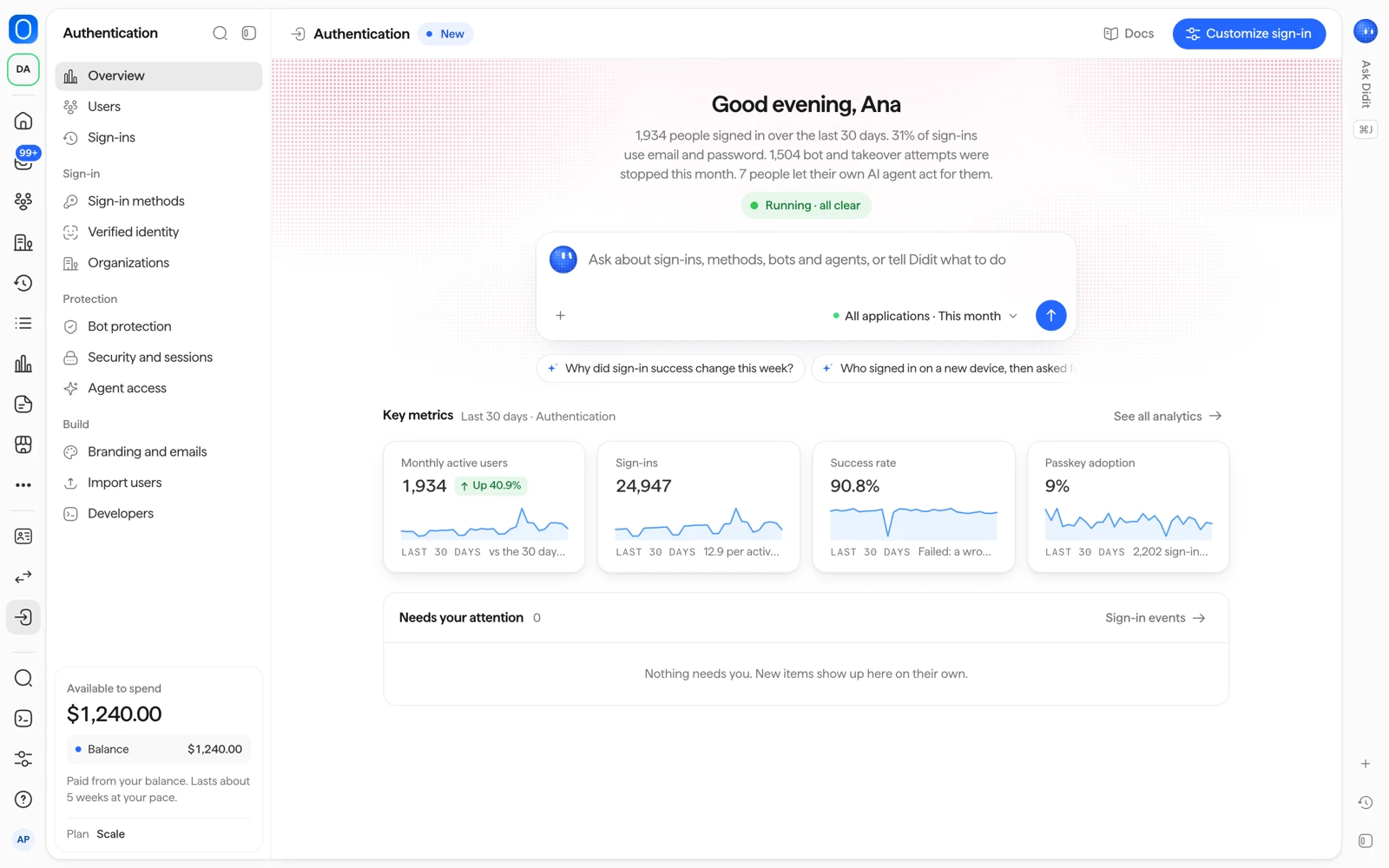
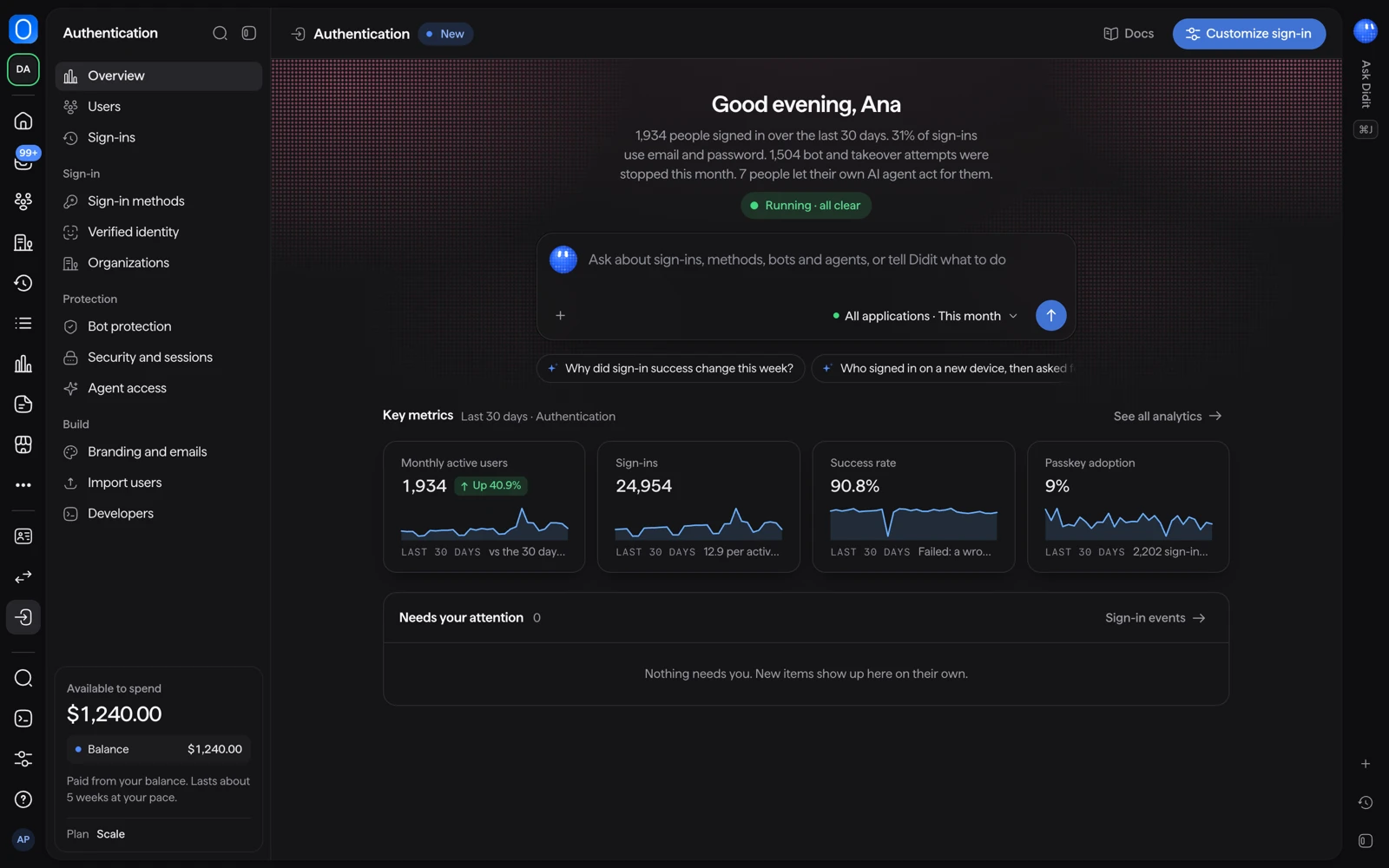
Authentication is one of Didit's three products. It handles sign-up and sign-in for the people who use your app, and you manage it from the Business Console.
The people who sign in are the same people you verify. Each person has one record, and you link their sign-ins and their verifications by using the same vendor_data value in both.
#Turn it on
- Sandbox: nothing to do. Authentication is on in every Sandbox application and is free.
- Live: open Authentication in the sidebar, press Install, then Turn on Authentication. There is no request step and no waiting.
In a Live application, the hosted sign-in page starts working once you save your first Authentication settings, for example your sign-in methods. Until then its address answers "not found".
You need a role that can edit applications. By default that is Developer, Admin and Owner. Reader and Compliance Officer can read the Authentication pages but cannot turn it on or change settings.
#Hosted pages or your own screens
The checklist asks which sign-in screens you want:
- Hosted sign-in page: Didit hosts sign-in, sign-up and the account page in your brand. This is the recommended choice.
- Your own screens: you build the screens and use the SDK components inside your app.
#Set up in four steps
The first-run checklist, Set up Authentication, shows your progress. Everything works in Sandbox first, and your users see nothing until you switch your app to Didit.
- Choose sign-in methods
Open Sign-in methods and switch on the methods you want. See sign-in methods for what each one needs.
- Add your redirect URLs
Open Security and sessions and add your exact addresses under Redirect URLs and allowed origins. You can add up to 50 redirect URLs and 50 allowed origins. Live accepts
https://addresses only. Sandbox also acceptshttp://onlocalhost,127.0.0.1and[::1]. Wildcards, fragments and custom schemes are refused. - Try your sign-in page
Press Try your sign-in page in Sign-in methods, or sign in on your own app in Sandbox.
- Integrate your application
Open Developers, copy the publishable key (it starts with
pk_test_in Sandbox andpk_live_in Live) and install the SDK for your platform. Or press Copy integrate prompt and paste it into an AI coding agent. The publishable key only identifies your application and is not a secret.
Sandbox and Live have separate settings, so repeat the redirect URLs in your Live application and use its pk_live_ key.
#Verify the token on your server
Your app receives an access token after sign-in. Before you trust it, your server must check its signature against your issuer's public keys and check the issuer, the audience and the expiry date. The tokens and JWKS page lists every claim and the exact checks.
#Where things are in the console
| Page | What it does |
|---|---|
| Overview | Setup progress, then sign-ins, active users and usage. |
| Users | The same people list as for verifications, with sign-in controls on each person. |
| Sign-ins | Every sign-in attempt and every active session. |
| Sign-in methods | Switch methods on and off and preview the sign-in box. |
| Verified identity | Ask for a verified identity at sign-up or before sensitive actions. |
| Organizations | Your customers' own organizations, with members and company logins. |
| Bot protection | Choose how bots and account takeover are handled. |
| Security and sessions | Two-step login, session length, password rules and redirect URLs. |
| Agent access | Let people approve their own AI agents with scoped access. |
| Branding and emails | Look of the hosted pages and sign-in emails, and your own domain. |
| Import users | Bring users from another identity platform. |
| Developers | Keys, SDKs, prompt for your AI coding agent, events and webhooks. |
For what Authentication costs, see pricing and active users.
#Related
- Pricing and active users
- Sign-in methods
- Authentication overview in the Didit documentation
- Tokens and JWKS in the Didit documentation
Still stuck? Talk to a human.
Include your organization ID and the session ID you are asking about.