A case groups the evidence for one investigation of a verification, person, company, transaction or network. Open, assign, move through stages, resolve.
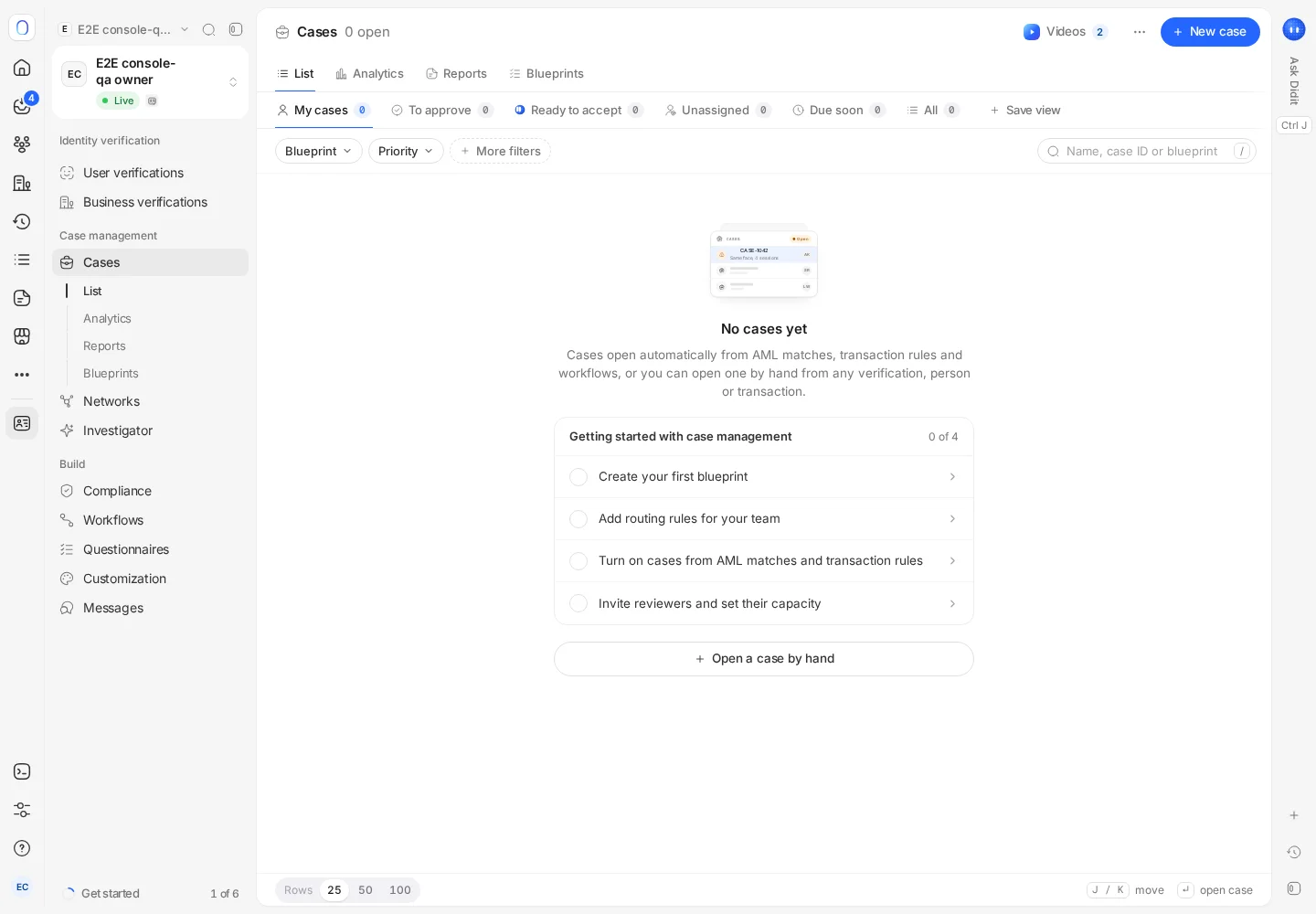
Open Identity verification → Cases. A case collects the records behind one investigation, moves through stages with a deadline, and closes with a recorded outcome. Cases open automatically from AML matches, transaction rules and workflows, or by hand with Create case on any verification, person, company, transaction or network.
Cases are rolling out and may not be switched on for your organization yet. If Cases is missing from the sidebar, it isn't available to you yet.
Where these options are enabled, Cases also shows an Investigator estimate based on the period stated on screen, a card explaining its decision, and a named checker for a resolution awaiting approval. Report dialogs can offer a date range, PDF or CSV, and multiple cases. Plan prompts show the current price and case-owner allowance. Availability depends on the deployed services and your permissions; an unavailable value is not zero.
A case is where an investigation lives. Instead of reviewing a suspicious verification, an AML match and two transactions separately, you put them in one case, decide once, and keep the reasoning, the notes and the outcome together for an auditor.
#Where cases come from
- Automatically, from AML screening matches, from a transaction rule whose action is Open case, and from workflows.
- By hand, with New case on the Cases page, or Create case from a verification, a person, a company, a transaction, an event, a network, or an Investigator report, or Open case from the Inbox.
When you create one, give it a title, add the linked records, and choose a blueprint, a priority and an owner. Linking a record to a case doesn't change its status: verifications and transactions keep their own decision until you resolve the case.
#Finding your cases
The Cases page opens on My cases. The other views are To approve (cases waiting for your sign-off), Unassigned, Due soon and All. Narrow any view with the Blueprint, Priority, Owner and Status filters, or search by name, case ID or blueprint. Save view keeps a view with its filters, in this browser.
Each row shows where the case came from (Manual, AML screening, Transaction rule or Workflow), its status, its stage, its priority, its owner and when it's due. Click a row for a quick preview, or open the full case.
Where stages are available (they're rolling out), switch the layout from List to Board to see one column per stage and drag cases between them.
#Statuses
| Status | What it means |
|---|---|
| Open | Someone is working on it |
| Awaiting information | You've asked for more information and are waiting for it. The deadline is paused |
| Pending approval | The case is resolved by one person and waiting for a second person to approve it |
| Resolved | Closed with an outcome |
#Inside a case
A case page has its evidence in sections on the left: Overview, Review (the checklist your blueprint asks for), Evidence, AML screening, Linked records, Related cases, Requests, Reports and Activity. On the right, Details shows the priority, who it's assigned to, who checks it, the team, key facts and tags.
Use Activity to post notes and to see every change made to the case, by whom and when.
#Resolving a case
Press Resolve and pick the outcome:
- Fraud or risk confirmed, act on linked records
- Reviewed, nothing suspicious
- Not enough evidence either way
- Customer did not provide what was asked
- Customer provided what was asked
For each linked record you can leave it as it is, approve it or decline it, so one decision applies everywhere it should. Every resolution needs an outcome and a note, and Resolve stays blocked until the required checklist items are done.
If the blueprint uses 4-eyes review, resolving sends the case to a second person (the checker) to approve before it closes. Nobody can approve their own finding.
#Escalating and transferring
- Escalate moves the case to the blueprint its own blueprint escalates to. You choose a new priority and give a reason; both are required.
- Transfer gives it to someone else. The case keeps its history, notes and deadline, and the new owner is notified in their Inbox and by email.
A resolved case can be reopened with Reopen case.
#Blueprints, stages and deadlines
A blueprint is a case template. Under Cases → Blueprints you decide, per kind of case:
- the stages a case moves through and the deadline (SLA) for each one, in hours;
- the checklist reviewers complete before resolving;
- who handles the cases, how they're assigned, and the most active cases one person can hold;
- whether cases can be escalated (and to which blueprint) or transferred, and whether 4-eyes review applies.
Ready-made blueprints cover an AML investigation, a KYC review, a screening hit review and suspicious activity. Routing rules send each new case to the right team, checked from top to bottom with the first match winning.
The deadline pauses while a case waits on the customer.
#Analytics and reports
Cases → Analytics shows open cases, how many meet their deadline, the average time to resolve, and how cases split by stage, blueprint, team member and outcome.
Cases → Reports builds regulatory reports from your cases, in PDF and XML, from report templates.
#Who can work on cases
Viewing cases needs permission to list cases, and changing them needs write access to cases. Someone with read-only access can open a case and see everything in it, but the buttons that change it are disabled. See inviting team members and setting roles.
#Cases for transactions
Transaction monitoring has its own Cases entry under Transaction monitoring & Travel Rule, for cases opened from flagged transactions. Add to case on a transaction attaches it to an existing case or creates a new one. See how transaction monitoring works.
Still stuck? Talk to a human.
Include your organization ID and the session ID you are asking about.