Connect Claude, ChatGPT, Cursor or any MCP client from Developers, MCP and agents. The agent signs in with Didit, no API key, and you can revoke it at any time.
Open Developers → MCP and agents in the console and press Connect an agent. Pick Claude, ChatGPT, a terminal command or any other MCP client, and the agent signs in with Didit: no API key is needed. Each authorized agent is listed on the Authorized agents tab, where you can revoke it at any time.
An AI agent such as Claude, ChatGPT, Codex or Cursor can work with your Didit account through the Model Context Protocol (MCP). This article covers what you see in the console. For the technical side, see the MCP documentation.
#Connect an agent
- Open MCP and agents
In the console, open Developers and choose MCP and agents. The Authorized agents tab lists every agent already connected.
- Press Connect an agent
The menu offers a one-click add for Claude, Didit in ChatGPT Connectors, one command to run in your terminal, and a server URL to add to any other MCP client.
- Sign in with Didit
The agent opens a Didit sign-in. Choose the organizations it may use and approve the permissions. Check that you are signed in to the right account first.
- Enter the code, if your agent shows one
An agent in a terminal or desktop app shows an 8-character code. Open the page Enter the code from your agent, paste the whole code (letters turn uppercase on their own) and press Continue. Approve only if the code matches the one in your terminal.
Developers → Quick start also has a Connect your AI agents step with the same options.
#If the code does not work
- A code works for 10 minutes. After that, run the sign-in command in your terminal again to get a new one, and select Enter a new code.
- After too many wrong codes you have to wait 15 minutes before trying again.
#What an agent can access
An agent acts with the role of the person who authorized it, and only in the organizations that person chose. It cannot do more than that person can. The Access column shows what each agent was given:
| Access | What it means |
|---|---|
| Verifications | Run and read verifications |
| Workspace | Manage your workspace: workflows, cases, lists and settings your role allows |
| Sign-in only | The agent can sign in but has no other access |
See team members and roles for what each role allows.
#See and revoke authorized agents
The Authorized agents tab shows, for each agent, who authorized it (Authorized by), its Organizations, its Access, when it was Authorized and when it was Last used. Use the search box to find an agent or a person.
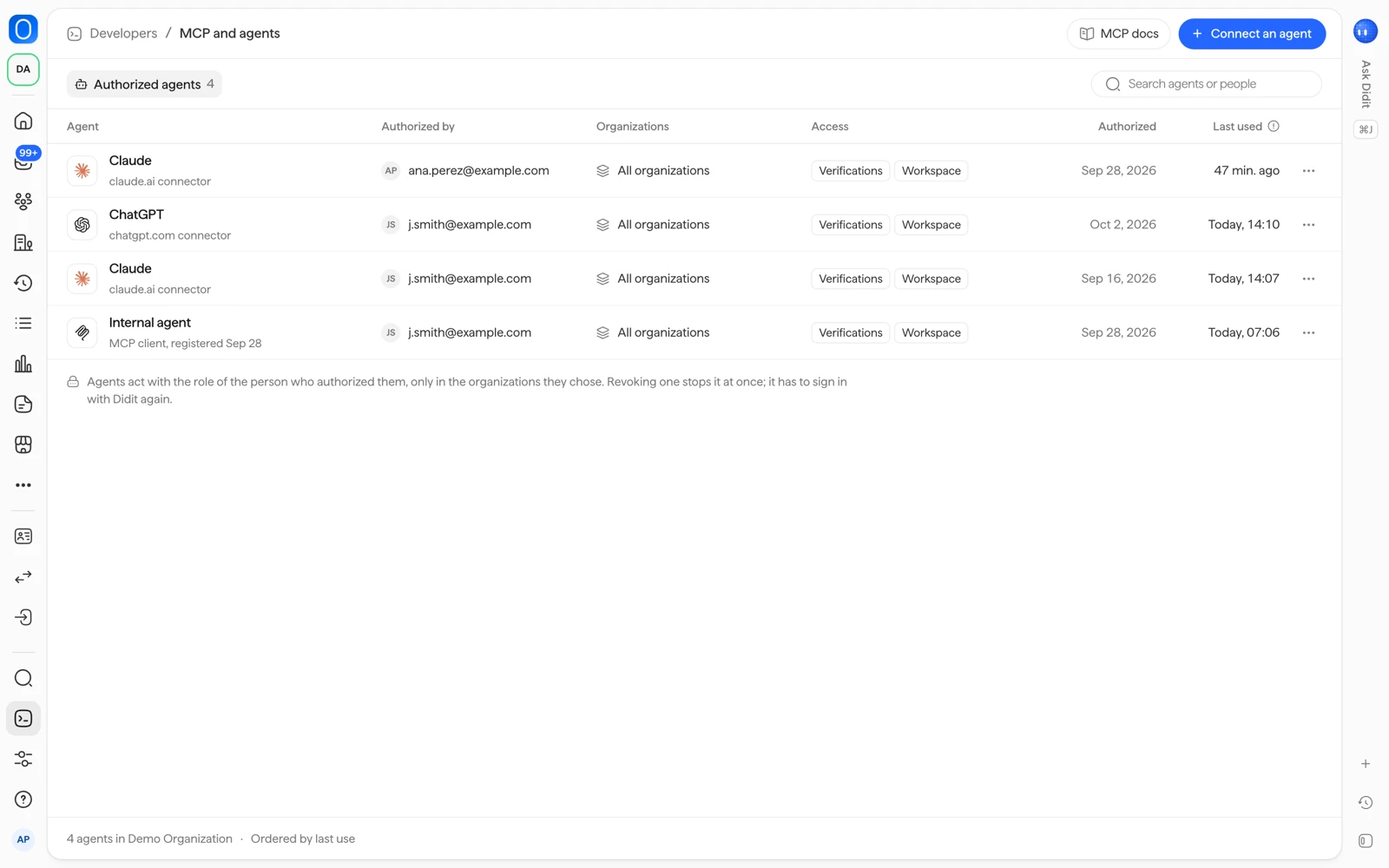
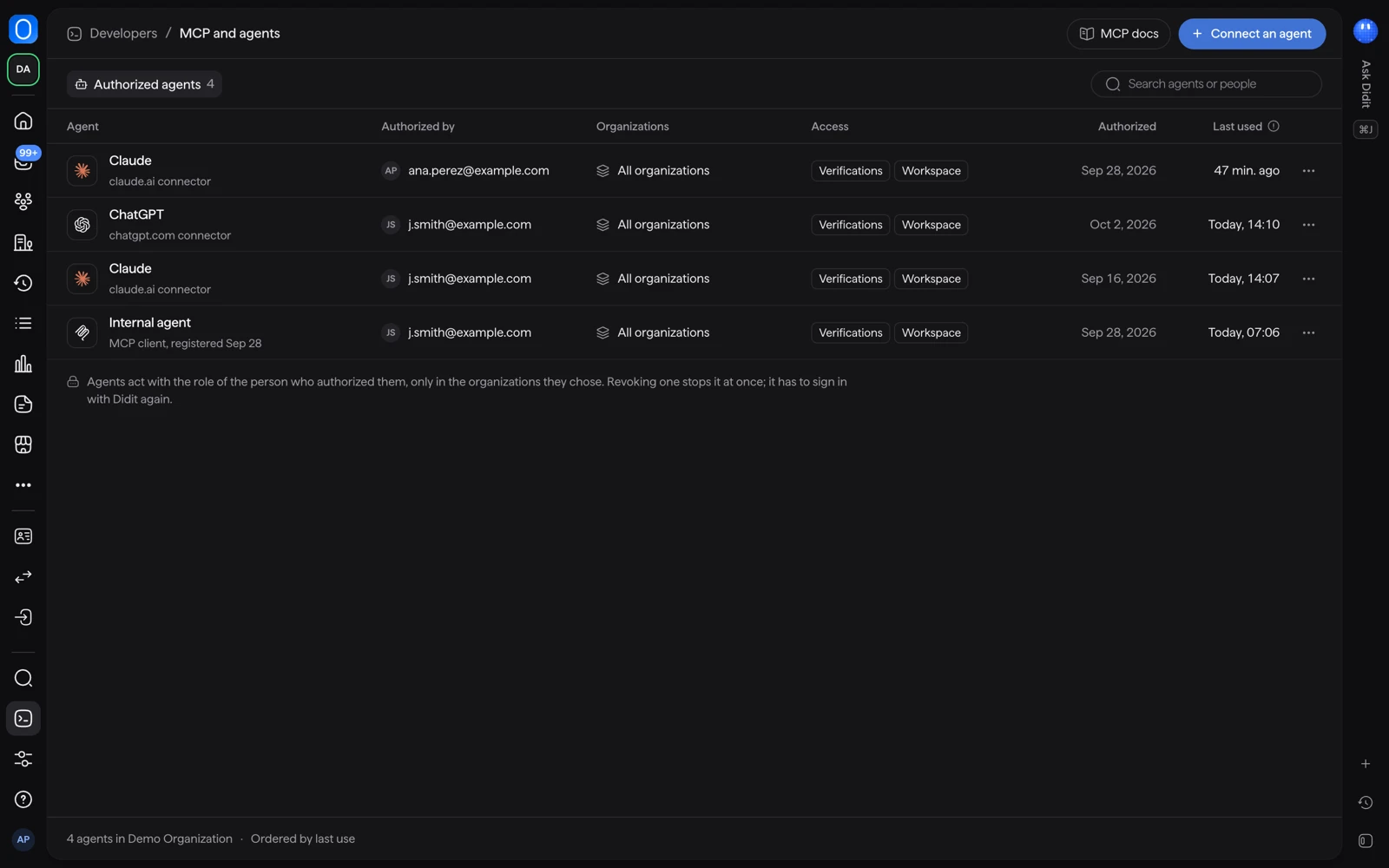
To remove an agent, open the menu on its row and choose Revoke access, then confirm. The agent stops working with Didit at once, in every organization it could reach. To use it again, its owner connects it and signs in with Didit again. The same menu has Copy client ID.
#When unused access ends
Unused agents lose their access after 30 days. The row shows an Expires date for it.
Review the list now and then and revoke agents nobody uses. An agent connected by someone who has left your team should be revoked.
#Related
- Ways to integrate: API, SDKs, and no-code links
- Managing your API keys
- Didit MCP server on docs.didit.me
Still stuck? Talk to a human.
Include your organization ID and the session ID you are asking about.