Add an E-signature step so the verified person signs your PDF or Word documents. Create the document, choose Simple or Advanced, and see the price.
Add an E-signature step to a workflow and the person you verify signs your documents inside the same flow. Create the document under E-signatures in the console (from a description, a template or your own PDF or Word file), place the fields, and attach it to the workflow. Pick the Simple level for low-risk agreements or Advanced (AES) when the signer must first be verified. It costs $0.10 per signed session.
#Create a document
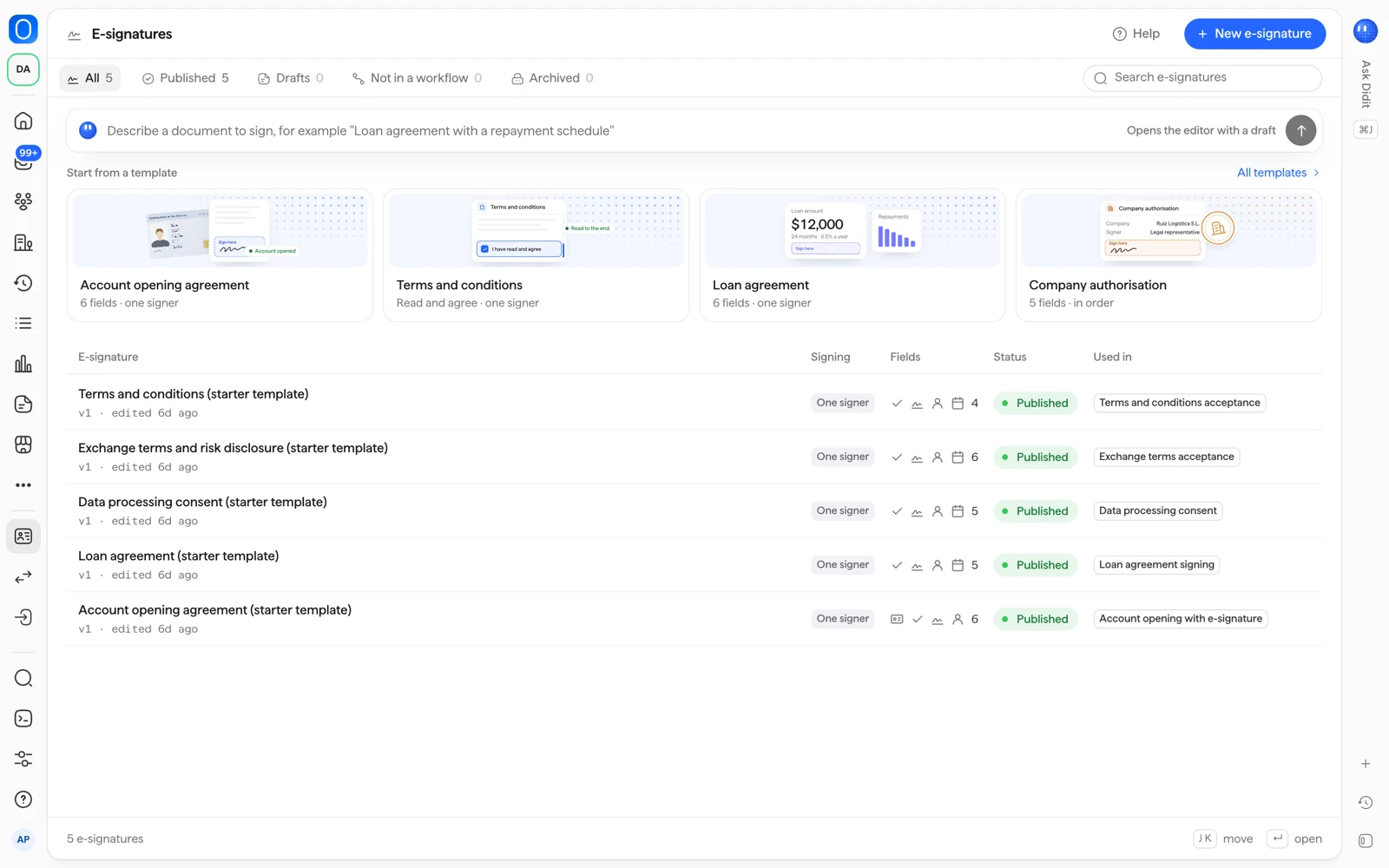
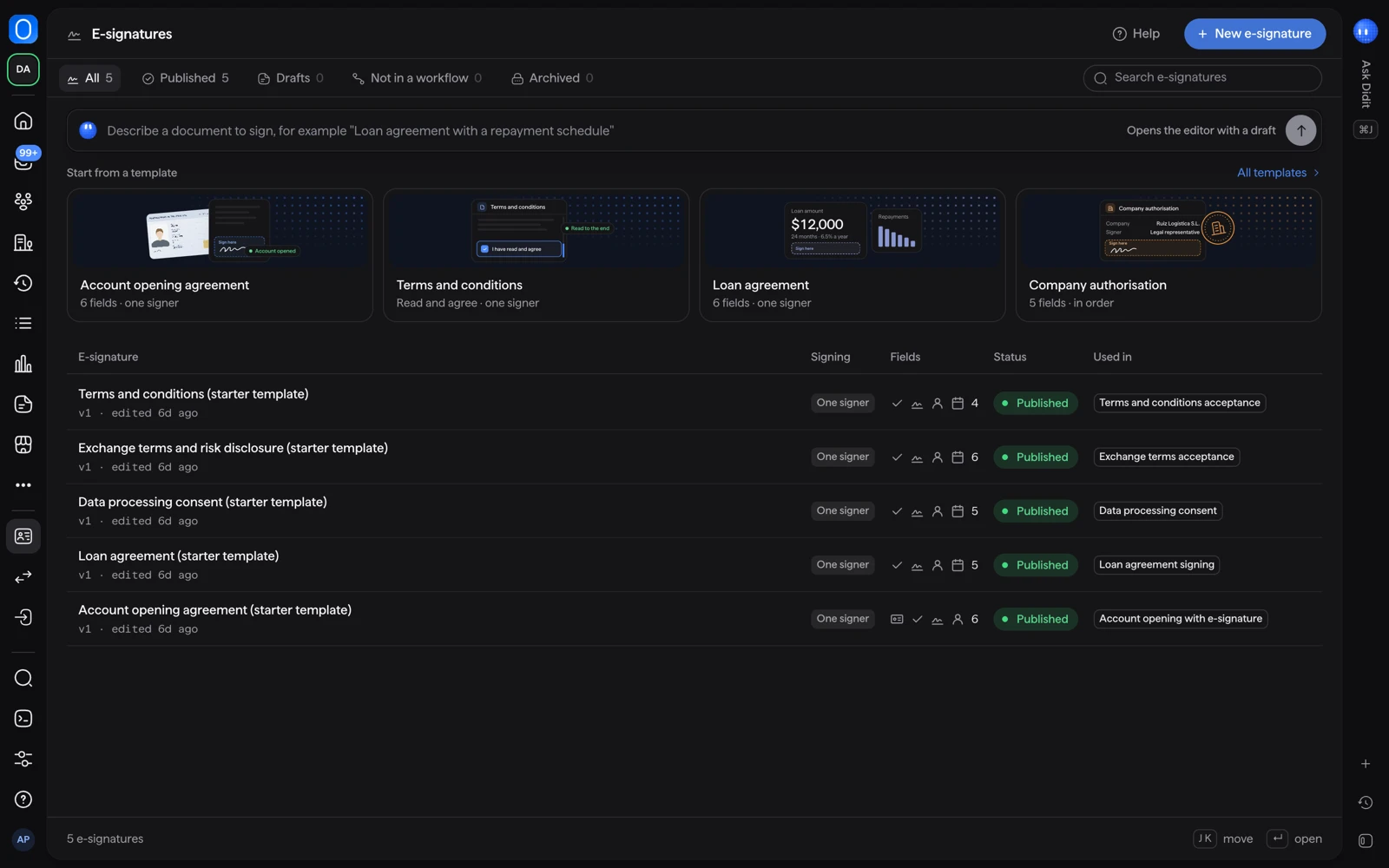
In the console sidebar, open E-signatures and select New e-signature. You can start three ways:
- Describe it. Type what you need in Describe a document to sign and select Draft document. Didit drafts the document with the fields placed, and you review it in the editor. Drafting can take up to 40 seconds.
- Start from a template. Pick the closest of the starter templates (for example account opening agreement, terms and conditions, data processing consent, loan agreement, beneficial owner declaration). Every field can be moved later.
- Upload your own file. PDF or Word (
.docx), up to 20 MB and 100 pages. Word files are converted to PDF, so check the converted pages before you place fields.
Templates and drafted documents are a starting point, not legal advice. Have your own counsel review them before you send them for signature.
The new document is a draft. Nothing is shown to anyone until the workflow it belongs to is published.
#Place fields and attach it to a workflow
- Open the workflow
Go to Workflows, open the workflow and add the E-signature step after the steps that verify the signer.
- Add documents
In Documents, upload PDF or Word files and drag them into the order the signer sees them. In Place fields on the documents, select Open editor, drag a field onto the page and set who fills it, its label and whether it is required. Preview as signer shows what the signer will see.
- Choose the signer and level
In Settings, choose the Signer under Who signs and the level under Signature level. In Rules, choose what each warning does (for example when the person declines to sign).
- Save and publish
Save the workflow and publish it. Sessions that already started keep the version they began with.
If the document has no fields, the signer reads it and agrees to it. You can require them to read to the end first.
#Who signs
| Workflow type | Signer options |
|---|---|
| Person verification (KYC) | The verified person in that session |
| Business verification (KYB) | The Legal representative, or Each key person |
In a business verification, each signer needs their own approved verification and signs their own copy. See key people and UBOs.
#Simple or Advanced
| Level | What it needs | What it means |
|---|---|---|
| Simple (default) | No ID, email or phone | The person types their name to sign. The typed name is not verified, and anyone who holds the session link can sign. If the workflow already verified them, that name is used. |
| Advanced (AES) | An approved ID verification and a verified email or phone earlier in the same session | Didit sends a one-time code to that email or phone, and the signature is tied to the verified identity. |
Simple is not available for company signers in a business verification: they need Advanced (AES). For regulated or high-value contracts, use Advanced (AES). Qualified (QES) is not available yet.
To use Advanced (AES), put ID verification and Email or Phone verification before the E-signature step. See phone and email verification.
#What the signer sees
- An intro that lists the documents.
- Each document in order. For a document with fields, they are guided from field to field. They adopt a signature once, typed or drawn, and it applies to every signature field.
- A review, where they agree to sign electronically.
- At the Advanced (AES) level, a code. It is valid for 5 minutes, a new one can be sent after 60 seconds, and the signer gets up to 5 codes and 3 wrong attempts.
- A confirmation, and a download of their signed documents. Under Advanced in the step you can also choose to email them a copy.
The signer can decline instead of signing. A declined signature raises the warning you set in Rules. The signing link stays valid for the number of days you set (1 to 30, default 7).
#What it costs
E-signature costs $0.10 per signed session, whatever the number of documents and whether the level is Simple or Advanced (AES). A signature that is declined, fails or expires is not charged. The ID, email or phone steps before it are billed as their own checks. See what counts as a billable check.
#Related
Still stuck? Talk to a human.
Include your organization ID and the session ID you are asking about.