
Building a verification workflow
A workflow is the set of checks a person completes and what happens with each result - here's how to build one, publish it, and avoid the mistakes that make it behave unexpectedly.
Workflows live per application, so check you're in the right one first. Build in Simple mode for a standard flow or Advanced mode for branching, then publish - a draft doesn't apply. Sessions keep the version they started with, so a change only affects new sessions.
A workflow is where you define which checks a person goes through - ID document, liveness, face match, AML, and so on - and what happens with each result. Every verification session runs against a workflow.
#Where to build one
In the Business Console, open the application you want to work in, then go to Workflows in the sidebar and click Create New.
Each application has its own set of workflows. If you're managing several products, or a sandbox and a live setup, make sure you're in the right application first - building a workflow in the wrong one is the most common reason a change appears to have had no effect.
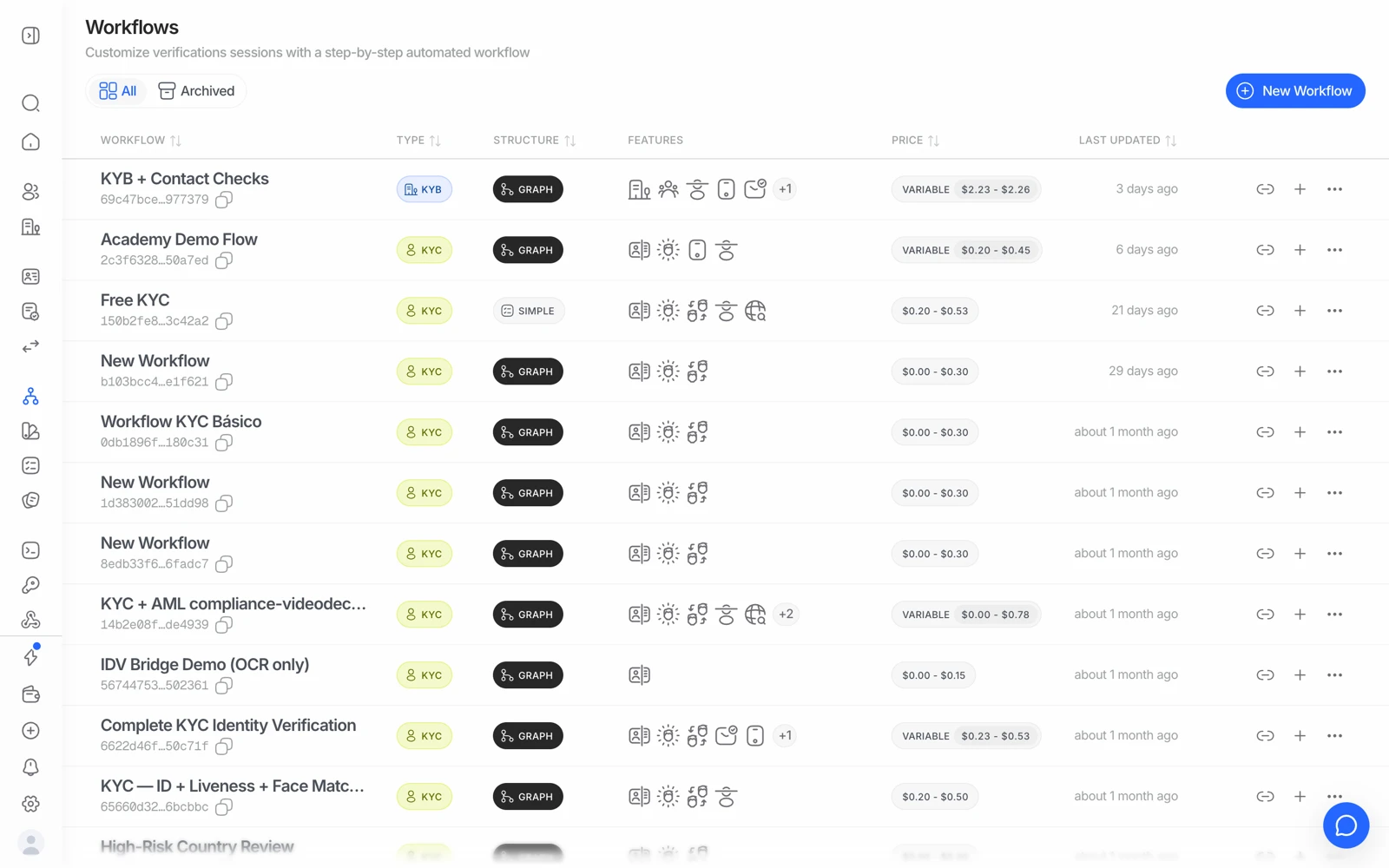
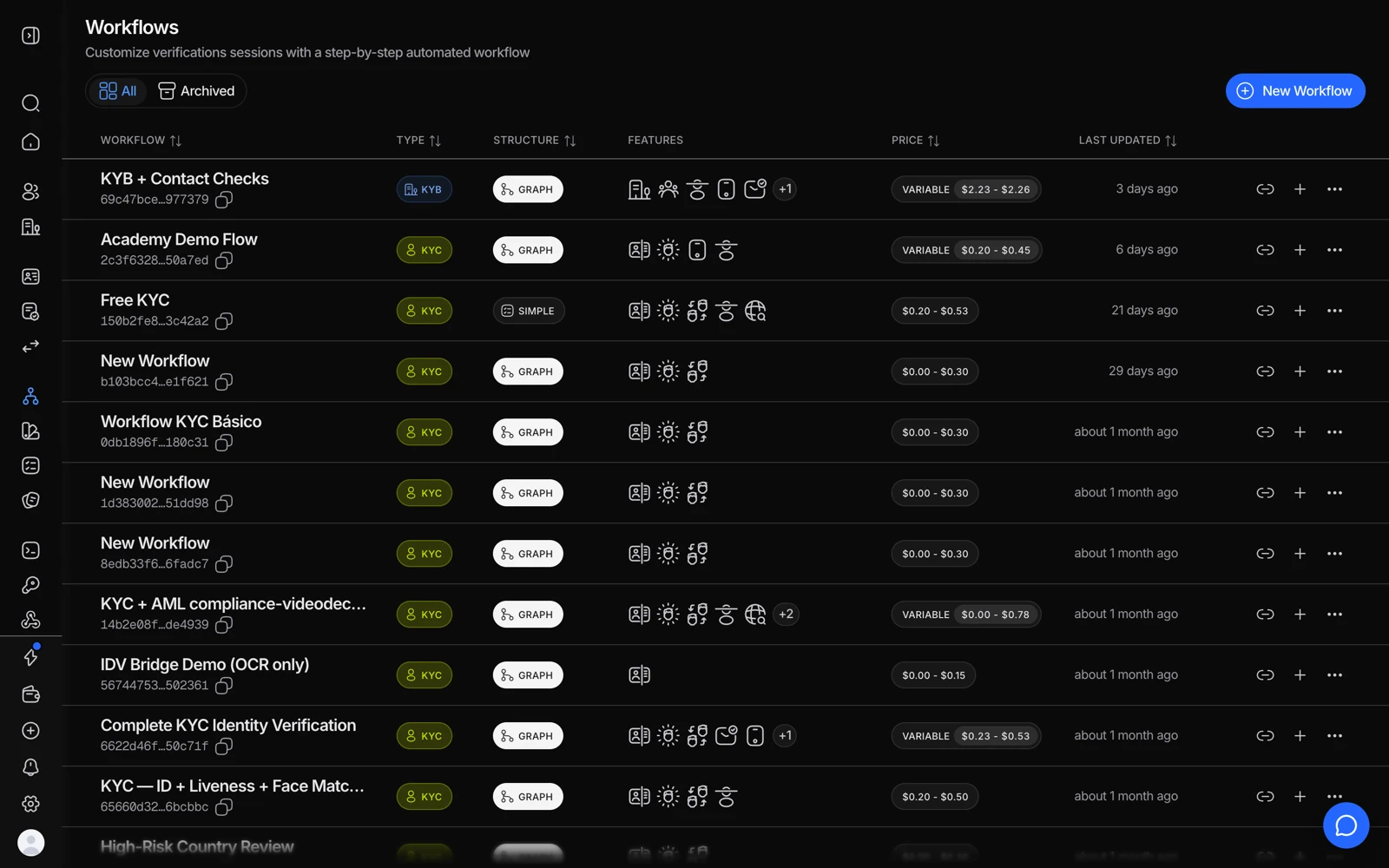
- New Workflow starts a flow - simple for a fixed list of checks, graph for branching.
- The Features column shows what each workflow actually runs.
- Price is what one completed session through that workflow costs.
- Copy link gives you a reusable verification URL for that workflow.
#Two ways to build
- Simple mode
Pick a template - KYC, Adaptive age verification, biometric re-authentication, or address verification - and toggle the checks you want on or off (liveness, face match, AML, NFC, phone, email, and more). This is the fastest way to get a standard flow running.
- Advanced mode
Use the visual graph builder to add conditional branches: route people by country, document type, age, or a check's result, and send different outcomes down different paths. Use this when you need logic beyond "run these checks in order."
- Publish
Publishing turns your draft into a live version. Sessions already in progress keep using the version they started with, so publishing changes never disrupts someone mid-flow.
#Order matters more than it looks
Because a step configured to decline stops the workflow, the order of your steps decides both what a user experiences and what you pay. A cheap risk check in front of an expensive bundle filters traffic before you pay for the expensive part.
The full picture is in decision rules and thresholds - it's the article to read after this one, because a workflow's steps are only half of its behaviour.
#Every module you can add
| Category | Modules |
|---|---|
| Document | ID verification, NFC, Document AI, proof of address |
| Biometric | Passive liveness, active liveness, face match 1:1, face search, biometric authentication, age estimation |
| Contact | Phone verification, email verification |
| Data | Database validation, questionnaires |
| Risk | AML screening, ongoing AML monitoring, device and IP analysis |
Each one you enable adds to the price of a completed session, and only four of them have a free monthly allowance. See what counts as a billable check before you switch several on.
#Finding your workflow ID
Each workflow has a unique ID, shown on the Workflows page in the console. You'll need it if you're creating sessions through the API - see ways to integrate.
#Controlling what happens when a check fails
By default, a failed check declines the session and the person is told at the end that verification didn't succeed - you can see exactly which check failed and why in the session's details. In Advanced mode you route each outcome yourself: send it to Declined, or to In Review so a teammate makes the final call.
See what each session status means for what each outcome looks like, and letting someone try a verification again if you want to let a person redo just the step that failed.
#Things that make a workflow behave unexpectedly
In the order they actually happen:
- You edited a different workflow, or a different application's copy of it. Check the workflow ID against the one your sessions use.
- The draft was never published. A saved draft is not a live version.
- You're testing with an old session. Sessions keep their creation-time configuration. Create a new one.
- A document type is allowed but no subtype is selected - which matches nothing rather than everything. See supported documents and countries.
- An earlier step declined and stopped the flow, so the step you're testing never ran.
- A copied workflow didn't carry everything over. After duplicating a workflow, check the steps and rules you care about rather than assuming a clean copy.
The Questionnaire check's country-code list covers the large majority of countries. If a code you need doesn't appear, contact support rather than assuming it isn't supported.
#Test it before real users see it
Build the flow in a sandbox application and force each outcome you care about - approved, each decline, each review path. It costs nothing and it's the only way to know your rules do what you think. See testing in sandbox.
#Next steps
- Set what each result does: decision rules and thresholds
- Match the flow to your brand: customizing branding and the verification experience
- Launch sessions with no code, or automate them via the API: ways to integrate
- Full technical reference: Workflows