Choose which console events reach you by email, in the console, Slack, Microsoft Teams, Telegram or by SMS, set quiet hours, and set them for your whole team.
Open Settings → Notifications (under Your account). Connect the channels you want, then pick, event by event, where you hear about it: a session in review, a mention, a failing webhook, a new AML hit, a low balance and more. These settings are yours alone; each teammate chooses their own.
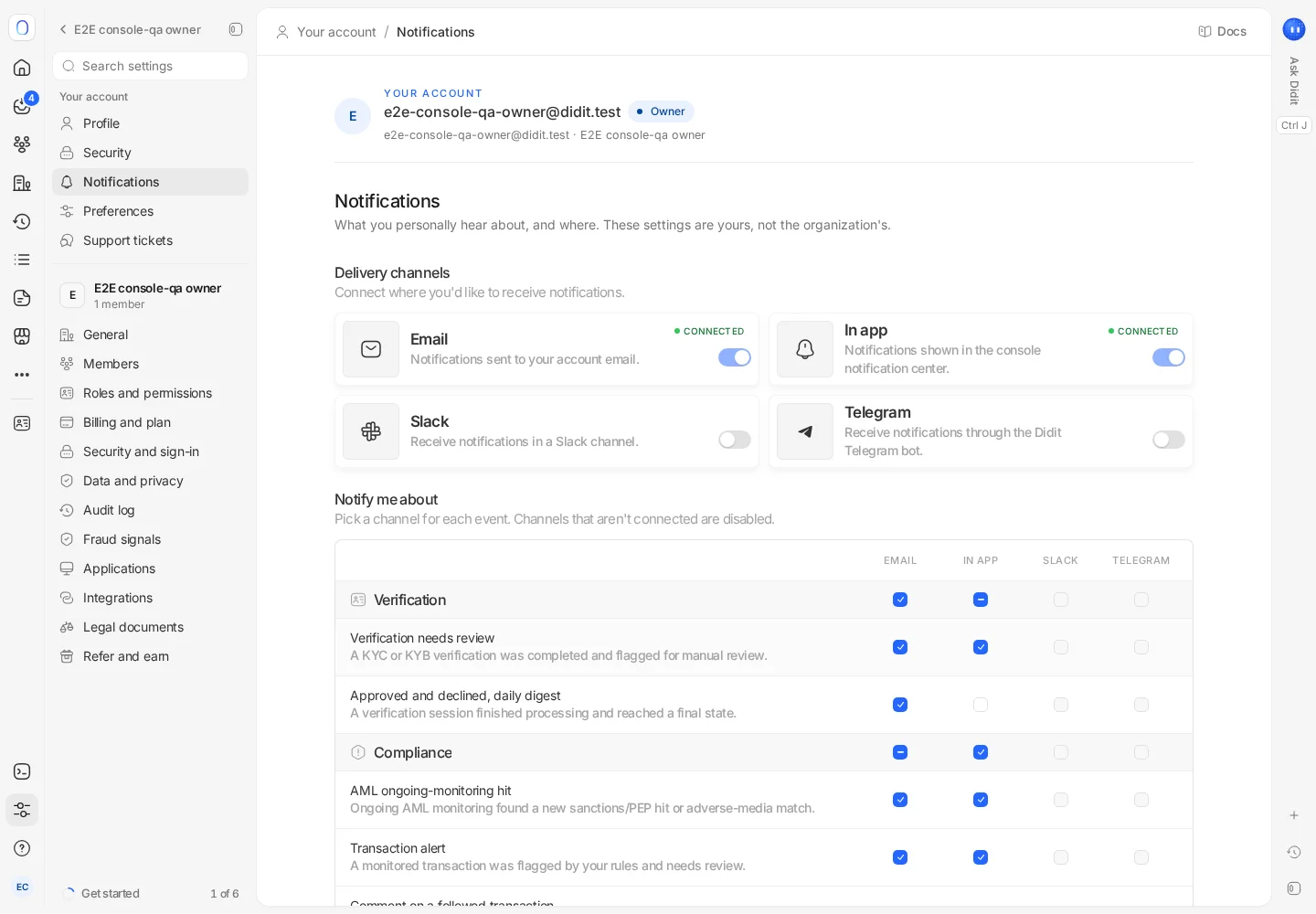
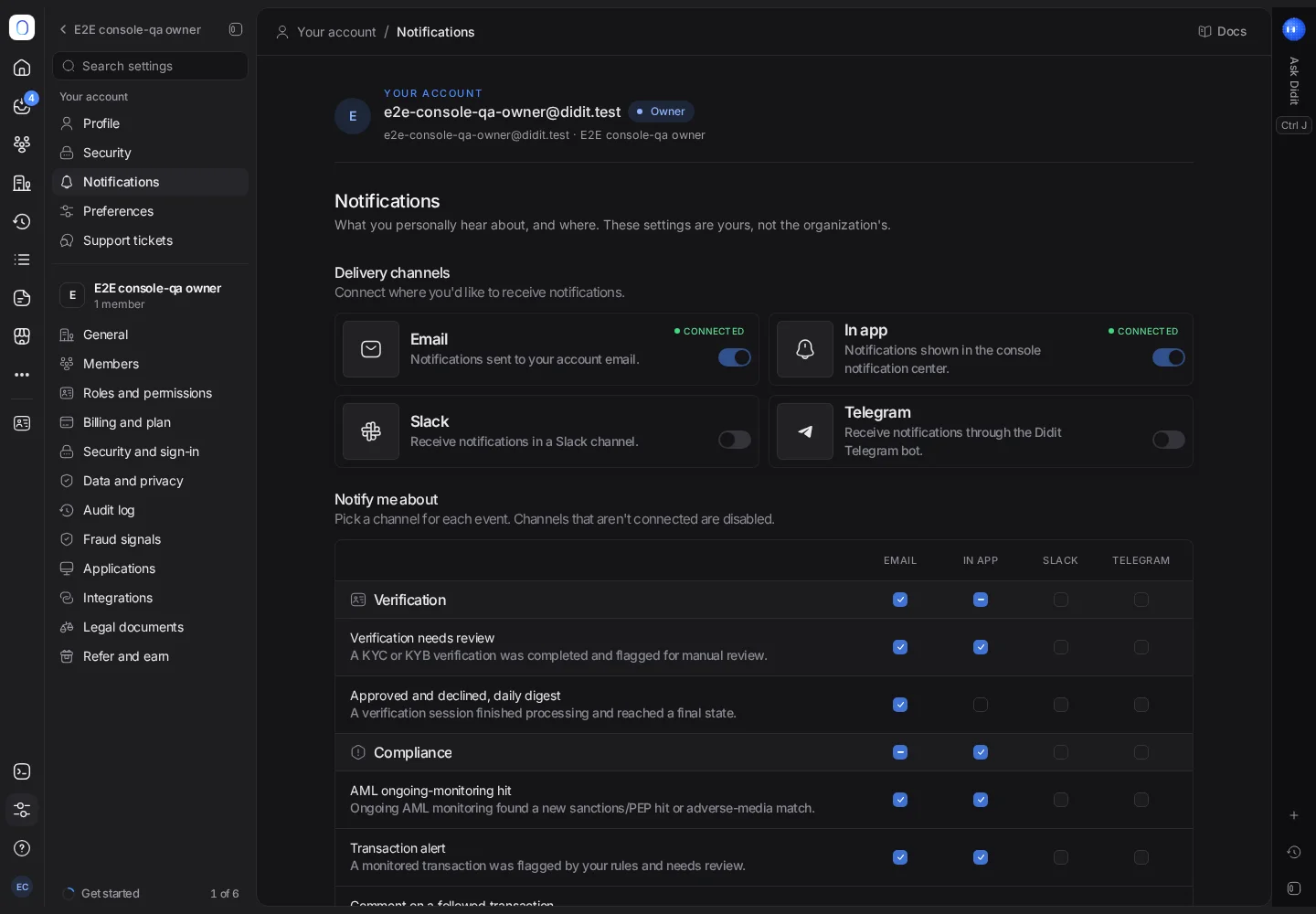
The redesigned notification settings described here are rolling out. If your page still shows Delivery channels, Notify me about and Low balance limit, you have the previous version: Email and In-app are always on, Slack and Telegram each have a switch, and the grid below picks the alerts each channel gets.
#Your channels
- Email and in-app notifications are always on. In-app notifications land in the console's notification center, which is your Inbox where it's available.
- Slack, Microsoft Teams and Telegram need connecting once, with Connect. Use Send test to check they arrive.
- SMS is for critical alerts only, such as a service going down. Verify your number with a 6-digit code. SMS alerts start after your organization's first top-up, and Didit pays for them.
Some channels are rolling out and may show as not available yet.
#What you hear about
Each event has a row, and each channel a column. Pick where you want each one, for example:
- a verification completed and flagged for manual review;
- a teammate @mentioned you;
- a webhook endpoint failed after several delivery attempts;
- ongoing AML monitoring found a new match;
- your organization's balance dropped below your limit;
- where case management is available, a case was assigned to you, or needs your approval.
Channels you haven't connected are disabled in the grid. Set the balance that counts as low under Low balance limit.
Some alerts can't be switched off: security alerts about your own account always go to your email, and owners always receive billing-critical alerts.
#Quiet hours
Where available, Quiet hours holds non-critical notifications overnight, for example from 21:00 to 08:00, in your time zone. Critical alerts still come through; the rest wait until the morning. Quiet hours follow the time zone saved on your account; if none is saved yet, the console saves your browser's time zone the first time you change them.
#Notifications for the whole team
Admins can set up team-wide notifications for the organization: shared destinations such as a Slack or Microsoft Teams channel, a shared email address or a signed alert webhook; routing rules that send each kind of event to a role, a person or a destination; and the default channels for each role. This needs permission to change the organization and is rolling out, so it may not be available to you yet.
#Notifications versus messages to your users
These settings are about you and your team. Messages to the people you verify, such as reminders and status emails, are set up separately in Messages, where it's available. See messages to the people you verify.
Still stuck? Talk to a human.
Include your organization ID and the session ID you are asking about.