Invite teammates from Settings, Members, give them a role in each product, and control exactly what each person can see and do with built-in or custom roles.
Invite from Settings → Members with Invite member. A member holds one role in each product; owners and admins have every product. If a console section looks missing or disabled for someone, it's nearly always their role rather than a bug.
You invite teammates under Settings → Members, and give each one a role that controls what they can see and do in the console.
#Inviting a team member
- Go to Settings, then Members
In the console sidebar, open Settings, then Members under your organization, and press Invite member.
- Enter their email addresses
Up to five at a time, separated by commas.
- Choose a role in each product
Pick a built-in or custom role for each product they should open, or make them Admin, which covers every product. Invitations expire after 30 days, and stay under Pending invitations until they're accepted.
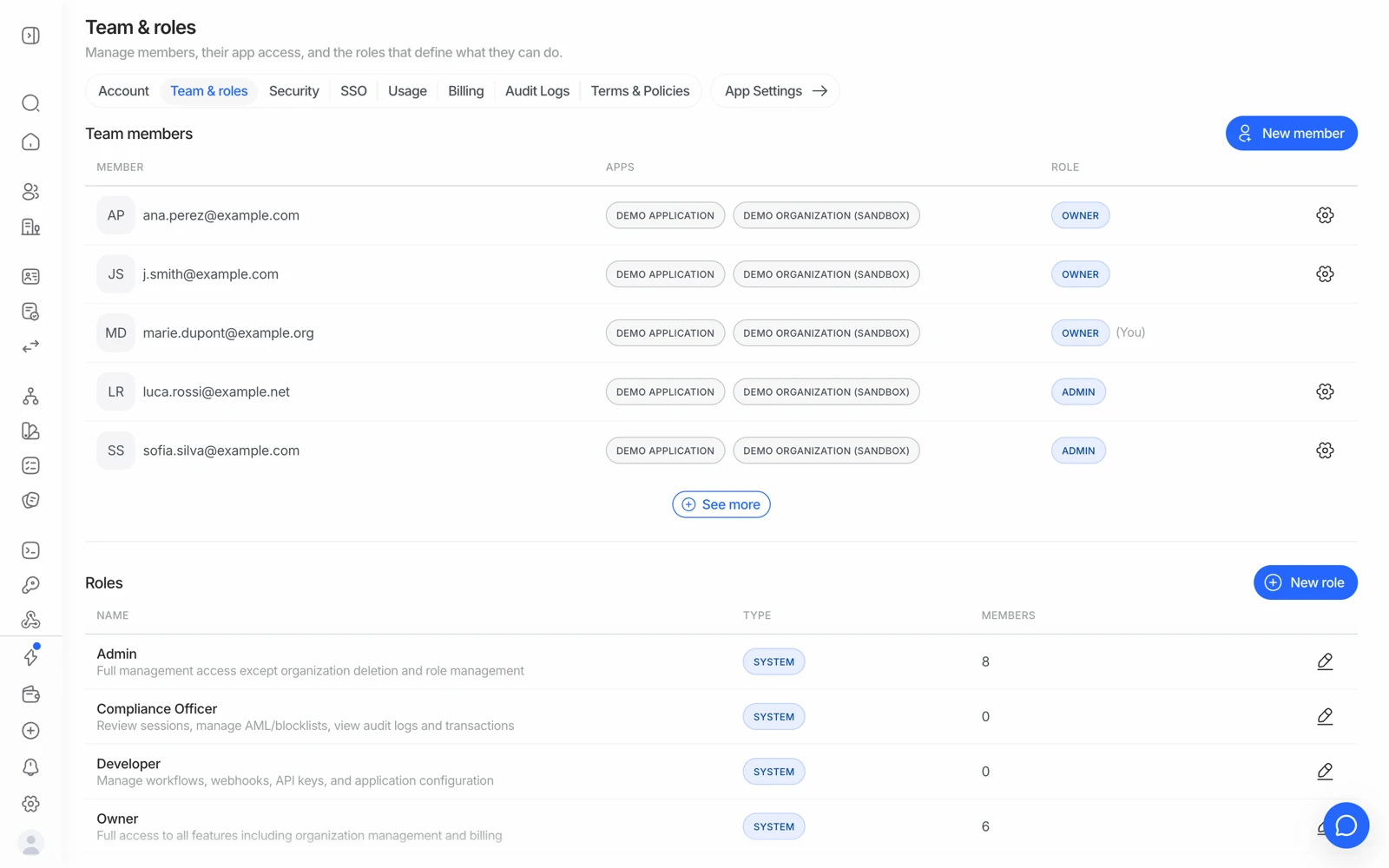
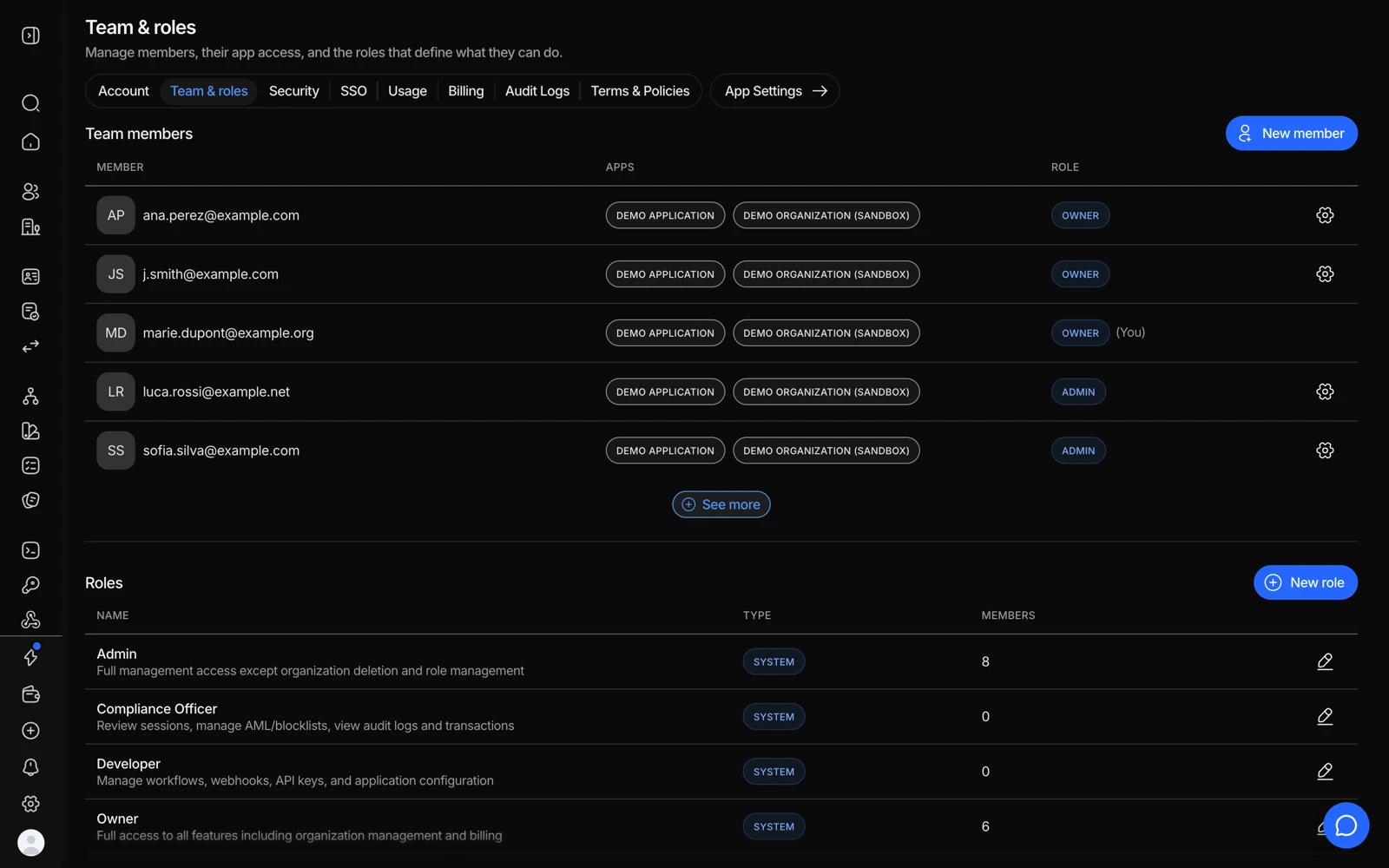
#Built-in roles
| Role | What it covers |
|---|---|
| Owner | Everything, including billing and deleting the organization. Only the owner can delete the organization or transfer ownership |
| Admin | Everything except deleting the organization or transferring ownership |
| Compliance officer | Reads everything, decides on verifications, edits lists and the blocklist |
| Developer | Workflows, API keys, webhooks and developer tools, with read-only access to verifications |
| Reader | Read and list only. Can't change anything |
Owner and Admin are fixed. The other built-in roles can be the starting point for a custom role.
#Custom roles
If the built-in roles don't fit, build a custom role under Settings → Roles and permissions: press New role (or Customize on a built-in role), start from a built-in role, name it, then turn Read and Write on or off for each part of the console. The page shows exactly what changes before you save.
Custom roles can be edited at any time under Settings → Roles and permissions, where Owner and Admin are fixed and the other roles can be customized. Delete role only works once no member and no pending invitation holds the role, so reassign them first.
#"It looks broken" is usually a role
Before treating a missing or inert section as a bug, check the person's role. Two examples that come up repeatedly:
- The white-label editor appears but does nothing. Changing customization needs write access to Customization; read-only members see it disabled rather than getting an error. See customizing branding.
- Invoices aren't visible. Billing visibility is included for Owner and Admin and can be granted to a custom role. A Developer or a Reader won't see it. See top-ups, invoices and payment methods.
#Making someone an owner
Under Settings → Members, open your own entry (as the owner) and choose Transfer ownership, then Choose new owner. Only the owner can do this: the person you choose becomes the owner and your role changes to Admin. An organization always has one owner, so make sure the person you pick is someone you trust with billing and deletion.
#Changing someone's role
Go to Settings → Members, open the member, and change their role in each product. This replaces their current role in that product - it doesn't add a second one.
#If an invite doesn't go through
An email can only belong to one Didit organization at a time. If your teammate already has an account - typically because they signed up directly instead of waiting for your invite - that account has to be moved or removed before the invite can land.
Contact support if you hit this; they can sort out the account so the invite goes through cleanly. It's a very common situation and not something you've done wrong. See logging in and recovering account access.
#Removing someone
Also under Settings → Members, you can remove a member's access at any time. It removes their access to this organization only; their account and their access to other organizations aren't affected. Removing a person doesn't remove what they did - their actions stay in the audit log, which is the point of having one. See using audit logs.
When someone leaves, remove their console access and rotate any API key they had access to. Console access and API keys are separate paths in, and revoking one doesn't revoke the other. See managing your API keys.
#Permissions on API keys
Roles govern people in the console. An API key's permissions are a separate matter, and some operations need permissions a key may not have - which surfaces as a 403 rather than a hidden menu. See API errors and what they mean.
Still stuck? Talk to a human.
Include your organization ID and the session ID you are asking about.